
How to Conceal Apps on Your Smartphone
Are you worried about people snooping into your phone’s apps when you lend it to someone? Do you want to keep certain apps private from prying eyes? Look no further! In this article, we’ll show you how to conceal apps on both Android and iOS devices.
Why Conceal Apps?
Concealing apps is a simple yet effective way to maintain your phone’s privacy. When lending your phone to someone, you wouldn’t want them to see sensitive information or access private apps. By concealing these apps, you can ensure that only authorized individuals can view them.
Android: Concealing Apps With Launchers
If you’re using an Android device, concealing apps is relatively easy. You can use a third-party launcher like Nova Launcher to hide unwanted apps.
- Download and install the Nova Launcher from the Google Play Store.
- Open the launcher and follow the instructions for setting it up as your default home screen.
- Hold down on an empty area of the home screen and select “Settings” from the menu that appears.
- In the Settings menu, go to “Menu” and then select “Hide Apps.”
- Choose the apps you want to conceal and toggle them on.
Alternatively, you can use the Hide App app available for free on the Play Store. To do this:
- Download and install the Hide App app.
- Open the app and tap the “+” icon at the top-right corner.
- Select the apps you want to conceal and toggle them on.
Samsung: Concealing Apps With One UI
If you’re using a Samsung device, concealing apps is a breeze with the One UI launcher.
- Hold down on an empty area of the home screen and select “Settings” from the menu that appears.
- In the Settings menu, go to “Home Screen” and then select “Hide Apps.”
- Choose the apps you want to conceal and toggle them on.
Xiaomi: Concealing Apps With Safety App
If you’re using a Xiaomi device, concealing apps is easy with the built-in Safety app.
- Open the Safety app.
- Go to the “Applications” section.
- Toggle the switch next to each app you want to conceal.
- To conceal notifications for these apps, toggle the switch next to “Conceal Notifications.”
Oppo: Concealing Apps With Settings App
If you’re using an OPPO device, concealing apps is simple with the built-in Settings app.
- Open the Settings app.
- Go to the “Privacy” section.
- Select “Conceal Apps.”
- Choose the apps you want to conceal and toggle them on.
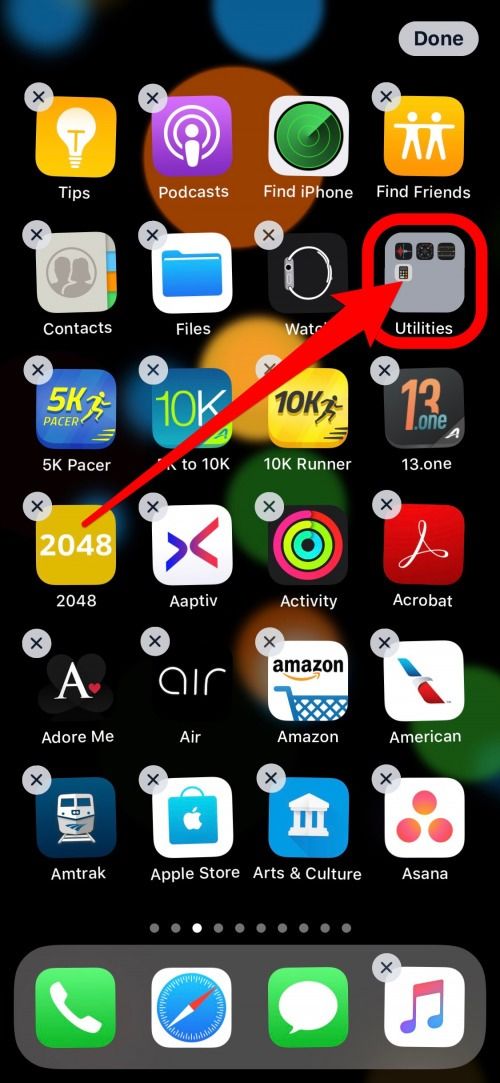
Ios: Concealing Apps With Parental Controls
If you’re using an iOS device, concealing apps is a straightforward process with Parental Controls.
- Open the Settings app.
- Go to the “Screen Time” section.
- Select “Conceal Apps.”
- Choose the apps you want to conceal and toggle them on.
Pc: Concealing Apps
If you’re using a PC, concealing apps is also relatively easy.
- On Windows 10 or later:
- Right-click an empty area of the desktop and select “View” > “Show desktop icons.”
- Alternatively, right-click on each icon you want to conceal and select “Display other options” > “Properties.” Toggle the switch next to “Conceal” and save your changes.
- On macOS:
- Open Terminal (found in Applications/Utilities).
- Type
defaults write com.Apple.Finder CreateDesktop falseand press Enter. Then, typekillall Finderand press Enter. - To reveal the icons again, type
defaults write com.Apple.Finder CreateDesktop trueand press Enter. Then, typekillall Finderand press Enter.
Conclusion
Concealing apps on your smartphone or PC is a simple yet effective way to maintain your device’s privacy. By following these step-by-step guides for Android, iOS, Samsung, Xiaomi, OPPO, and PC devices, you can ensure that only authorized individuals have access to sensitive information.
Frequently Asked Questions (FAQs)
- Q: Why do I Need to Conceal Apps?
A: To maintain your device’s privacy and prevent unauthorized access. - Q: Can I Conceal All my Apps at Once?
A: Yes, you can use the Hide App app or a third-party launcher on Android devices. - Q: How do I Unhide Concealed Apps on Ios?
A: Go to Settings > Screen Time > Conceal Apps and toggle off the switch next to each hidden app. - Q: Can I Conceal Notifications For Hidden Apps?
A: Yes, you can conceal notifications for individual apps by toggling the switch next to “Conceal Notifications” in their respective settings menus. - Q: Will Concealing Apps Affect my Device’s Performance?
A: No, hiding apps won’t impact your device’s performance or battery life. - Q: Can I Recover Hidden Apps on Ios?
A: Yes, you can reveal hidden apps by going to Settings > Screen Time > Conceal Apps and toggling off the switch next to each hidden app. - Q: How do I Conceal Multiple Apps at Once on Pc?
A: Use the Hide From Uninstall List app or right-click on each icon you want to conceal in the taskbar. - Q: Will Concealing Apps Prevent Updates For Those Apps?
A: No, hiding apps won’t prevent them from receiving updates when they become available.


