
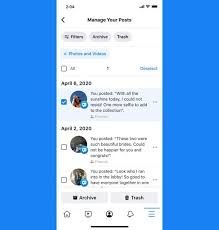
How to Conceal Posts on Facebook: A Step-by-step Guide
Are you tired of feeling like your every move is being watched on Facebook? Do you want to limit the number of people who can see your posts, but aren’t sure how to do it? Look no further! In this article, we’ll show you how to conceal posts on Facebook, using both Android and iOS devices.
Why Conceal Posts on Facebook?
Facebook is a social media platform that allows users to share their thoughts, feelings, and experiences with friends and family. However, sometimes we may want to limit the number of people who can see our posts, whether it’s because we’re sharing something private or just don’t want everyone to know what we’re up to.
Concealing Posts on Android Devices
If you have an Android device, concealing posts on Facebook is a straightforward process. Here’s how to do it:
- Open The Facebook App: First, open the Facebook app on your Android device.
- Access Your Profile: Tap on your profile picture in the top right corner of the screen to access your profile.
- Find The Post You Want to Conceal: Scroll down to find the post you want to conceal. It’s best to do this when you’re viewing your news feed, as it will be easier to find the specific post.
- Tap on The Three Vertical Dots: Once you’ve found the post, tap on the three vertical dots in the top right corner of the screen.
- Select “Modify Privacy”: From the menu that appears, select “Modify Privacy”.
- Choose Your Desired Setting: Choose your desired setting from the options available, such as “Only Me”, “Friends Except Acquaintances”, or “Specific Friends”.
Concealing Posts on Ios Devices
If you have an iOS device, concealing posts on Facebook is also easy to do:
- Open The Facebook App: First, open the Facebook app on your iOS device.
- Access Your Profile: Tap on your profile picture in the top right corner of the screen to access your profile.
- Find The Post You Want to Conceal: Scroll down to find the post you want to conceal. It’s best to do this when you’re viewing your news feed, as it will be easier to find the specific post.
- Tap on The Three Vertical Dots: Once you’ve found the post, tap on the three vertical dots in the top right corner of the screen.
- Select “Modify Privacy”: From the menu that appears, select “Modify Privacy”.
- Choose Your Desired Setting: Choose your desired setting from the options available, such as “Only Me”, “Friends Except Acquaintances”, or “Specific Friends”.
Limiting Past Posts on Facebook
If you want to limit the number of people who can see past posts on Facebook, you can do so by following these steps:
- Open The Settings And Privacy Menu: On your Android device, go to Settings > Account Settings > Privacy > Limit Who Can See Your Old Posts.
- Select “Limit”: Select “Limit” from the options available.
- Choose Your Desired Setting: Choose your desired setting from the options available, such as “Only Me”, “Friends Except Acquaintances”, or “Specific Friends”.
Limiting Past Posts on Ios Devices
If you want to limit the number of people who can see past posts on Facebook using an iOS device, follow these steps:
- Open The Settings And Privacy Menu: On your iOS device, go to Settings > Account Settings > Privacy > Limit Who Can See Your Old Posts.
- Select “Limit”: Select “Limit” from the options available.
- Choose Your Desired Setting: Choose your desired setting from the options available, such as “Only Me”, “Friends Except Acquaintances”, or “Specific Friends”.
Conclusion
Concealing posts on Facebook is a straightforward process that can be done using both Android and iOS devices. By following these steps, you can limit the number of people who can see your posts, whether it’s to protect your privacy or simply because you want more control over what others can see.
Frequently Asked Questions (FAQs)
- Q: Can I Conceal Specific Posts on Facebook?
A: Yes, you can conceal specific posts on Facebook by modifying the privacy settings of each post individually. - Q: How do I Limit Past Posts on Facebook?
A: To limit past posts on Facebook, go to Settings > Account Settings > Privacy > Limit Who Can See Your Old Posts and select “Limit”. - Q: Can I Conceal All my Posts at Once?
A: Yes, you can conceal all your posts at once by modifying the default privacy setting for new posts. - Q: Will Concealing Posts Affect Who Can See Them in Future?
A: No, concealing past posts will not affect who can see them in future. - Q: Can I Limit The Number of People Who Can See my Profile Picture And Cover Photo?
A: Yes, you can limit the number of people who can see your profile picture and cover photo by modifying the default privacy setting for these features. - Q: How do I Report a Problem With Facebook’s Privacy Settings?
A: To report a problem with Facebook’s privacy settings, go to the Help Center or contact Facebook support directly. - Q: Can I Use Facebook’s Built-in Tools to Help me Manage my Online Presence?
A: Yes, Facebook offers several built-in tools and features to help you manage your online presence, including privacy settings and profile management options. - Q: Will Concealing Posts Affect How Others Interact With me on Facebook?
A: No, concealing posts will not affect how others interact with you on Facebook.
We hope this article has helped you understand how to conceal posts on Facebook using both Android and iOS devices. If you have any further questions or need additional assistance, don’t hesitate to contact us!


