
Concealing Your Profile Photo on Whatsapp: A Step-by-step Guide
Are you tired of sharing your profile photo with every single contact on WhatsApp? Do you want to keep your online identity private, but still stay connected with your friends and family? Look no further! In this article, we’ll show you how to conceal your profile photo on WhatsApp, whether you’re using an Android or iOS device.
Why Conceal Your Profile Photo?
There are many reasons why you might want to keep your profile photo private. Perhaps you’re concerned about online harassment, or maybe you just prefer to maintain a level of anonymity when interacting with others online. Whatever your reason, concealing your profile photo on WhatsApp is a simple and effective way to take control of your online identity.
Concealing Your Profile Photo on Android
If you’re using an Android device, concealing your profile photo on WhatsApp is a straightforward process. Here’s how:
- Open Whatsapp: Tap the WhatsApp icon on your home screen to open the app.
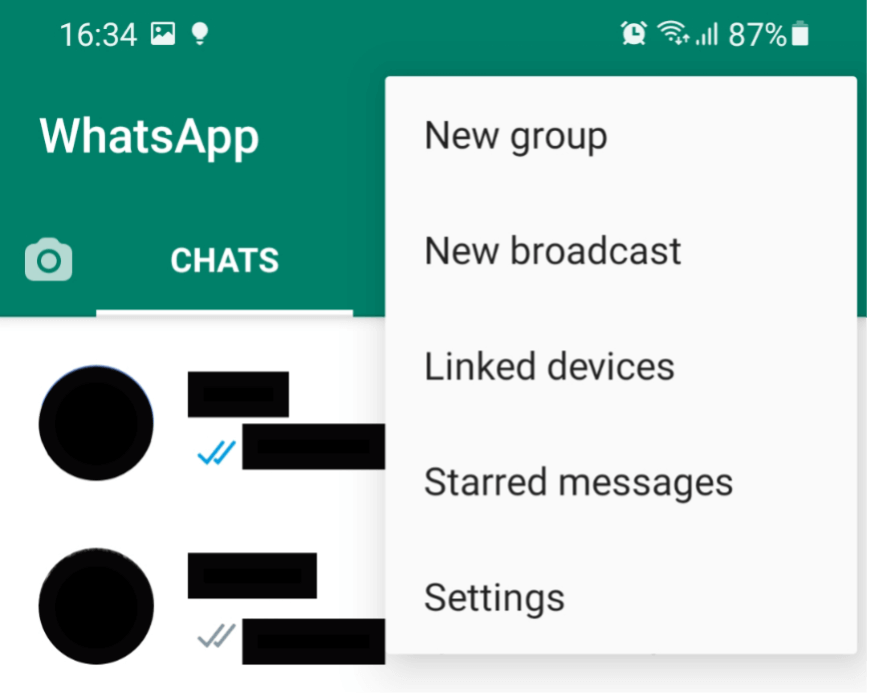
- Tap The Three Dots: In the top-right corner of the screen, tap the three dots (⋯) to access the settings menu.
- Select Settings: From the dropdown menu, select “Settings.”
- Choose Account: Scroll down and choose “Account” from the list of options.
- Tap Privacy: Select “Privacy” from the account settings menu.
- Edit Image of Profile: Tap the “Image of profile” option to edit your profile photo settings.
- Select My Contacts Except: Choose “My contacts except” as the new setting for your profile photo.
- Add Exceptions: Tap on any contacts you want to exclude from seeing your profile photo.
Concealing Your Profile Photo on Ios
If you’re using an iOS device, concealing your profile photo on WhatsApp is just as easy. Here’s how:
- Open Whatsapp: Tap the WhatsApp icon on your home screen to open the app.
- Tap Settings: From the main menu, tap “Settings.”
- Choose Account: Scroll down and choose “Account” from the list of options.
- Select Privacy: Select “Privacy” from the account settings menu.
- Edit Image of Profile: Tap the “Image of profile” option to edit your profile photo settings.
- Select My Contacts Except: Choose “My contacts except” as the new setting for your profile photo.
Blocking a Contact
If you want to take it a step further and block a contact from seeing your profile photo, follow these steps:
- Open Whatsapp: Tap the WhatsApp icon on your home screen to open the app.
- Tap Settings: From the main menu, tap “Settings.”
- Choose Account: Scroll down and choose “Account” from the list of options.
- Select Privacy: Select “Privacy” from the account settings menu.
- Tap Blocked Contacts: Tap on “Blocked contacts” to view a list of blocked contacts.
- Add Contact: Tap the “+” icon to add a new contact to the blocked list.
Concealing Your Profile Photo on PC
If you’re using WhatsApp on your computer, concealing your profile photo is just as easy. Here’s how:
- Open Whatsapp: Open WhatsApp on your computer and log in with your account credentials.
- Click Settings: Click the three dots (⋯) in the top-right corner of the screen to access the settings menu.
- Choose Privacy: Select “Privacy” from the list of options.
- Edit Image of Profile: Tap the “Image of profile” option to edit your profile photo settings.
- Select My Contacts Except: Choose “My contacts except” as the new setting for your profile photo.
Additional Tips And Tricks
Here are some additional tips and tricks to keep in mind when concealing your profile photo on WhatsApp:
- Make sure to save any changes you make to your profile photo settings before exiting the app.
- If you’re unsure about which option to choose, try tapping on it to see a brief description of what it does.
- Remember that blocking contacts will prevent them from seeing your profile photo, but may also limit their ability to interact with you.
Conclusion
Concealing your profile photo on WhatsApp is a simple and effective way to take control of your online identity. Whether you’re using an Android or iOS device, the process is straightforward and easy to follow. By following these steps, you can keep your profile photo private while still staying connected with your friends and family.


