
Highlighting Cells in Excel: A Comprehensive Guide
As a user of Microsoft’s popular spreadsheet software, Excel, you may have found yourself wanting to draw attention to specific cells or ranges within your worksheets. Whether it’s to highlight important data, distinguish between different categories, or simply add some visual flair, highlighting cells is an essential feature that can greatly enhance the usability and appearance of your spreadsheets.
In this article, we’ll delve into the world of cell highlighting in Excel, exploring various methods for applying colors, styles, and formulas to specific cells or ranges. From manual color selection to conditional formatting, we’ll cover it all, ensuring you become a master of highlighting cells in no time.
Why Highlight Cells?
Before we dive into the nitty-gritty of highlighting cells, let’s briefly discuss why this feature is so useful. By drawing attention to specific cells or ranges, you can:
- Emphasize important data points
- Distinguish between different categories or groups
- Add visual interest to your spreadsheets
- Improve readability and comprehension
Method 1: Manual Color Selection
The simplest way to highlight cells in Excel is by applying a manual color selection. This method involves choosing a specific color for individual cells or ranges.
Step-by-step Guide
- Select the cell(s) you want to highlight.
- Click on the “Home” tab in the Excel ribbon.
- Click on the “Fill Color” button in the “Font” group.
- Choose your desired color from the palette.
- Apply the color by clicking “OK.”
Method 2: Conditional Formatting
Conditional formatting is a more advanced feature that allows you to highlight cells based on specific conditions or criteria.
Step-by-step Guide
- Select the cell range you want to format.
- Go to the “Home” tab in the Excel ribbon.
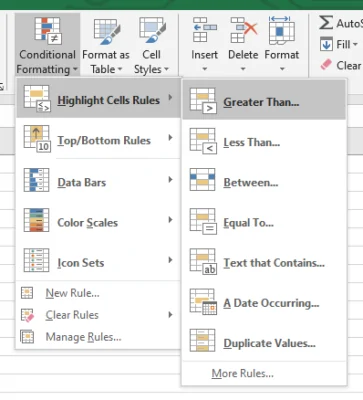
- Click on the “Conditional Formatting” button in the “Styles” group.
- Choose your desired condition, such as “Greater Than” or “Less Than.”
- Set your criteria and select the color for highlighted cells.
Method 3: Formula-based Highlighting
If manual color selection or conditional formatting doesn’t meet your needs, you can create a custom formula to highlight specific cells based on your requirements.
Step-by-step Guide
- Select the cell range you want to format.
- Go to the “Home” tab in the Excel ribbon.
- Click on the “Conditional Formatting” button in the “Styles” group.
- Choose “New Rule” and select “Use a formula.”
- Enter your custom formula, using operators like “>” or “<“.
- Select the color for highlighted cells.
Tips And Variations
- To highlight entire rows or columns, simply click on the row or column header.
- Use keyboard shortcuts to select multiple cells at once (Ctrl/Cmd + A).
- Experiment with different colors and styles to create visually appealing spreadsheets.
- Consider using conditional formatting to highlight errors or inconsistencies.
Conclusion
Highlighting cells in Excel is a powerful feature that can greatly enhance your spreadsheet’s usability and appearance. By mastering the various methods outlined in this article, you’ll be able to draw attention to specific data points, distinguish between different categories, and add visual interest to your spreadsheets.
Whether you’re a beginner or an experienced user, we hope this guide has provided valuable insights into the world of cell highlighting. Remember to experiment with different techniques and styles to find what works best for your needs.
Frequently Asked Questions (FAQs)
- Q: How do I Highlight Cells in Excel?
A: You can manually select a color, use conditional formatting, or create a custom formula to highlight specific cells. - Q: Can I Highlight Entire Rows or Columns?
A: Yes, simply click on the row or column header to select the entire range. - Q: How do I Apply Multiple Colors to Different Cells?
A: Use the “Format Painter” tool to copy formatting from one cell to another.
We hope this comprehensive guide has helped you become a master of highlighting cells in Excel!


