
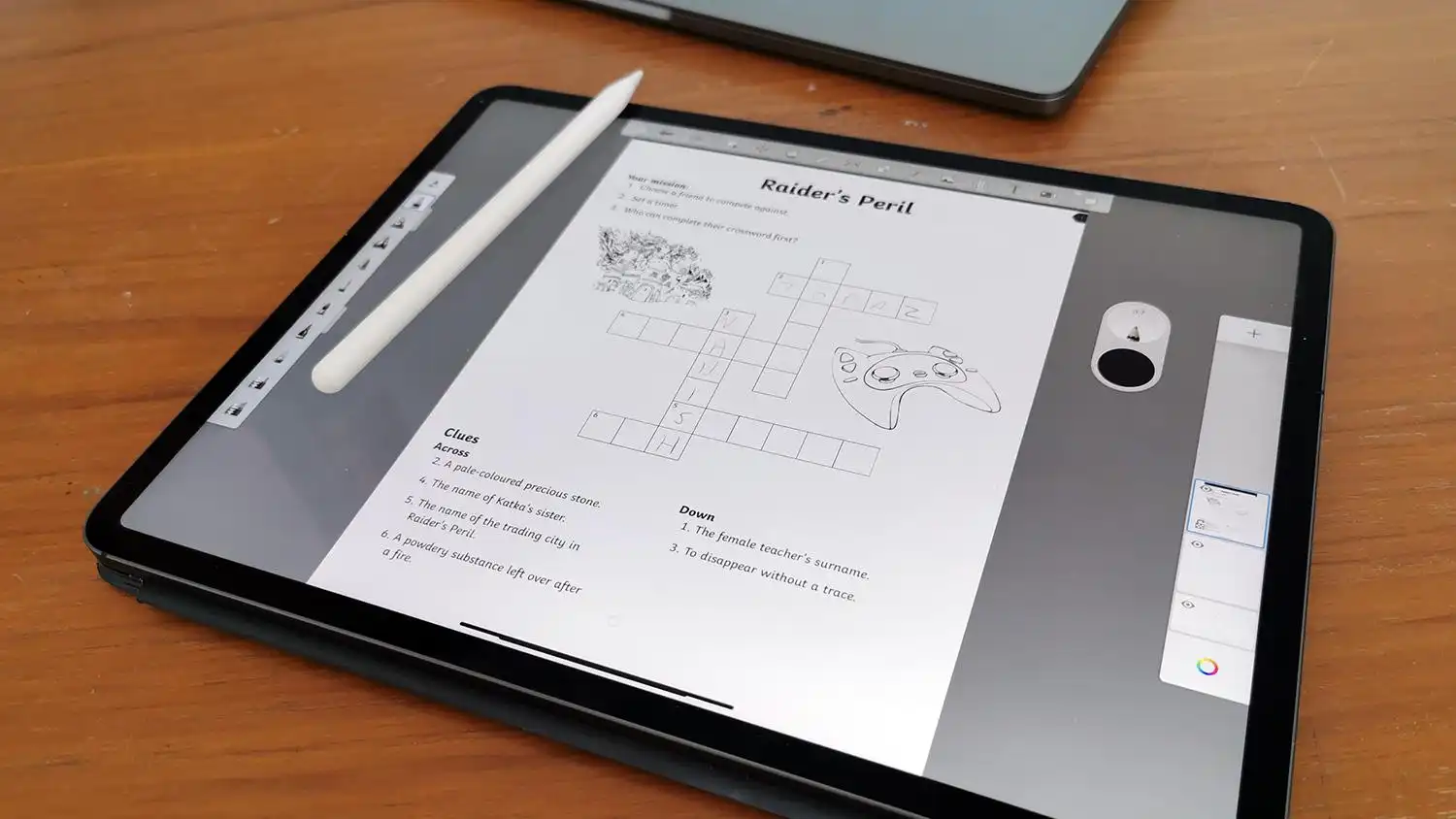
How to Highlight Pdf on Ipad: A Step-by-step Guide
As a student or professional, it’s essential to be able to highlight important passages in PDF documents on your iPad. While the process may seem daunting at first, don’t worry; we’ve got you covered! In this article, we’ll show you how to highlight PDF on iPad using various apps.
Why Highlight Pdfs?
Before we dive into the nitty-gritty of highlighting PDFs, let’s quickly discuss why it’s essential. Highlighting key points in a document helps you:
- Focus on Critical Information: By drawing attention to specific passages, you can concentrate on what matters most.
- Organize Your Thoughts: Highlighting relevant sections enables you to structure your understanding and connect ideas more effectively.
- Improve Retention: Visual cues, like highlights, aid in retaining information better.
Methods For Highlighting Pdfs
Now that we’ve covered the why, let’s explore the how!
1. Using Apple’s Built-in Apps: Files And Books
You can utilize Apple’s pre-installed apps to highlight PDFs on your iPad.
- Files: This app allows you to open and highlight PDFs directly from your device or cloud storage.
- Open the Files app, navigate to the folder containing your PDF, and tap on it to open.
- Tap the “Share” icon (box with an arrow) and select “Markup” from the list of actions. This will allow you to highlight specific sections using a variety of colors and tools.
- Books: Similar to Files, Books enables you to highlight PDFs within its interface.
2. Using Third-party Apps: Adobe Acrobat Reader, Foxit Mobilepdf, Xodo Pdf, Pdf Expert, And Documents by Readdle
These apps offer advanced features for editing and annotating PDFs on your iPad.
- Adobe Acrobat Reader: A powerful tool that provides a range of annotation options.
- Download the app from the App Store.
- Tap the “+” icon to create a new document or open an existing one.
- Use the various tools (highlighter, pen, eraser) to highlight and annotate your PDF.
- Foxit Mobilepdf: Another popular choice for editing and annotating PDFs on iPad.
- Download the app from the App Store.
- Tap the “+” icon to create a new document or open an existing one.
- Use the built-in tools (highlighter, pen) to mark up your PDF.
Tips And Tricks
- To ensure seamless integration with iCloud, make sure your iPad is updated to iOS 11 or later.
- When using third-party apps, consider adjusting font sizes, styles, and colors for better readability.
- Don’t forget to save your changes frequently!
Conclusion
Highlighting PDFs on iPad can be achieved through various methods. From utilizing built-in apps like Files and Books to leveraging advanced features in third-party tools such as Adobe Acrobat Reader and Foxit MobilePDF, there’s a solution tailored to meet your specific needs.
By applying these tips and tricks, you’ll become more efficient in managing your digital documents and improve retention of critical information.
Faqs
- Q: How do I Highlight Text in Pdf on Ipad?
A: You can highlight text in PDF on iPad using various apps like Files, Books, Adobe Acrobat Reader, Foxit MobilePDF, Xodo PDF, PDF Expert, or Documents by Readdle. - Q: Can I Save my Highlighted Pdf For Later Reference?
A: Yes, all changes made to your PDF are saved automatically in the respective app’s interface. - Q: How Can I Share my Annotated Pdf With Others?
A: You can export your annotated PDF as a new file or email it directly from the respective app.
Final Tips
Don’t forget to save your progress frequently when working on complex documents, and don’t hesitate to reach out for assistance if you need further guidance.


