
How to Highlight Text in Different Software
Are you tired of searching for a way to highlight text in various software? Look no further! In this article, we will guide you through the process of highlighting text in different software, including Microsoft Word, Excel, PowerPoint, PDF, HTML, Pages, InDesign, and more.
Why Highlight Text?
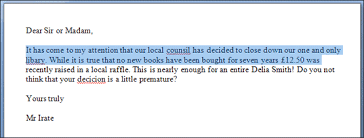
Highlighting text is an essential feature that allows you to draw attention to specific words or phrases within a document. This can be particularly useful for emphasizing important information, creating visual interest, or even highlighting revisions in a collaborative document.
Microsoft Word: The Easiest Way to Highlight Text
If you’re using Microsoft Word, highlighting text is as easy as 1-2-3!
- Select the text you want to highlight with your mouse.
- Hold down the Shift key and click on the first letter of the selected text.
- Drag the cursor to the last letter of the selected text while holding down the Shift key.
- Release the Shift key, and a highlighted box will appear around the selected text.
- To change the color of the highlight, go to the Home tab in the top menu bar, click on the Character section, and select a new color from the palette.
Excel: Highlighting Text With a Twist
If you’re using Microsoft Excel, highlighting text is a bit more involved, but still manageable!
- Select the cell(s) containing the text you want to highlight.
- Go to the Home tab in the top menu bar and click on the Character section.
- Click on the “Font Color” button and select a color from the palette.
- Alternatively, go to the Cell Styles section and create a new style by clicking on the “New Cell Style” button.
- Name your style and assign it to the selected cell(s).
Powerpoint: Highlighting Text Like in Word
If you’re using Microsoft PowerPoint, highlighting text is similar to Microsoft Word!
- Select the text you want to highlight with your mouse.
- Go to the Home tab in the top menu bar and click on the Character section.
- Click on the “Font Color” button and select a color from the palette.
- Alternatively, go to the Text Highlighter tool by clicking on the “Text Highlighter” button in the top toolbar.
Pdf: Highlighting Text With Adobe Acrobat
If you’re working with a PDF document, highlighting text can be done using Adobe Acrobat!
- Open the PDF document in Adobe Acrobat Reader.
- Select the text you want to highlight with your mouse.
- Click on the “Highlight” tool in the toolbar and select a color from the palette.
Html: Highlighting Text With Html Tags
If you’re working with HTML code, highlighting text is as simple as adding HTML tags!
- Add the
<mark>tag around the text you want to highlight. - Close the tag by typing
</mark>. - To change the color of the highlight, add a CSS style rule using the
.Highlightclass.
Pages: Highlighting Text on Mac And Ios
If you’re using Apple’s Pages software, highlighting text is a breeze!
- Select the text you want to highlight with your mouse.
- Hold down the Shift key and click on the first letter of the selected text.
- Drag the cursor to the last letter of the selected text while holding down the Shift key.
- Release the Shift key, and a highlighted box will appear around the selected text.
Indesign: Creating a Highlight Style
If you’re using Adobe InDesign, highlighting text can be achieved by creating a custom style!
- Select the text you want to highlight with your mouse.
- Go to the Character panel and select the “Underline” tool.
- Choose a color from the palette and set the thickness and offset as desired.
Windows: Highlighting Text With Instrument of Capture
If you’re using Windows 11, highlighting text can be done using the Instrument of Capture!
- Open the Instrument of Capture app.
- Select the image containing the text you want to highlight.
- Use the OCR (Optical Character Recognition) tool to extract the text.
- Copy and paste the extracted text into your desired application.
Photoshop: Simulating a Highlight With Creative Editing
If you’re using Adobe Photoshop, simulating a highlight can be achieved through creative editing!
- Select the brush tool from the toolbar.
- Choose a color from the palette and adjust the settings to achieve a subtle effect.
- Paint over the text area you want to highlight.
Conclusion
Highlighting text is an essential feature that can enhance your documents, presentations, and web pages. By following these simple steps in different software, you’ll be able to draw attention to specific words or phrases with ease!
Frequently Asked Questions (FAQs)
- Q: How do I Highlight Text on a Mobile Device?
A: The process varies depending on the app, but generally involves selecting the text and choosing a color from the palette. - Q: Can I Change The Color of The Highlight in Microsoft Word?
A: Yes! Go to the Home tab, click on Character, and select a new color from the palette. - Q: How do I Create a Custom Style For Highlighting Text in Indesign?
A: Select the text, go to the Character panel, and choose “Underline” with a custom color and thickness. - Q: Can I Use a Specific Font Color For Highlighting Text in Excel?
A: Yes! Go to the Home tab, click on Character, and select a color from the palette. - Q: How do I Simulate a Highlight Effect in Photoshop?
A: Use the brush tool with a custom color and settings to achieve a subtle effect.
I hope this article has been informative and helpful! If you have any further questions or need additional clarification, please don’t hesitate to ask.


