
How to Identify an IP Address: A Comprehensive Guide
Are you curious about how to find your own or someone else’s IP address? Look no further! In this article, we will guide you through the process of identifying IP addresses on various devices and platforms.
IP Addresses: What Are They?
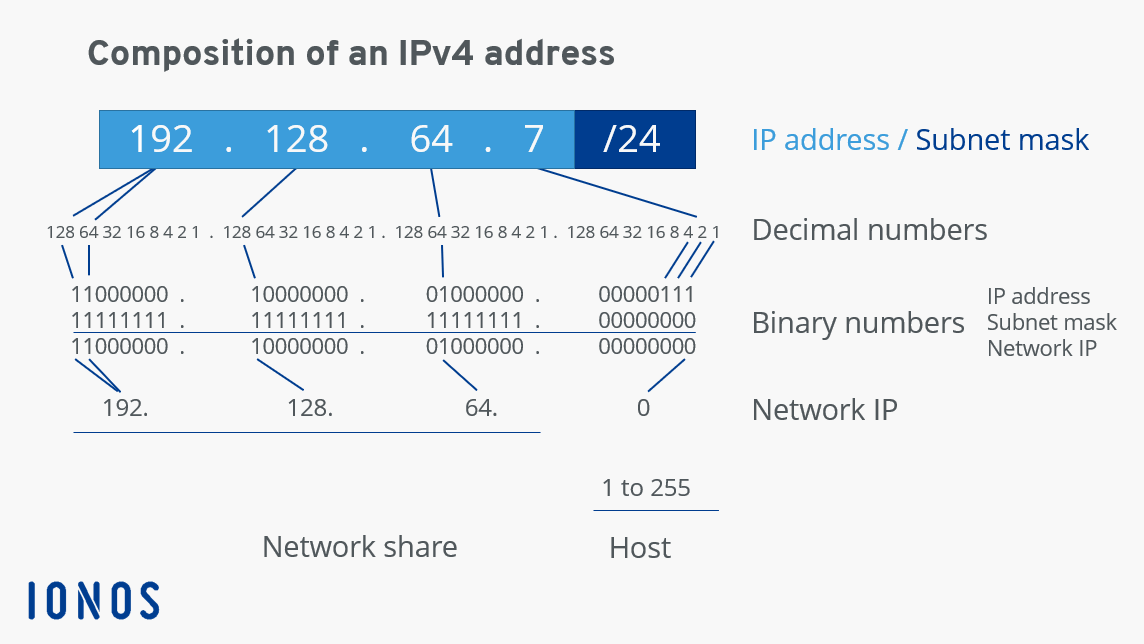
Before diving into the nitty-gritty, let’s understand what an IP address is. An IP address (Internet Protocol address) is a unique numerical label assigned to each device connected to a network or the internet. It allows devices to communicate with each other and helps in routing data packets.
Identifying Local IP Addresses
Local IP addresses are used for communication within a private network, such as your home or office. They are not visible on the public internet and are used by devices like computers, smartphones, and printers.
Finding Local IP Address on Windows
To find the local IP address of your Windows computer:
- Open the Command Prompt.
- Type
ipconfigand press Enter. - Look for the section labeled “IPv4 Address” or “IP Address.” The series of numbers listed there is your local IP address.
Finding Local IP Address on Mac
To find the local IP address of your Mac:
- Click on the Apple menu and select System Preferences.
- Click on Network.
- Select Wi-Fi or Ethernet from the list on the left-hand side.
- Look for the section labeled “IPv4 Address” or “IP Address.” The series of numbers listed there is your local IP address.
Finding Local IP Address on Android
To find the local IP address of your Android device:
- Go to Settings.
- Select Wi-Fi and then select the network you’re connected to.
- Look for the section labeled “IP Address” or “IPv4 Address.” The series of numbers listed there is your local IP address.
Finding Local IP Address on Ios/ipados
To find the local IP address of your iPhone or iPad:
- Go to Settings.
- Select Wi-Fi and then select the network you’re connected to.
- Look for the section labeled “IP Address” or “IPv4 Address.” The series of numbers listed there is your local IP address.
Finding Local IP Address on Router
To find the local IP address of your router:
- Connect a device (computer, smartphone, etc.) To the router’s network.
- Open a web browser and type
http://192.168.0.1Orhttp://192.168.1.254(The most common default gateway addresses). - You should see the login page for your router.
Finding Local IP Address on Printer
To find the local IP address of your printer:
- Make sure your printer is turned on and connected to the network.
- Open a web browser and type
http://192.168.0.1Orhttp://192.168.1.254. - You should see the login page for your printer.
Identifying Public IP Addresses
Public IP addresses are used for communication over the public internet and can be used to identify devices connected to the internet.
Finding Public IP Address on Any Device
To find your public IP address, you can:
- Use online tools like WhatsMyIP.Org.
- Open a web browser and type
http://Www.Whatismyip.Com. - You should see your public IP address displayed on the page.
Finding Public IP Address of Another Person
Unfortunately, it’s not possible to find someone’s name, surname, or physical address from their public IP address alone. However, you can use online tools like WhatsMyIP.Org to geolocate an IP address and determine its location on a world map.
Finding Email IP Address
To find the IP address of an email sender:
- Open your email client (Gmail, Outlook, etc.).
- Find the email header.
- Look for the “Received:” Line or the SPF (Sender Policy Framework) protocol information.
Conclusion
In this article, we have covered various ways to identify IP addresses on different devices and platforms. Remember that local IP addresses are used within private networks, while public IP addresses are visible over the internet. While it’s possible to find someone’s public IP address, it’s not possible to identify their name, surname, or physical address from this information alone.
Frequently Asked Questions
- Q: What is an IP Address?
A: An IP address (Internet Protocol address) is a unique numerical label assigned to each device connected to a network or the internet. - Q: How do I Find my Local IP Address on Windows?
A: To find your local IP address on Windows, open the Command Prompt and typeipconfig. - Q: Can I Find Someone’s Name From Their Public IP Address?
A: No, it is not possible to identify a person’s name or physical address from their public IP address alone. - Q: How do I Find my Email IP Address?
A: To find the IP address of an email sender, look for the “Received:” Line in the email header. - Q: Can I Use Online Tools to Find Someone’s Public IP Address?
A: Yes, you can use online tools like WhatsMyIP.Org to find and geolocate a public IP address. - Q: What is The Difference Between a Local And Public IP Address?
A: Local IP addresses are used within private networks, while public IP addresses are visible over the internet. - Q: How do I Find my Router’s IP Address?
A: To find your router’s IP address, open a web browser and typehttp://192.168.0.1Orhttp://192.168.1.254. - Q: Can I Use The Terminal to Find my Mac’s Local IP Address?
A: Yes, you can use the Terminal on your Mac to find your local IP address by typingipconfig getifaddr en0(for Wi-Fi) oripconfig getifaddr en1(for Ethernet).


