
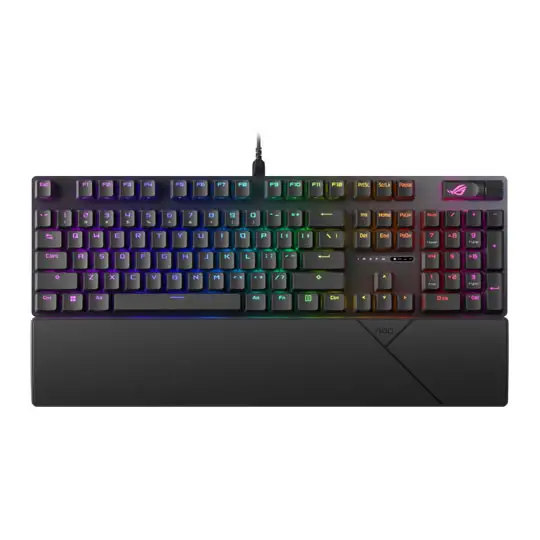
How to Lighten The Keyboard of Your PC (ASUS) Like a Pro
Are you tired of typing in the dark? Do you wish your keyboard was illuminated, but don’t know how to do it? Well, you’re in luck! In this article, we’ll guide you through the process of lightening the keyboard of your PC (ASUS), step by step.
What You Need to Know
Before we begin, let’s cover some basics. The ASUS laptop keyboard has a function key that allows you to enable or disable the backlight. But what if you’re using an older model or have issues with the function key? Don’t worry! We’ve got solutions for those too.
Step 1: Check Your Function Keys
First, check your keyboard for function keys (F1-F12). These keys are usually located in the top row of your keyboard. Look for the symbol on F7 or F4; this is the key that controls the backlight. If you don’t see a symbol, try checking the Fn key (usually located on the left side of the space bar).
Step 2: Enable or Disable The Backlight
To enable or disable the backlight, press the Fn key and F7 simultaneously to increase the brightness, or Fn + F4 to decrease it. If this doesn’t work, check your keyboard’s manual for specific instructions.
Alternative Solutions
If the above steps don’t work, there are other solutions you can try:
- Update Your Drivers: Sometimes, outdated drivers can cause issues with the backlight. Update your drivers by going to the ASUS website and downloading the latest version.
- Reinstall Your Drivers: If updating doesn’t work, try reinstalling your drivers. This will ensure that you have the correct software for your keyboard.
- Use a Keyboard Backlight: If all else fails, consider purchasing a keyboard backlight or a USB-powered light strip to illuminate your keyboard.
What’s Next?
If none of these solutions work, it may be time to consult with ASUS technical support. They can help you diagnose the issue and provide further assistance.
Tips And Tricks
Here are some additional tips to keep in mind:
- Make sure your keyboard is properly connected to your laptop.
- Check if there’s any dust or debris on your keyboard that might be causing issues.
- If you’re using a USB-powered light strip, ensure it’s plugged into the correct port.
Conclusion
Lightening the keyboard of your PC (ASUS) is easier than you think! By following these steps and tips, you should be able to enable or disable the backlight on your keyboard. Remember, if all else fails, consult with ASUS technical support for further assistance.
Frequently Asked Questions (FAQs)
- Q: What’s The Fn Key?
A: The Fn key is a special key that controls various functions on your keyboard, including the backlight. - Q: Why Won’t my Backlight Turn On?
A: This could be due to outdated drivers or incorrect settings. Try updating your drivers and checking your settings again. - Q: Can I Use a Usb-powered Light Strip Instead of The Keyboard Backlight?
A: Yes, you can! A USB-powered light strip is a great alternative if your keyboard’s backlight isn’t working. - Q: How do I Update my Drivers?
A: Go to the ASUS website and download the latest version of your drivers. - Q: What Should I do if None of These Solutions Work?
A: Consult with ASUS technical support for further assistance.
Recommended Products
- Ledgle Luce di Lettura Led – Luce Per Leggio: A compact keyboard backlight that’s easy to set up and use.
- Arespark Lampad Monitor, Luce Per Monitor: A USB-powered light strip that’s perfect for illuminating your keyboard or monitor.
Disclaimer
The information provided in this article is accurate to the best of our knowledge. However, we’re not responsible for any issues or damages caused by following these steps. Always refer to your laptop’s manual and manufacturer’s guidelines before making any changes to your settings.


