
How to Transfer Contacts From One Computer to Another in Outlook
Are you looking for a way to transfer contacts from one computer to another in Outlook? Perhaps you’ve just purchased a new laptop or PC, and you want to bring your contact list with you. Whatever the reason, transferring contacts can be a bit tricky if you’re not familiar with the process. But don’t worry, we’ve got you covered!
In this article, we’ll show you how to transfer contacts from one computer to another in Outlook, whether it’s on Windows, macOS, or even using online services like Gmail or iCloud.
Why Transfer Contacts?
Before we dive into the nitty-gritty of transferring contacts, let’s quickly discuss why you might want to do so. Perhaps you’ve upgraded your phone or laptop and want to bring your contact list with you. Or maybe you’re moving to a new job or location and need to update your contact list accordingly.
Whatever the reason, transferring contacts is an essential step in maintaining an up-to-date and accurate contact list.
Transferring Contacts From One Computer to Another
To transfer contacts from one computer to another, you’ll first need to create a file that contains all your contacts. This can be done using various methods, depending on the operating system you’re using.
On Windows: Transferring Contacts Using Csv Files
If you’re using a Windows PC, here’s how to transfer contacts:
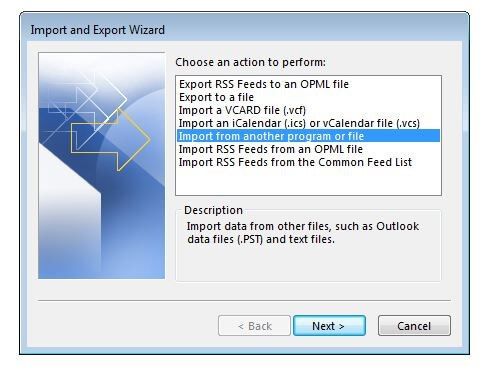
- Open Outlook and go to “File” > “Open & Export” > “Import/Export.”
- Choose “Comma Separated Values (Windows)” as the import/export method.
- Select the contacts you want to export, or choose all contacts by clicking on “Select All.”
- Click on “Next,” then select a location where you’d like to save your contact list file.
- Name the file and click “Save.”
On Macos: Transferring Contacts Using Csv Files
If you’re using an Apple Mac, here’s how to transfer contacts:
- Open Outlook and go to “File” > “Export.”
- Choose “Comma Separated Values (Windows)” as the export method.
- Select the contacts you want to export, or choose all contacts by clicking on “Select All.”
- Click on “Next,” then select a location where you’d like to save your contact list file.
- Name the file and click “Save.”
Transferring Contacts From One Service to Another
If you’re using online services like Gmail or iCloud, transferring contacts is relatively straightforward.
- Go to your online account (e.G., Gmail, iCloud) and navigate to the contact section.
- Click on “Import” or “Sync” and select the file containing your contact list.
- Follow any additional instructions provided by the service.
Transferring Contacts From Outlook.com
If you’re using Outlook.Com, here’s how to transfer contacts:
- Go to the contact section in Outlook.Com and click on “Manage.”
- Click on “Import” and select the file containing your contact list.
- Follow any additional instructions provided by Outlook.Com.
Transferring Contacts From Icloud
If you’re using iCloud, here’s how to transfer contacts:
- Go to the contact section in iCloud and click on “Import.”
- Select the file containing your contact list and follow any additional instructions provided by iCloud.
Transferring Contacts From Android or Ios Devices
If you’re transferring contacts from an Android or iOS device, here’s how to do it:
- Use a cloud service like Google Drive or Dropbox to sync your contact list across devices.
- Transfer contacts using the “Import/Export” feature in the Contacts app.
Conclusion: Transferring Contacts Made Easy!
Transferring contacts might seem daunting at first, but with this article’s guidance, you’ll be able to transfer your contact list with ease!
Whether it’s transferring contacts from one computer to another, or moving them between online services like Gmail, iCloud, or Outlook.Com, we’ve covered all the bases.
Frequently Asked Questions (FAQs)
- Q: How do I Export Contacts From Outlook?
A: To export contacts from Outlook, go to “File” > “Open & Export” > “Import/Export.” Choose “Comma Separated Values (Windows)” as the import/export method and follow the prompts. - Q: Can I Transfer Contacts Between Different Operating Systems?
A: Yes! You can transfer contacts from Windows to macOS or vice versa by exporting the contact list in a compatible format, such as CSV. - Q: How do I Sync Contacts Across Devices Using Icloud?
A: To sync contacts across devices using iCloud, go to the contact section and click on “Sync.” Select the device you’d like to sync with and follow any additional instructions provided by iCloud. - Q: Can I Import Contacts From a Csv File Into Outlook.Com?
A: Yes! You can import contacts from a CSV file into Outlook.Com by going to the contact section and clicking on “Import.” Select the CSV file containing your contact list.
In conclusion, transferring contacts is an essential step in maintaining an up-to-date and accurate contact list. With these simple steps and instructions, you’ll be able to transfer contacts with ease!
Hope this helps!


