
How to Add Vcf File on Gmail
Are you looking for a way to add contacts from a VCF file to your Gmail account? Look no further! In this article, we will guide you through the process of adding a VCF file to your Gmail account using both desktop and mobile devices.
What is a Vcf File?
A VCF (Virtual Contact File) file is a text file that contains contact information such as name, email address, phone number, and more. These files are commonly used to import and export contacts from various applications and services, including Gmail.
Why Add Vcf File on Gmail?
Adding a VCF file to your Gmail account allows you to synchronize your contacts across all devices connected to your Google account. This means that any new contacts added to your Gmail account will automatically be synced with your other devices, making it easier to manage your contact list.
How to Add Vcf File on Desktop (Windows/Mac)
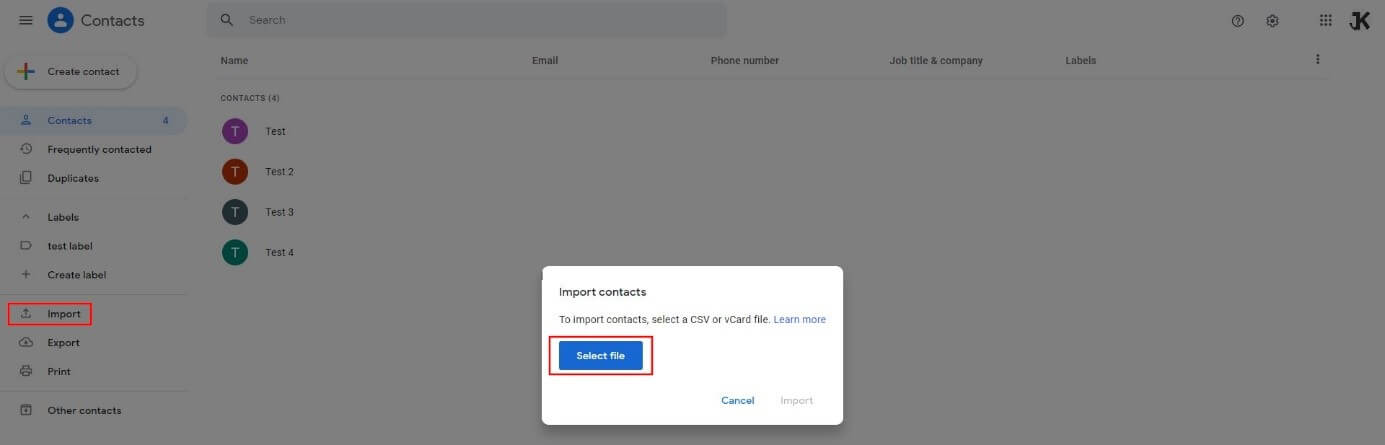
To add a VCF file to your Gmail account using your desktop computer, follow these steps:
- Open The Google Contacts Page: Go to contacts.Google.Com and sign in with your Gmail account.
- Click on The “More” Menu: Click on the three dots in the upper right corner of the screen and select “More”.
- Select “Import”: From the dropdown menu, select “Import”.
- Choose The Vcf File: Select the VCF file you want to import from your computer.
- Click on “Import”: Click on the “Import” button to add the contacts to your Gmail account.
How to Add Vcf File on Android
To add a VCF file to your Gmail account using an Android device, follow these steps:
- Download And Install Google Contacts: If you haven’t already, download and install the Google Contacts app from the Play Store.
- Open The Google Contacts App: Open the Google Contacts app and sign in with your Gmail account.
- Tap on The “Three Dots” Menu: Tap on the three dots in the upper right corner of the screen and select “Settings”.
- Select “Import/Export”: From the settings menu, select “Import/Export”.
- Choose The Vcf File: Select the VCF file you want to import from your device’s storage.
- Tap on “Import”: Tap on the “Import” button to add the contacts to your Gmail account.
How to Add Vcf File on Iphone/ipad
To add a VCF file to your Gmail account using an iPhone or iPad, follow these steps:
- Configure Google Account on Device: Ensure that your Google account is configured on your device.
- Open The Mail App: Open the Mail app and create a new email message.
- Attach The Vcf File: Attach the VCF file to the email message by selecting it from your device’s storage.
- Send The Email: Send the email to yourself with the VCF file attached.
- Open The Contact App: Open the Contacts app and tap on “Import” at the top of the screen.
Tips And Tricks
- Make sure to configure your Google account on all devices connected to your Google account for seamless contact syncing.
- If you encounter any issues during the import process, try restarting your device or clearing the cache of the Google Contacts app.
- You can also add contacts from a VCF file using the Gmail web interface by following the same steps as mentioned earlier.
Conclusion
Adding a VCF file to your Gmail account is a straightforward process that can be completed on both desktop and mobile devices. By following these steps, you’ll be able to synchronize your contacts across all devices connected to your Google account, making it easier to manage your contact list.


