
A Comprehensive Guide to Augmenting Icloud Storage
Are you tired of running out of space on your iPhone, iPad, Mac, or PC? Do you want to enjoy more features and services without worrying about storage limitations? Look no further! In this article, we’ll show you how to augment your iCloud storage to suit your needs.
Introduction
ICloud is a powerful service offered by Apple that allows you to store and sync your data across all your devices. With 5 GB of free storage, it’s perfect for backing up your iPhone or iPad. However, if you need more space, you can upgrade to an iCloud+ plan. In this guide, we’ll walk you through the process of augmenting your iCloud storage on various Apple devices and PCs.
Available Icloud+ Plans
Before we dive into the step-by-step instructions, let’s take a look at the available iCloud+ plans:
- 50 GB (0.99 Euros/month) – Ideal for gaining an extra 45 GB of storage and enjoying additional services like iCloud Relay (a VPN-like feature), fake email addresses, and customizable commands on iCloud Mail.
- 200 GB (2.99 Euros/month) – Perfect for storing up to 195 GB more data and enjoying all the features included in the previous plan, with the added benefit of using the HomeKit Secure Video feature for up to five cameras.
- 2 TB (9.99 Euros/month) – Suitable for users who need more storage space, with the ability to store up to 1.95 TB more data and enjoy all the features included in the previous plans.
- 6 TB (29.99 Euros/month) – Ideal for heavy users who require even more storage space, with the ability to store up to 5.95 TB more data and enjoy all the features included in the previous plans.
- 12 TB (59.99 Euros/month) – The largest plan available, offering a staggering 11.95 TB of additional storage space and all the features included in the previous plans.
Augmenting Icloud Storage on Iphone And Ipad
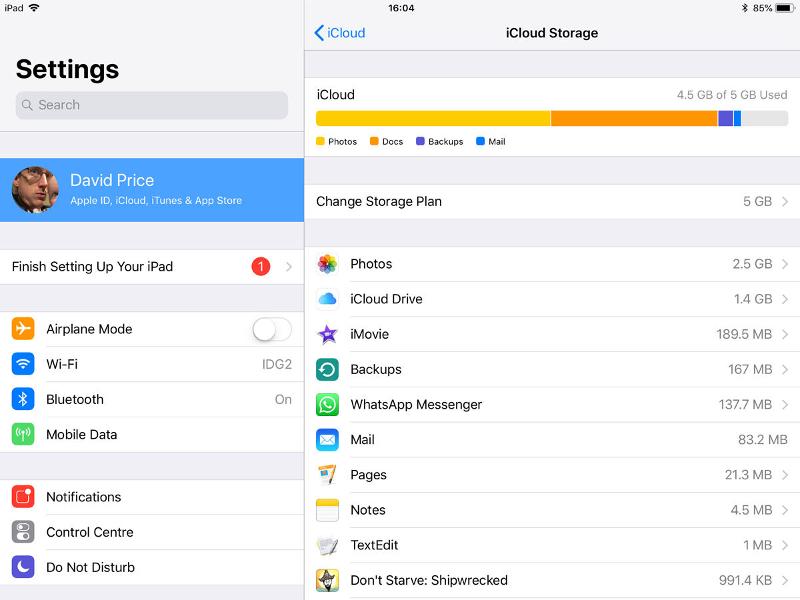
To augment your iCloud storage on your iPhone or iPad, follow these simple steps:
- Access the Settings app on your device.
- Tap on your name at the top of the screen.
- Select “iCloud” from the list of options.
- Choose “Settings” and then “Storage & Backup.”
- Tap on “Change Storage Plan” and select the new plan you want to upgrade to.
Augmenting Icloud Storage on Mac
To augment your iCloud storage on your Mac, follow these steps:
- Access the Apple menu and select “System Preferences.”
- Click on “iCloud” and then click on “Storage & Backup.”
- Tap on “Change Storage Plan” and select the new plan you want to upgrade to.
Augmenting Icloud Storage on PC
To augment your iCloud storage on a PC running Windows 10 or Windows 11, follow these steps:
- Download and install the iCloud for Windows app from the Microsoft Store.
- Launch the app and sign in with your Apple ID.
- Click on “Storage” and then click on “Change Storage Plan.”
- Select the new plan you want to upgrade to and follow the prompts.
Canceling Your Icloud+ Subscription
If you need to cancel your iCloud+ subscription, you can do so by following these steps:
- On iPhone or iPad: Go to Settings > [Your Name] > iCloud > Manage Storage & Backup.
- On Mac: Go to System Preferences > iCloud > Storage & Backup.
- On PC: Launch the iCloud for Windows app and go to Settings > Change Storage Plan.
Conclusion
Augmenting your iCloud storage is a straightforward process that can be completed on various Apple devices and PCs. By following the steps outlined in this guide, you can enjoy more features and services without worrying about storage limitations. Whether you’re upgrading to an iCloud+ plan or canceling your subscription, we hope this article has provided you with the information you need.
Frequently Asked Questions (FAQs)
- What is Icloud+?
ICloud+ is a paid service offered by Apple that allows you to store and sync more data across all your devices. - How do I Augment my Icloud Storage on Iphone or Ipad?
To augment your iCloud storage on iPhone or iPad, go to Settings > [Your Name] > iCloud > Storage & Backup > Change Storage Plan. - What Are The Available Icloud+ Plans?
The available iCloud+ plans include 50 GB, 200 GB, 2 TB, 6 TB, and 12 TB of additional storage space. - Can I Cancel my Icloud+ Subscription?
Yes, you can cancel your iCloud+ subscription by following the steps outlined in this article. - What Happens if my File Exceeds The Capacity of The New Plan?
If your file exceeds the capacity of the new plan, iCloud will not sync or update your information. You’ll need to augment your storage capacity or remove some files from iCloud.
References
- Apple Support: Augmenting iCloud Storage on iPhone and iPad
- Apple Support: Augmenting iCloud Storage on Mac
- Apple Support: Augmenting iCloud Storage on PC
- Apple Support: Canceling Your iCloud+ Subscription


