
Understanding Volume Levels on Iphone
Before we dive into the instructions, it’s essential to understand how volume levels work on an iPhone. The device has a built-in volume control that allows you to adjust the audio level in various situations, such as listening to music, watching videos, or making phone calls.
Method 1: Using Volume Controls
The first method to increase volume on your iPhone is by using the volume controls located on the device’s surface. To do this:
- Ensure your iPhone is unlocked and ready for use.
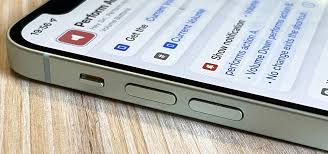
- Locate the volume controls on the right side of your iPhone, just below the Sleep/Wake button.
- Press and hold the Volume Up button until you reach your desired audio level.
Method 2: Using Control Centre
The second method to increase volume on your iPhone is by using the Control Centre. To do this:
- Swipe down from the top-right corner of your screen to access the Control Centre.
- Tap the “Volume” icon, represented by a speaker.
- Drag the slider to the right to increase the audio level.
Method 3: Using Siri
The third method to increase volume on your iPhone is by using Siri, Apple’s virtual assistant. To do this:
- Activate Siri by saying “Hey Siri.”
- Ask Siri to increase the volume by saying “Increase volume” or “Turn up volume.”
- Siri will adjust the audio level accordingly.
Method 4: Adjusting Volume Settings
Another way to increase volume on your iPhone is by adjusting the volume settings in the device’s settings menu. To do this:
- Go to Settings > Sounds and Haptics.
- Tap on “Ringtone and Text Tones.”
- Move the slider to the right to increase the audio level.
Method 5: Using Headphones or Earbuds
If you’re using headphones or earbuds with your iPhone, you can also adjust the volume by using the device’s built-in controls. To do this:
- Locate the Volume Up and Down buttons on your headphones or earbuds.
- Press and hold the Volume Up button until you reach your desired audio level.
Tips And Precautions
When increasing volume on your iPhone, keep in mind the following tips and precautions:
- Avoid using extremely high volumes for extended periods, as this can cause hearing damage.
- If you’re using earbuds or headphones, ensure they are not damaged or blocked, which may affect sound quality.
- If you experience distorted audio or poor sound quality, try cleaning the microphone or resetting your iPhone.
Conclusion
Increasing volume on your iPhone is a simple process that can enhance your overall listening experience. By following these step-by-step instructions and tips, you can enjoy your favorite music, podcasts, and audiobooks without straining your ears. Happy listening!
Faqs
- Q: How do I Know if my Iphone’s Volume is Too Low?
A: If the audio level is too low, you may experience difficulty hearing sounds or conversations. - Q: Can I Use Siri to Adjust The Volume?
A: Yes, you can use Siri to increase or decrease the volume by saying “Hey Siri” followed by a voice command. - Q: How do I Clean my Iphone’s Microphone?
A: To clean your iPhone’s microphone, use a soft brush and gentle soap solution to remove dirt or debris. - Q: Can I Adjust The Volume Settings on my Iphone?
A: Yes, you can adjust the volume settings in the Settings app under Sounds and Haptics > Ringtone and Text Tones. - Q: Why is my Iphone’s Audio Quality Poor?
A: Poor audio quality may be due to a damaged microphone or blocked earbuds/headphones. - Q: Can I Use Headphones/earbuds With my Iphone?
A: Yes, you can use headphones or earbuds with your iPhone and adjust the volume accordingly. - Q: How do I Reset my Iphone’s Audio Settings?
A: To reset your iPhone’s audio settings, go to Settings > Sounds and Haptics > Reset All Settings. - Q: Can I Use Siri to Play Music on my Iphone?
A: Yes, you can use Siri to play music by saying “Hey Siri” followed by a voice command, such as “Play [song title].”


