
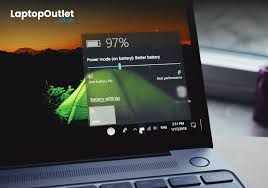
How to Extend The Battery Life of Your Portable Pc: A Comprehensive Guide
Are you tired of your portable PC shutting down unexpectedly due to low battery life? Look no further! In this article, we will explore various tips and tricks to help you extend the battery life of your portable PC.
Understanding Battery Autonomy
Before we dive into the tips, it’s essential to understand that battery autonomy can be influenced by several factors, including the health of the battery itself. If the battery is damaged or old, even following these tips may not significantly improve its performance.
Tip 1: Adjust The Display Brightness
One of the simplest ways to extend battery life is to adjust the display brightness. On most portable PCs, you can find a keyboard shortcut or an icon in the notification area that allows you to quickly adjust the brightness. Reducing the brightness will save energy and prolong battery life.
Windows 11/10: Press the Windows key + I to open Settings, then navigate to System > Display. Click on the brightness slider and adjust it to your desired level.
Macos: On a MacBook, press F1 or F2 (or F5 for some models) to decrease or increase the display brightness.
Tip 2: Disable Keyboard Backlight
If your portable PC has a keyboard backlight, disabling it can help extend battery life. This feature is convenient, but it consumes energy that could be used by other components of your device.
Windows: Check your manufacturer’s documentation for specific instructions on how to disable keyboard backlighting. Some laptops may have a hotkey combination or an option in the Power Options menu.
Macos: Hold down the F5 key to turn off the keyboard backlight, and press F6 to turn it back on.
Tip 3: Reduce Graphic Effects
Reducing graphic effects can also help extend battery life. This tip applies to both Windows and macOS devices.
Windows: Open the Power Options menu by right-clicking on the Start button or searching for “Power options.” Navigate to System and Safety > Options saving energy, then choose one of the three pre-defined combinations: Balanced, Energetic Saving, or High Performance Elevated.
Macos: Go to System Preferences > Energy Saver. Click on the toggle switch at the top left corner of the window to turn off unnecessary graphics effects.
Tip 4: Disable Unnecessary Connections
Disable any unnecessary connections like Wi-Fi, Bluetooth, or other peripherals when not in use. This will save energy and prolong battery life.
Windows: Open the Power Options menu (as described above) and click on the toggle switch for each connection type to disable them.
Macos: Click on the Wi-Fi icon in the top right corner of your screen to disable it, or hold down the Shift key while clicking on the Bluetooth icon to turn off Bluetooth.
Tip 5: Activate Power-saving Settings
Many portable PCs come with power-saving settings that can be activated to prolong battery life. These settings may include reducing display brightness, turning off unnecessary components, and more.
Windows: Navigate to System > Display and click on the toggle switch for “Turn off this device when not in use.”
Macos: Go to System Preferences > Energy Saver and select one of the power-saving options.
Tip 6: Choose Power-saving Apps
Choose apps that consume less energy, such as Edge or Safari instead of Chrome. Closing unnecessary background processes can also help extend battery life.
Windows: Use the Task Manager (Ctrl + Shift + Esc) to close unnecessary background processes.
Macos: Go to Activity Monitor and select each process one by one to close it.
Tip 7: Check For Malware
Malicious software can consume energy, so ensure you have up-to-date antivirus software installed on your portable PC.
Windows: Run a full system scan using Windows Defender or another reputable antivirus program.
Macos: Use the built-in malware detection and removal tool in macOS to check for any malicious software.
Tip 8: Calibrate Your Battery
Calibrating your battery can help improve its performance. This process typically involves letting your portable PC drain completely, then charging it to 100% and repeating this cycle several times.
Windows: Let your laptop drain completely, then charge it to 100%.
Macos: Repeat the calibration process for your MacBook as described above.
Tip 9: Use a Power Bank
Consider using a power bank to extend battery life. These external batteries can be connected to your portable PC via USB-C and provide additional power when needed.
Conclusion:
By following these tips, you can help extend the battery life of your portable PC. Remember that battery health is crucial for optimal performance, so keep an eye on your device’s autonomy and take steps to maintain or improve it.


