
How to Augment The Luminosity of Your Phone: A Step-by-step Guide
Are you tired of struggling to see your phone’s screen in bright sunlight? Do you find yourself constantly adjusting the brightness settings, only to have it reset back to its default value? You’re not alone. Many smartphone users face this issue, but fortunately, there are ways to augment the luminosity of your phone.
In this article, we’ll explore various methods to increase the screen brightness on different types of phones, including Android, Samsung, Xiaomi, Huawei, and iPhone. We’ll also delve into the nuances of each method, so you can choose the one that works best for you.
The Ultimate Goal: A Brighter Screen
Before we dive into the specifics, let’s define what we mean by “augmenting the luminosity” of your phone. Essentially, it means increasing the screen brightness to a level that’s comfortable and easy to read, even in bright sunlight.
Now, let’s get started!
Augmenting Luminosity on Android Phones
If you own an Android device, follow these steps:
- Go to Settings: Open the Settings app on your phone.
- Display: Tap on “Display” or “Screen” (depending on your phone model).
- Brightness: Adjust the brightness level by dragging the slider to the right.
- Adaptive Brightness: If you want to enable adaptive brightness, tap on “Adaptive Brightness” and toggle it ON.
That’s it! Your Android phone should now have a brighter screen that adjusts automatically to your surroundings.
Augmenting Luminosity on Samsung Phones
Samsung phones also offer an easy way to increase the screen brightness:
- Settings: Open the Settings app.
- Display: Tap on “Display” or “Screen” (depending on your phone model).
- Brightness: Adjust the brightness level by dragging the slider to the right.
- Adaptive Brightness: Enable adaptive brightness by tapping on it and toggling it ON.
Augmenting Luminosity on Xiaomi Phones
Xiaomi phones have a similar process:
- Settings: Open the Settings app.
- Display & Brightness: Tap on “Display & brightness”.
- Brightness: Adjust the brightness level by dragging the slider to the right.
- Adaptive Brightness: Enable adaptive brightness by tapping on it and toggling it ON.
Augmenting Luminosity on Huawei Phones
Huawei phones also offer an easy way to increase the screen brightness:
- Settings: Open the Settings app.
- Display & Brightness: Tap on “Display & brightness”.
- Brightness: Adjust the brightness level by dragging the slider to the right.
- Adaptive Brightness: Enable adaptive brightness by tapping on it and toggling it ON.
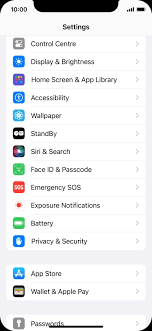
Augmenting Luminosity on Iphone Phones
IPhone users, don’t worry! You can also increase the screen brightness with ease:
- Settings: Open the Settings app.
- Display & Brightness: Tap on “Display & Brightness”.
- Brightness: Adjust the brightness level by dragging the slider to the right.
- Auto-brightness: Enable auto-brightness by tapping on it and toggling it ON.
Going Beyond The Limit: Increasing Luminosity on Oled Phones
Some phones, like Samsung’s OLED models, have a feature that allows you to increase the screen brightness beyond its default limit. To access this feature:
- Settings: Open the Settings app.
- Display: Tap on “Display” or “Screen” (depending on your phone model).
- Adaptive Brightness: Enable adaptive brightness by tapping on it and toggling it ON.
Conclusion
Increasing the luminosity of your phone is easier than you think! By following these simple steps, you can enjoy a brighter screen that’s perfect for reading in bright sunlight. Whether you own an Android, Samsung, Xiaomi, Huawei, or iPhone device, we’ve got you covered.
So, go ahead and give these methods a try. Your eyes (and your phone) will thank you!
Frequently Asked Questions
- Q: Can I Increase The Screen Brightness on my Phone Beyond Its Default Limit?
A: Yes, some phones have a feature that allows you to do so. - Q: How do I Enable Adaptive Brightness on my Android Phone?
A: Simply go to Settings > Display > Brightness and toggle ON the Adaptive Brightness option. - Q: Can I Use The Centre Notifications Menu to Adjust Screen Brightness on my Samsung Phone?
A: Yes, you can access this feature by swiping down from the top of the screen. - Q: Will Increasing The Screen Brightness Consume More Battery Power?
A: Yes, it may cause a slight increase in battery consumption. - Q: Can I Adjust The Screen Brightness on my Iphone Using Siri?
A: No, you’ll need to access this feature through the Settings app. - Q: What’s The Difference Between Adaptive And Auto-brightness?
A: Both features aim to automatically adjust the screen brightness based on your surroundings. However, adaptive brightness tends to be more aggressive in its adjustments. - Q: Can I Use a Third-party App to Increase The Screen Brightness of my Phone?
A: Yes, there are several apps available that can help you achieve this.
Hope this helps!


