
How to Boost Your Wifi Speed: Tips And Tricks
Are you tired of slow internet speeds? Do you struggle to stream videos or download files quickly? You’re not alone! Many people face the frustration of a sluggish WiFi connection, but there are ways to improve it. In this article, we’ll explore some tips and tricks to boost your WiFi speed.
The Problem: Slow Wifi
Slow WiFi can be caused by a variety of factors, including:
- Outdated router hardware
- Interference from other devices
- Distance from the router
- Overcrowding in public spaces
Tip 1: Update Your Router’s Firmware
One simple way to boost your WiFi speed is to update your router’s firmware. Manufacturers regularly release updates that can improve performance, fix bugs, and add new features. Check your router’s manufacturer website for any available updates.
Tip 2: Change The Channel of Transmission
Changing the channel of transmission on your router can help reduce interference from other devices. Use a WiFi analyzer app to scan for nearby networks and choose a less crowded channel. For example, you can try switching to channel 1, 6, or 11.
Tip 3: Move Your Router to a Better Location
The position of your router can significantly impact your WiFi speed. Try moving it to a central location in your home, ideally at half height and away from walls and other electronic devices that may interfere with the signal.
Tip 4: Use Powerline Adapters
If you’re struggling with a weak WiFi signal, consider using powerline adapters. These devices use your home’s electrical wiring to create a network connection, eliminating the need for WiFi. They come in pairs and can be used to extend your network coverage.
Tip 5: Use a Range Extender
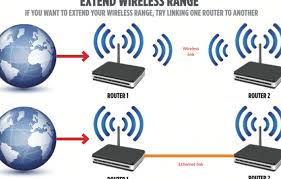
A range extender is another option for boosting your WiFi speed. This device takes an existing WiFi signal and amplifies it, allowing you to extend the range of your network. Place it in a strategic location to maximize coverage.
Tip 6: Change Your Dns Server
Changing your DNS server can help improve your internet speeds by reducing latency and improving connectivity. Consider switching to a third-party DNS service like Google Public DNS or OpenDNS.
Tip 7: Use a Lightweight Browser
Using a lightweight browser can also help boost your WiFi speed. Browsers like Google Chrome are designed for fast performance and can help you navigate the web quickly.
Tip 8: Check For Malware And Viruses
Malware and viruses can significantly slow down your internet speeds. Run regular scans with antivirus software to detect and remove any threats.
Tip 9: Regulate Your Snr
SNR (Signal-to-Noise Ratio) affects your WiFi speed by measuring the strength of the signal against interference from other devices. Adjusting your SNR can help optimize your connection speeds.
Conclusion
Boosting your WiFi speed is easier than you think! By following these tips and tricks, you can enjoy faster internet speeds and improved connectivity. Remember to stay up-to-date with the latest router firmware updates, change the channel of transmission, move your router to a better location, use powerline adapters or range extenders, change your DNS server, use a lightweight browser, check for malware and viruses, and regulate your SNR.
Faqs
Q: Why is my WiFi so slow?
A: Slow WiFi can be caused by outdated router hardware, interference from other devices, distance from the router, or overcrowding in public spaces.
Q: How do I update my router’s firmware?
A: Check your router’s manufacturer website for any available updates and follow their instructions to download and install them.
Q: What is SNR and how does it affect my WiFi speed?
A: SNR measures the strength of the signal against interference from other devices. Adjusting your SNR can help optimize your connection speeds.
Q: Can I use powerline adapters to boost my WiFi speed?
A: Yes, powerline adapters use your home’s electrical wiring to create a network connection, eliminating the need for WiFi.
Q: What is a range extender and how does it work?
A: A range extender takes an existing WiFi signal and amplifies it, allowing you to extend the range of your network. Place it in a strategic location to maximize coverage.
Q: Can I use a third-party DNS server to improve my internet speeds?
A: Yes, consider switching to a third-party DNS service like Google Public DNS or OpenDNS.
Q: How do I check for malware and viruses on my device?
A: Run regular scans with antivirus software to detect and remove any threats.


