
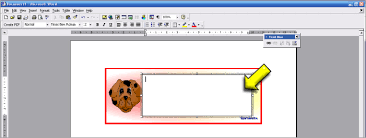
How to Insert a Background on Word
Are you tired of the classic white background in Microsoft Word? Do you want to create a document with some pages colored or an image as background? If so, this guide is for you.
In this article, we will show you how to insert a background on Word using the built-in functionality. We will also provide some helpful suggestions for those who have older versions of Word.
Inserting a Background on Word
To add a background to your document, follow these steps:
- Open the file that you want to modify.
- Go to the “Design” tab in the top menu bar.
- Click on the “Background” button (located in the top right corner of the screen).
- Select the color you want for the background from the palette that opens.
- If you don’t find the exact color you need, click on “Other colors” and select the “Customize” tab.
- Use the color picker to choose a custom color.
- Click “OK” to apply the changes.
Using Effects And Images as Background
If you want to add more visual interest to your document, you can use effects or images as background. To do this:
- Go back to the “Background” button in the “Design” tab.
- Select the “Effects” option from the menu.
- Choose a nuance effect, such as a gradient or texture.
- If you want to add an image, select the “Image” option and choose your picture.
- Adjust the size and position of the image using the handles.
Inserting a Background in Older Versions of Word
If you have an older version of Microsoft Office (Office 2010/2007 or earlier), follow these steps:
- Open the document that you want to modify.
- Go to the “Layout” tab in the top menu bar.
- Click on the “Background” button.
- Select the color you want for the background from the palette that opens.
- If you don’t find the exact color you need, click on “Other colors” and select the “Customize” tab.
Using Filigree to Insert a Background
Another way to insert a background is by using the Filigree feature. This allows you to create a semitransparent background that won’t obscure your text.
- Go to the “Design” tab in the top menu bar.
- Click on the “Filigree” button (located in the top right corner of the screen).
- Select the type of filigree you want, such as a image or a texture.
- Adjust the size and position of the filigree using the handles.
Inserting a Background on a Single Page
If you only want to add a background to a single page, follow these steps:
- Insert an interruption in section by going to the “Layout” tab and selecting “Interruptions > Next Page”.
- Create a new header for the second page.
- Add your desired image or filigree as background using the steps above.
Using Headers to Insert a Background
Another way to add a background is by using headers. This allows you to create a consistent design throughout your document.
- Go to the “Layout” tab in the top menu bar.
- Click on the “Headers” button.
- Select the type of header you want, such as an image or a texture.
- Adjust the size and position of the header using the handles.
Conclusion
Inserting a background on Word is easy and fun! With these steps, you can add visual interest to your documents without sacrificing readability. Whether you’re using effects, images, filigree, or headers, there are many ways to customize your background.
Faqs
- Q: How do I Insert a Background on Microsoft Office 2010/2007?
A: To insert a background in older versions of Word, follow the steps outlined above. - Q: Can I Use Images as Background?
A: Yes, you can use images as background by selecting the “Image” option from the menu. - Q: How do I Adjust The Size And Position of my Background Image?
A: Use the handles to resize and reposition your background image. - Q: Can I Add Effects to my Background Image?
A: Yes, you can add effects such as nuances or textures by selecting the “Effects” option from the menu. - Q: How do I Remove a Background on Word?
A: To remove a background, simply click on the “Background” button and select the default white background. - Q: Can I Use Filigree to Insert a Background?
A: Yes, you can use filigree to create a semitransparent background by selecting the “Filigree” option from the menu. - Q: How do I Customize my Background on Word?
A: Use the color picker and effects options to customize your background. - Q: Can I Insert a Background on a Single Page?
A: Yes, you can insert a background on a single page by using headers or interruptions in section.


