
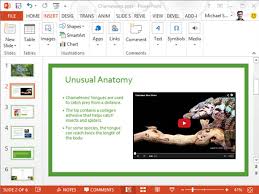
How to Insert a Link on Powerpoint: A Step-by-step Guide
Are you tired of having to manually enter links into your PowerPoint presentations? Do you want to make your presentations more engaging and interactive? Look no further! In this article, we will guide you through the process of inserting a link on PowerPoint, using both desktop and online versions.
Inserting a Link on Desktop Version of Powerpoint
If you’re using the desktop version of PowerPoint on Windows or macOS, follow these steps:
- Open Powerpoint: Double-click on the PowerPoint icon to open the application.
- Choose Your Presentation: Decide whether you want to create a new presentation or work on an existing one. If you choose to create a new presentation, double-click on the file to open it.
- Create a Link: Go to the “Insert” tab and click on the “Link” button. Alternatively, you can also right-click on the object (text, image, or form) where you want to insert the link.
- Enter The Url: Type in the URL of the webpage you want to link to, or copy and paste it from your browser.
- Modify The Link: You can add a description to the link by clicking on the “Description” button. Enter the text you want to display when someone clicks on the link.
Inserting a Link on Powerpoint Online
If you’re using PowerPoint Online, follow these steps:
- Open Powerpoint Online: Log in to your Microsoft account and access PowerPoint Online.
- Choose Your Presentation: Decide whether you want to create a new presentation or work on an existing one. If you choose to create a new presentation, click on the “Create” button.
- Insert The Link: Go to the slide where you want to insert the link. Copy and paste the URL of the webpage into the “Address” field.
Inserting a Link on Smartphone or Tablet
If you’re using a smartphone or tablet, follow these steps:
- Open Powerpoint App: Open the PowerPoint app on your device.
- Choose Your Presentation: Decide whether you want to create a new presentation or work on an existing one.
- Copy And Paste The Url: Copy the URL of the webpage you want to link to and paste it into the “Address” field.
Inserting a Video Link on Powerpoint
If you’re inserting a video link on PowerPoint, follow these steps:
- Open Powerpoint: Double-click on the PowerPoint icon to open the application.
- Choose Your Presentation: Decide whether you want to create a new presentation or work on an existing one.
- Insert The Video: Go to the slide where you want to insert the video. Click on the “Insert” tab and select the “Video” option.
- Enter The Url: Type in the URL of the video you want to link to.
Troubleshooting Tips
- Make sure the link is formatted correctly before inserting it into PowerPoint.
- Test the link by clicking on it to ensure it opens correctly.
- If you’re experiencing issues with the link, try copying and pasting it instead of typing it in.
Conclusion
Inserting a link on PowerPoint is a straightforward process that can enhance your presentations and make them more engaging. By following these steps, you’ll be able to add links to your presentations using both desktop and online versions of PowerPoint.
Frequently Asked Questions (FAQs)
- Q: How do I Insert a Link on Powerpoint Online?
A: To insert a link on PowerPoint Online, copy and paste the URL into the “Address” field. - Q: Can I Insert a Video Link on Powerpoint?
A: Yes, you can insert a video link on PowerPoint by going to the slide where you want to insert the video and clicking on the “Insert” tab. - Q: How do I Modify The Color of The Link?
A: To modify the color of the link, select the link and click on the “Home” tab in the toolbar. - Q: Can I Insert a Link on a Smartphone or Tablet?
A: Yes, you can insert a link on a smartphone or tablet by using the PowerPoint app. - Q: How do I Test The Link Before Inserting it Into Powerpoint?
A: To test the link, click on it to ensure it opens correctly. - Q: Can I Insert Multiple Links in One Presentation?
A: Yes, you can insert multiple links in one presentation by following the steps outlined above. - Q: How do I Remove a Link From Powerpoint?
A: To remove a link from PowerPoint, select the link and press the “Delete” button. - Q: Can I Use Images or Icons as Links on Powerpoint?
A: Yes, you can use images or icons as links on PowerPoint by inserting them into the presentation and linking them to a URL.


