
How to Insert a Link to a Video on Powerpoint
Are you tired of using static images and text on your presentations? Do you want to make them more engaging and interactive? Look no further! In this article, we will guide you on how to insert a link to a video on PowerPoint, both on PC and online.
Why Insert a Link to a Video on Powerpoint?
Inserting a link to a video on PowerPoint can be a game-changer for your presentations. It allows your audience to watch videos directly from the presentation, without having to leave the slide deck. This feature is especially useful when you want to showcase complex concepts, demonstrate products or services, or provide tutorials.
How to Insert a Link to a Video on Powerpoint on PC
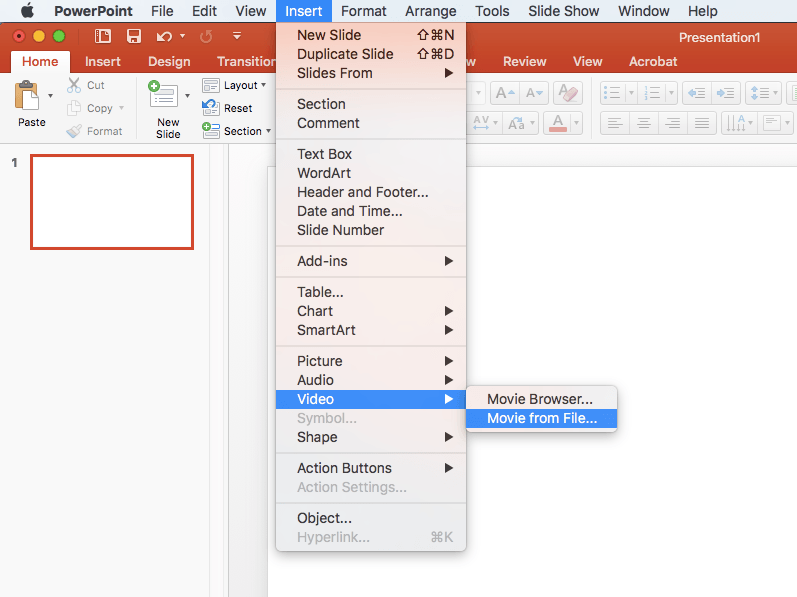
To insert a link to a video on PowerPoint on PC, follow these steps:
- Open Powerpoint: Launch PowerPoint and create a new presentation or open an existing one.
- Select The Slide: Choose the slide where you want to insert the link.
- Copy The Video Link: Go to the website hosting the video (e.G., YouTube) and copy the video link.
- Paste The Link: Go back to PowerPoint, click on the “Insert” tab, and select “Link”.
- Paste The Video Link: Paste the video link into the text box that appears.
- Click OK: Click “OK” to insert the link.
How to Insert a Link to a Video on Powerpoint Online
To insert a link to a video on PowerPoint online, follow these steps:
- Open Powerpoint Online: Log in to your Microsoft account and access PowerPoint online.
- Select The Presentation: Choose the presentation where you want to insert the link.
- Click on “Insert”: Click on the “+” icon on the top-right corner of the screen and select “Link”.
- Paste The Video Link: Paste the video link into the text box that appears.
- Click OK: Click “OK” to insert the link.
How to Insert a Link to a Video on Powerpoint on Smartphone or Tablet
To insert a link to a video on PowerPoint on smartphone or tablet, follow these steps:
- Open Powerpoint App: Launch the PowerPoint app on your device.
- Select The Presentation: Choose the presentation where you want to insert the link.
- Tap on “Insert”: Tap on the “+” icon and select “Link”.
- Paste The Video Link: Paste the video link into the text box that appears.
- Tap OK: Tap “OK” to insert the link.
How to Embed a Video From Youtube
To embed a video directly from YouTube, follow these steps:
- Copy The Video Link: Copy the video link from YouTube.
- Open Powerpoint: Open PowerPoint and select the slide where you want to insert the video.
- Click on “Insert”: Click on the “+” icon and select “Video”.
- Select Online Video: Select “Online Video” and paste the YouTube link.
- Click Insert: Click “Insert” to embed the video.
Tips And Variations
- To insert a link to a video on PowerPoint, you can also use the “Hyperlink” feature.
- You can customize the appearance of the link by changing its color, font, or shape.
- If you want to add a screenshot of the video instead of a link, you can use the “Screenshot” feature.
Conclusion
Inserting a link to a video on PowerPoint is a straightforward process that can enhance your presentations and make them more engaging. By following these steps, you can add videos from YouTube or other platforms directly into your presentation. Whether you’re using PowerPoint on PC, online, or mobile, the process remains the same.
Frequently Asked Questions (FAQs)
- Q: Can I Insert a Link to a Video on Powerpoint on my Smartphone or Tablet?
A: Yes, you can insert a link to a video on PowerPoint on your smartphone or tablet by following the steps outlined above. - Q: How do I Embed a Video From Youtube Directly Into my Presentation?
A: To embed a video from YouTube, copy the video link and paste it into the “Online Video” feature in PowerPoint. - Q: Can I Customize The Appearance of The Link to The Video?
A: Yes, you can customize the appearance of the link by changing its color, font, or shape. - Q: What if I Want to Add a Screenshot of The Video Instead of a Link?
A: You can use the “Screenshot” feature to add a screenshot of the video instead of a link.


