
How to Insert a Bibliography in Microsoft Word: A Step-by-step Guide
Are you struggling to add a bibliography to your document in Microsoft Word? Don’t worry, we’ve got you covered! In this article, we’ll show you how to insert a bibliography in Word, using both manual and automatic methods.
Why is a Bibliography Important?
A bibliography is an essential element of any academic or professional document. It demonstrates the research and competition in your study, allowing readers to deepen their understanding of the topic. A well-formatted bibliography also showcases your academic integrity by attributing ideas and information to the original sources.
Choosing The Right Citation Style
Before you start inserting a bibliography, choose the citation style that suits your needs. Common styles include APA, MLA, Chicago, and Harvard. Each style has specific rules for formatting bibliographic elements, punctuation, and general formatting.
Organizing Bibliographic Elements
Once you’ve collected the necessary information and chosen a citation style, organize the bibliographic elements for each source used. Typically, sources are organized in alphabetical order, with authors cited chronologically if they have multiple works.
Adding a Bibliography to Microsoft Word
To add a bibliography to your document in Microsoft Word:
- Open your document in Word.
- Position yourself at the end of the text or where you want to insert the bibliography.
- Type a header for the bibliography, such as “Bibliography” or “References,” using bold font.
- Split the title from the header by manually enumerating the bibliographic sources in alphabetical order.
Manual Method: Inserting Bibliographic Sources
When inserting individual bibliographic sources:
- Start with the author’s surname and name, abbreviated if necessary (e.G., APA style).
- Include the title of the book or article, using the required format for your citation style.
- Add relevant information such as the publisher, year of publication, and page numbers (if applicable).
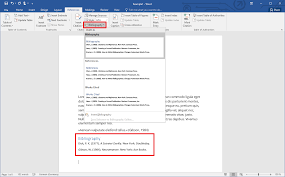
Automatic Method: Using Word’s Bibliography Feature
If you want to simplify the process:
- Go to the References tab in the top menu bar.
- Click on the Manage Sources button.
- If you have an existing file with bibliographic information, select it from the drop-down menu.
- Otherwise, create a new source by filling out the relevant fields.
Using Mendeley For Bibliography Management
Mendeley is a popular software for managing references and academic research. It allows users to organize their bibliography easily and efficiently.
To use Mendeley:
- Download and install Mendeley on your computer.
- Create a free account and set up your profile.
- Import sources from the Web or existing files using the Mendeley Importer extension.
- Use Mendeley Cite to insert formatted citations into your Word document.
Inserting a Bibliography With Mendeley
To insert a bibliography with Mendeley:
- Export your Mendeley references in XML format.
- Open your Word document and navigate to the Management Sources section.
- Select the XML file from Mendeley to import your bibliographic sources into your document.
Conclusion
Inserting a bibliography in Microsoft Word is a straightforward process, whether you choose to do it manually or use the automatic feature with Mendeley’s help. Remember to always format your citations correctly according to your chosen style and organize your sources in alphabetical order for maximum clarity.
Faqs:
- Q: What is The Purpose of a Bibliography?
A: A bibliography demonstrates research, competition, and academic integrity by attributing ideas and information to original sources. - Q: Which Citation Styles Are Commonly Used?
A: APA, MLA, Chicago, and Harvard are popular citation styles with specific rules for formatting bibliographic elements. - Q: How do I Organize my Bibliographic Sources?
A: Sources should be organized in alphabetical order, with authors cited chronologically if they have multiple works. - Q: Can I Use Mendeley to Manage my Bibliography?
A: Yes, Mendeley is a popular software for managing references and academic research, making it easier to insert a bibliography into your Word document. - Q: How do I Export my Mendeley References in Xml Format?
A: You can export your Mendeley references by going to the “Export” section and selecting the XML file type. - Q: Can I Use Word’s Built-in Feature to Insert a Bibliography?
A: Yes, Microsoft Word has a built-in feature for inserting bibliographies automatically using the References tab. - Q: What is The Difference Between Manual And Automatic Methods of Inserting a Bibliography?
A: The manual method involves typing individual sources, while the automatic method uses Word’s features to simplify the process with Mendeley’s help. - Q: Can I Use Other Tools Besides Mendeley For Managing my Bibliography?
A: Yes, there are other tools available that can help you manage your bibliography, such as Web Importer and Mendeley Cite.
I hope this article has been informative and helpful in guiding you through the process of inserting a bibliography in Microsoft Word.


