
How to Insert Emojis in Outlook: A Comprehensive Guide
As we navigate the digital world, effective communication is key. Adding emojis to our emails can convey emotions and personality, making them more engaging and authentic. However, inserting emojis in Outlook can be a challenge, especially for those who are new to using this feature. In this article, we will explore how to insert emojis in Outlook on various platforms, including Android, iPhone and iPad, Windows, and Mac.
Why Insert Emojis in Outlook?
Emojis have become an essential part of digital communication, and adding them to our emails can make a significant difference. They can convey emotions, tone, and personality, making our messages more engaging and relatable. By inserting emojis in Outlook, we can:
- Convey emotions and tone
- Add personality to our emails
- Make our communications more engaging and authentic
How to Insert Emojis in Outlook: Android
Inserting emojis in Outlook on Android is a straightforward process. Here are the steps:
- Open the Outlook app on your device.
- Find the email you want to reply to or create a new one.
- Tap on the smiley face icon (????) present in the bottom left corner of the keyboard.
- Choose the emoji you want to add from the available options.
- If you’re using the Gboard keyboard, you can also search for emojis by tapping on the magnifying glass icon.
How to Insert Emojis in Outlook: Iphone And Ipad
Inserting emojis in Outlook on iPhone and iPad is similar to Android:
- Open the Outlook app on your device.
- Find the email you want to reply to or create a new one.
- Tap on the smiley face icon (????) present in the bottom left corner of the keyboard.
- Choose the emoji you want to add from the available options.
- If you’re using an alternative keyboard, follow a similar procedure.
How to Insert Emojis in Outlook: Windows
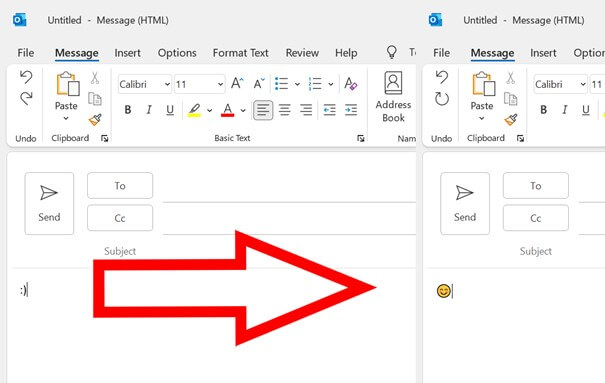
To insert emojis in Outlook on Windows, you can use the text code or the emoji selector:
- Open the Outlook app (or Outlook.Com).
- Find the email you want to reply to or create a new one.
- Type the text code for the emoji you want to add (e.G., 🙂 For ????).
- Use the emoji selector by pressing the Windows key + [.] (Period) to open it.
- Choose the emoji you want to add from the available options.
How to Insert Emojis in Outlook: Mac
Inserting emojis in Outlook on Mac is also possible:
- Open the Outlook app.
- Find the email you want to reply to or create a new one.
- Use the text code (e.G., 🙂 For ????) or select from available emojis by pressing Command + Control + Spacebar.
- Choose the emoji you want to add from the list of options.
Tips And Tricks
- Make sure your keyboard has emojis enabled.
- If you’re using an alternative keyboard, ensure it supports emojis.
- Use the emoji selector on Windows and Mac for easy access.
- Take advantage of text codes for quick emoji insertion.
- Experiment with different emojis to add personality to your emails!
Conclusion
Inserting emojis in Outlook can be a fun and creative way to enhance our digital communications. With this guide, you now know how to insert emojis on various platforms. Remember to always check the availability of emojis on your device or keyboard before inserting them. Happy emailing!
Frequently Asked Questions (FAQs)
- Q: Can I Use Emojis in All Versions of Outlook?
A: Yes, emojis are supported in most versions of Outlook, including Outlook.Com. - Q: How do I Enable Emojis on my Keyboard?
A: Check your device’s settings or refer to the manufacturer’s guide for instructions on enabling emojis. - Q: Can I Use Emojis in Emails Sent From my Phone?
A: Yes, most smartphones support emojis and will allow you to insert them in your emails. - Q: Are There Any Limitations to Using Emojis in Outlook?
A: While emojis are widely supported, some older versions of Outlook may not have the latest emoji library.
I hope this guide has been helpful!


