
How to Insert Images in Pdf Files
Are you tired of using expensive software to edit your PDF files? Do you want to add images, signatures, or watermarks to your documents without breaking the bank? Look no further! In this article, we will show you how to insert images in PDF files using free and easy-to-use software.
Why Use Free Software?
Using free software is a great way to save money and still achieve professional-looking results. Many free software options are just as powerful as their paid counterparts, and they can be downloaded for free from the internet.
Inserting Images in Pdf Files
One of the most common tasks when editing PDF files is inserting images. This can be useful for adding graphics, charts, or photos to your documents. Here are a few ways to insert images in PDF files:
- Using Libreoffice: One of the best free software options for editing PDF files is LibreOffice. This suite of office tools includes a program called Draw that allows you to edit and insert images into your PDF files.
- Using Pdfescape: Another option for inserting images in PDF files is PDFEscape. This online service allows you to upload your PDF file, add images, and download the modified document.
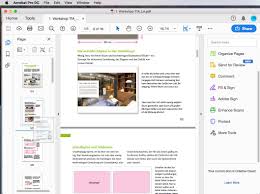
- Using Adobe Acrobat Reader: If you have Adobe Acrobat Reader installed on your computer, you can use it to insert images into your PDF files. This software also includes a feature for adding signatures and watermarks.
Step-by-step Instructions
Here are some step-by-step instructions for inserting images in PDF files using the methods mentioned above:
- Using Libreoffice:
- Download and install LibreOffice on your computer.
- Open the program and select the Draw option.
- Choose the PDF file you want to edit and click “Open”.
- Select the image you want to insert from the menu or by dragging it into the document.
- Adjust the image’s position, size, and other settings as needed.
- Using Pdfescape:
- Upload your PDF file to the PDFEscape website.
- Choose the page where you want to insert the image.
- Select the image you want to add from your computer or by taking a photo with your smartphone.
- Adjust the image’s position, size, and other settings as needed.
- Using Adobe Acrobat Reader:
- Open the PDF file in Adobe Acrobat Reader.
- Click on the “Tools” menu and select “Edit”.
- Choose the image you want to insert from your computer or by taking a photo with your smartphone.
- Adjust the image’s position, size, and other settings as needed.
Other Ways to Insert Images in Pdf Files
In addition to the methods mentioned above, there are several other ways to insert images into your PDF files. Some of these include:
- Using Microsoft Word: You can also use Microsoft Word to insert images into your PDF files. Simply open the document, select the image you want to add, and adjust its position and size as needed.
- Using Autocad: If you have AutoCAD installed on your computer, you can use it to import PDF files and edit them directly within the program.
Conclusion
Inserting images in PDF files is a simple task that can be achieved using free software. Whether you use LibreOffice, PDFEscape, or Adobe Acrobat Reader, you can easily add graphics, charts, photos, signatures, and watermarks to your documents without breaking the bank.
Frequently Asked Questions (FAQs)
Here are some frequently asked questions related to inserting images in PDF files:
- Q: What Software do I Need to Insert Images in Pdf Files?
A: You can use LibreOffice, PDFEscape, or Adobe Acrobat Reader to insert images into your PDF files. - Q: How do I Add a Signature to my Pdf File?
A: You can use Adobe Acrobat Reader to add a signature to your PDF file. Simply open the document, select the “Sign” option, and choose the image you want to use as your signature. - Q: Can I Insert Images in Pdf Files on my Smartphone or Tablet?
A: Yes, there are several apps available that allow you to edit PDF files and insert images directly on your mobile device. - Q: What is The Best Software For Editing Pdf Files?
A: The best software for editing PDF files depends on your specific needs. LibreOffice, PDFEscape, and Adobe Acrobat Reader are all popular options.
Common Mistakes to Avoid
Here are some common mistakes to avoid when inserting images in PDF files:
- Don’t Overcomplicate The Process: Inserting images in PDF files is a simple task that can be achieved using free software.
- Use High-quality Images: Make sure the image you choose is of high quality and relevant to your document.
- Adjust The Image’s Position And Size Carefully: Take the time to adjust the image’s position, size, and other settings carefully to ensure it looks professional.
Tips And Tricks
Here are some tips and tricks for inserting images in PDF files:
- Use a Consistent Layout: Use a consistent layout throughout your document to ensure that your images look professional.
- Experiment With Different Fonts And Colors: Experiment with different fonts and colors to add visual interest to your document.
- Don’t Forget to Save Your File: Don’t forget to save your file after making changes to it!


