
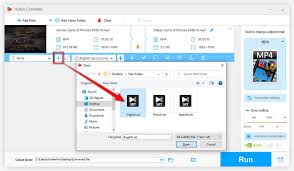
How to Insert Subtitles in a Video: A Step-by-step Guide
Are you tired of watching videos without subtitles? Do you want to make your content more accessible to a wider audience? Look no further! In this article, we will guide you through the process of inserting subtitles into a video, whether it’s on your computer or mobile device.
Why Insert Subtitles in a Video?
Inserting subtitles in a video can be incredibly beneficial for both creators and viewers. For creators, it allows them to reach a broader audience by making their content more accessible to people who may not speak the same language as the original dialogue. For viewers, it provides an extra layer of understanding and engagement with the video.
What You Need to Know Before Getting Started
Before we dive into the step-by-step guide, there are a few things you should know:
- Make sure you have the necessary software installed on your computer or mobile device.
- Choose the correct format for your subtitles (more on this later).
- Ensure that your video and subtitles are in sync with each other.
How to Insert Subtitles in a Video
Inserting Subtitles in a Video on Your Computer
- Choose The Correct Software: There are many software options available that allow you to insert subtitles into a video, such as VLC, Avidemux, and Adobe Premiere Pro.
- Select The Correct Format: The most common formats for subtitles are SRT (SubRip), ASS (Advanced SubStation Alpha), and SSA (Sub Station Alpha). Choose the one that best suits your needs.
- Open Your Video in The Software: Once you have selected the software, open your video file within it.
- Create a New Subtitle Track: Most software programs will automatically create a new subtitle track when you insert subtitles into your video.
Inserting Subtitles in a Video on Your Mobile Device
If you want to insert subtitles in a video on your mobile device, the process is slightly different:
- Choose The Correct App: There are many apps available that allow you to insert subtitles into a video, such as VLC for Android and iOS.
- Select The Correct Format: The format options may be limited on mobile devices, so make sure you choose the correct one for your needs.
- Open Your Video in The App: Once you have selected the app, open your video file within it.
- Create a New Subtitle Track: Most apps will automatically create a new subtitle track when you insert subtitles into your video.
Tips And Tricks
- Make sure to save your subtitles as a separate file from your video, in case you need to make any changes or edits later on.
- Use the correct formatting for your subtitles, including font size, color, and style.
- Consider using a subtitle editor to help you create and edit your subtitles more efficiently.
Common Issues And Solutions
Some common issues that may arise when inserting subtitles into a video include:
- Out-of-sync Subtitles: Make sure that your subtitles are in sync with your video by checking the timing of each line.
- Incorrect Formatting: Use the correct formatting for your subtitles, including font size, color, and style.
- Subtitles Not Appearing: Check that your software or app is set to display subtitles.
By following these simple steps and tips, you can easily insert subtitles into a video on your computer or mobile device.


