
How to Insert a Sim Card Into Your Tablet: A Step-by-step Guide
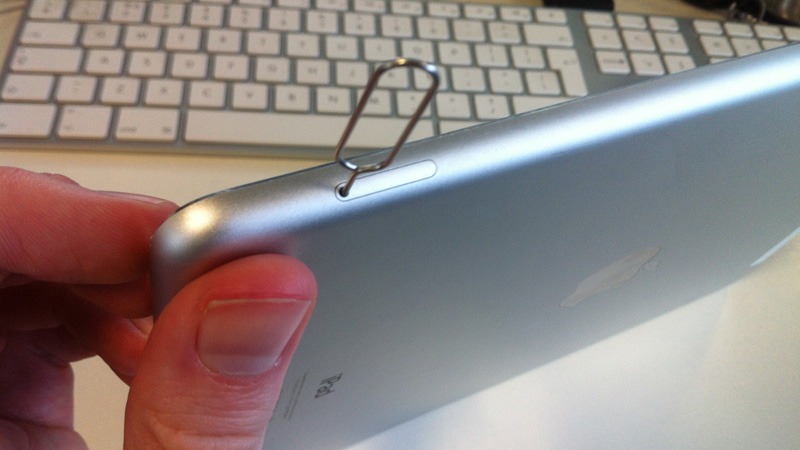
Are you having trouble inserting a SIM card into your tablet? Do you want to know the correct procedure for each type of tablet brand, including Samsung, Huawei, Mediacom, Lenovo, Apple, and Acer? Look no further! In this article, we will guide you through the process of inserting a SIM card into your tablet, step by step.
Why Insert a Sim Card Into Your Tablet?
Before we dive into the process, let’s briefly discuss why you would want to insert a SIM card into your tablet. A SIM card allows you to use your tablet as a mobile device, giving you access to the internet and phone services even when there is no Wi-Fi connection available. This can be particularly useful for travelers or those who need to stay connected on-the-go.
What Type of Sim Card Do I Need?
To determine which type of SIM card you need, look at the back of your tablet’s packaging or check the user manual. The most common types of SIM cards are Mini-SIM (2FF), Micro-SIM (3FF), and Nano-SIM (4FF). If you’re still unsure, simply search online for “SIM card type [tablet brand name]”.
Step-by-step Guide to Inserting a Sim Card Into Your Tablet
Samsung Tablets
To insert a SIM card into your Samsung tablet:
- Turn off the device by pressing and holding the power button.
- Locate the SIM card slot on the right side of the device (it may be covered by a small plastic panel).
- Remove the panel to expose the SIM card slot.
- Insert the SIM card into the slot, making sure it clicks into place.
- Replace the panel and turn the device back on.
Huawei Tablets
To insert a SIM card into your Huawei tablet:
- Turn off the device by pressing and holding the power button.
- Locate the SIM card slot on the right side of the device (it may be covered by a small plastic panel).
- Remove the panel to expose the SIM card slot.
- Insert the SIM card into the slot, making sure it clicks into place.
- Replace the panel and turn the device back on.
Mediacom Tablets
To insert a SIM card into your Mediacom tablet:
- Turn off the device by pressing and holding the power button.
- Locate the SIM card slot on the top or right side of the device (it may be covered by a small plastic panel).
- Remove the panel to expose the SIM card slot.
- Insert the SIM card into the slot, making sure it clicks into place.
- Replace the panel and turn the device back on.
Lenovo Tablets
To insert a SIM card into your Lenovo tablet:
- Turn off the device by pressing and holding the power button.
- Locate the SIM card slot on the right side of the device (it may be covered by a small plastic panel).
- Remove the panel to expose the SIM card slot.
- Insert the SIM card into the slot, making sure it clicks into place.
- Replace the panel and turn the device back on.
Apple Ipads
To insert a SIM card into your Apple iPad:
- Turn off the device by pressing and holding the power button.
- Locate the SIM card slot on the right side of the device (it may be covered by a small plastic panel).
- Remove the panel to expose the SIM card slot.
- Insert the SIM card into the slot, making sure it clicks into place.
- Replace the panel and turn the device back on.
Acer Tablets
To insert a SIM card into your Acer tablet:
- Turn off the device by pressing and holding the power button.
- Locate the SIM card slot on the top or right side of the device (it may be covered by a small plastic panel).
- Remove the panel to expose the SIM card slot.
- Insert the SIM card into the slot, making sure it clicks into place.
- Replace the panel and turn the device back on.
What If I Have a Different Type of Tablet?
If your tablet brand is not listed above, don’t worry! You can still follow these steps to insert a SIM card into your device. Simply consult the user manual or search online for specific instructions for your tablet model.
Troubleshooting Tips
- Make sure you have the correct type of SIM card for your device.
- Ensure that the SIM card is properly seated in the slot before turning on the device.
- If you encounter any issues, try restarting the device or consulting the user manual for further assistance.
Conclusion
Inserting a SIM card into your tablet is a relatively simple process. By following these step-by-step instructions and troubleshooting tips, you should be able to successfully insert a SIM card into your device. Remember to always check the user manual or online resources for specific instructions tailored to your tablet model.
Faqs
- Q: What Type of Sim Card do I Need?
A: The most common types of SIM cards are Mini-SIM (2FF), Micro-SIM (3FF), and Nano-SIM (4FF). Check the back of your tablet’s packaging or consult the user manual to determine which type you need. - Q: How do I Insert a Sim Card Into my Samsung Tablet?
A: To insert a SIM card into your Samsung tablet, turn off the device, locate the SIM card slot on the right side, remove the plastic panel to expose the slot, and insert the SIM card making sure it clicks into place. - Q: Can I Use Any Type of Sim Card in my Tablet?
A: No, you will need a SIM card that is compatible with your device. Check the user manual or online resources for specific information on compatible SIM cards. - Q: What if I Have Trouble Inserting The Sim Card?
A: If you encounter any issues while trying to insert the SIM card, try restarting the device or consulting the user manual for further assistance. - Q: Do I Need to Activate my Sim Card After Insertion?
A: Yes, after inserting your SIM card, you will need to activate it by contacting your mobile operator or following their online activation process.
By following these instructions and troubleshooting tips, you should be able to successfully insert a SIM card into your tablet. If you have any further questions or concerns, don’t hesitate to reach out for assistance.


