
Installing And Qualifying Adobe Reader Plugin For Your Browser
Are you tired of dealing with PDF files that won’t open in your browser? Look no further! In this article, we will guide you through the process of installing and qualifying the Adobe Reader plugin for various browsers.
Why Install Adobe Reader Plugin?
The Adobe Reader plugin allows you to view and interact with PDF files directly within your browser. This can save you time and hassle compared to downloading and opening PDFs separately. With this plugin, you can easily access and edit PDFs without leaving your browser.
Browser Compatibility
Adobe Reader plugin is compatible with various browsers, including Google Chrome, Mozilla Firefox, Microsoft Edge, and Safari. However, it’s essential to note that not all browsers support the plugin in the same way.
Installing Adobe Reader Plugin For Google Chrome
To install the Adobe Reader plugin on Google Chrome, follow these steps:
- Visit the Chrome Web Store by typing
chrome://Extensions/in your address bar. - Click on “Add” and search for Adobe Acrobat Reader.
- Select the Adobe Acrobat Reader extension from the results.
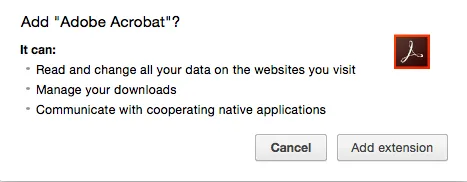
- Click on the “Add to Chrome” button to install the plugin.
- Once installed, you can access PDFs directly within Chrome by clicking on the link.
Configuring Adobe Reader Plugin in Google Chrome
To configure the Adobe Reader plugin, follow these steps:
- Click on the puzzle icon next to the address bar and select “Extensions.”
- Find the Adobe Acrobat Reader extension and click on it.
- Select the “Details” tab and choose your preferred settings for opening PDFs.
Installing Adobe Reader Plugin For Mozilla Firefox
To install the Adobe Reader plugin on Mozilla Firefox, follow these steps:
- Download the Adobe Acrobat Reader installer from the official website.
- Run the installer to install the software on your computer.
- Once installed, open a new tab in Firefox and type
about:Configin the address bar. - Search for “pdfjs.Disabled” and set it to “false.”
- Restart Firefox to apply the changes.
Configuring Adobe Reader Plugin in Mozilla Firefox
To configure the Adobe Reader plugin, follow these steps:
- Click on the three horizontal lines at the top-right corner of the browser window.
- Select “Options” from the dropdown menu.
- In the Options window, click on the “Applications” tab.
- Search for “Adobe Acrobat Reader” and select it as the default application for opening PDFs.
Installing Adobe Reader Plugin For Microsoft Edge
To install the Adobe Reader plugin on Microsoft Edge, follow these steps:
- Visit the Microsoft Store by typing
edge://Settings/in your address bar. - Click on “Extensions” from the left menu.
- Search for Adobe Acrobat Reader and select it from the results.
- Click on the “Add” button to install the plugin.
Configuring Adobe Reader Plugin in Microsoft Edge
To configure the Adobe Reader plugin, follow these steps:
- Click on the three horizontal lines at the top-right corner of the browser window.
- Select “Settings” from the dropdown menu.
- In the Settings window, click on the “Extensions” tab.
- Find the Adobe Acrobat Reader extension and click on it.
- Choose your preferred settings for opening PDFs.
Installing Adobe Reader Plugin For Safari
Unfortunately, installing Adobe Reader plugin on Safari is not possible due to Apple’s decision to discontinue support for third-party plugins in recent versions of the browser.
Conclusion
In conclusion, installing and qualifying the Adobe Reader plugin for various browsers can enhance your productivity when dealing with PDF files. By following the steps outlined above, you can easily access and edit PDFs directly within your browser.
Frequently Asked Questions (FAQs)
- Q: Why do I Need to Install Adobe Reader Plugin?
A: The Adobe Reader plugin allows you to view and interact with PDF files directly within your browser. - Q: Which Browsers Support Adobe Reader Plugin?
A: Google Chrome, Mozilla Firefox, Microsoft Edge, and Safari (on Mac). - Q: How do I Configure The Adobe Reader Plugin on my Browser?
A: Refer to the instructions provided above for each browser. - Q: Can I Install Adobe Reader Plugin on a Mobile Device?
A: Yes, but only on iOS devices running iOS 14 or later. - Q: What Happens if I Uninstall The Adobe Reader Plugin?
A: PDFs will open in the default application specified by your operating system. - Q: Can I Use Adobe Reader Plugin to Edit Pdfs?
A: Yes, with some limitations depending on the browser and operating system you’re using. - Q: How do I Recover my Password if I Forget It?
A: Refer to the instructions provided above for each browser or contact the relevant support team.
Disclaimer
The information provided in this article is accurate to the best of our knowledge, but we cannot guarantee that it will work for all users or browsers. If you experience any issues or have further questions, please consult the official documentation for your chosen browser and operating system.


