
How to Install Android Apps on Windows 11: A Step-by-step Guide
Are you looking for a way to install Android apps on your Windows 11 PC? Look no further! In this article, we’ll show you how to install Android apps on Windows 11 using Amazon Appstore and other tools.
Why Install Android Apps on Windows 11?
Installing Android apps on Windows 11 can be beneficial in several ways. You can use the same apps you have on your Android smartphone or tablet directly on your PC, without having to switch between devices. This can save time and increase productivity.
Prerequisites: Update Your Windows 11 to The Latest Version
Before installing Android apps on Windows 11, make sure you’re running the latest version of the operating system. To update Windows 11:
- Click on the Start button (the icon of a flag) in the bottom left corner.
- Open Settings (the icon of a cogwheel).
- Click on Windows Update in the left menu.
- Click on Check for updates, then Download and install.
Step 1: Enable Virtualization
Virtualization is required to run Android apps on Windows 11. To enable virtualization:
- Press Ctrl+Alt+Canc on your keyboard.
- Open Management Activity.
- If the program is running in reduced mode, click on Any more details.
- In the Performance tab, ensure that Virtualizzazione is enabled.
Amazon Appstore: The First Solution
The Amazon Appstore is a great way to install Android apps on Windows 11. To use this solution:
- Open Settings and click on Time and language in the left menu.
- Click on Region and tongue and tax Been Joined in the Country or geographic area section.
- Change your region to the United States (if you’re not already).
- Restart your PC.
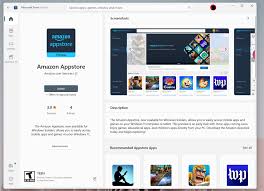
- Open the Microsoft Store and search for Amazon Appstore.
- Install Amazon Appstore.
- Follow the prompts to create an Amazon account or log in if you already have one.
- Download and install the app you want.
Wsatools: An Alternative Solution
If the Amazon Appstore method is too complicated, consider using WSATools. This application allows you to install APKs directly on your PC without using the Amazon Appstore:
- Download WSATools from the Microsoft Store.
- Install WSATools.
- Open WSATools and click on Install an APK.
- Select the APK file you downloaded and follow the prompts.
Other Solutions
There are other softwares available for virtualizing Android apps, such as BlueStacks. This software allows you to create a virtualized environment on your PC where you can run Android apps exactly like on a tablet:
- Download BlueStacks from their official website.
- Install BlueStacks.
- Open BlueStacks and download the app you want directly from the Google Play Store.
Conclusion
Installing Android apps on Windows 11 is now possible with Amazon Appstore, WSATools, or other softwares like BlueStacks. Follow these steps to get started:
- Update your Windows 11 to the latest version
- Enable virtualization
- Use Amazon Appstore or another solution like WSATools or BlueStacks
Frequently Asked Questions
Q: Do I need a specific version of Windows 11 for this to work?
A: Yes, ensure you’re running the latest version of Windows 11.
Q: How do I enable virtualization on my PC?
A: Follow the steps outlined in Step 1 above.
Q: Can I use Amazon Appstore if I’m not living in the United States?
A: No, currently the Amazon Appstore is only available in some countries. However, you can try creating a separate account for this purpose.
Q: What other solutions are available besides Amazon Appstore and WSATools?
A: Other softwares like BlueStacks also offer virtualization capabilities.
Q: Can I use these apps on older versions of Windows 10 or earlier?
A: Yes, but keep in mind compatibility issues might arise.
Q: How do I update my Amazon account region to enable the Appstore?
A: Follow the steps outlined in Step 2 above.
Q: Can I use the same app twice with different accounts?
A: No, ensure you log out or close any other instances before using a new account.
Q: Are these apps safe and virus-free?
A: Ensure you download from trusted sources and keep your operating system updated for security purposes.


