
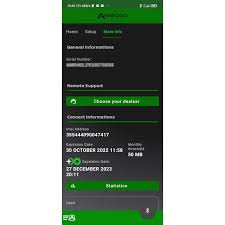
Installing App #Blue System: A Step-by-step Guide
Are you interested in monitoring your photovoltaic facilities remotely? Installing the App #Blue System is a great way to do so. In this article, we’ll guide you through the process of downloading and installing the app on both Android and iOS devices.
Prerequisites
Before we begin, it’s essential to note that the App #Blue System has been discontinued since May 31, 2023. However, its successor, Blue System, is still available for download. We’ll be using the Blue System app for this guide, as it offers similar features and functionality.
Installing App #Blue (Blue System) on Android
If you have an Android device with the Google Play Store, follow these steps to install the Blue System app:
- Open the Google Play Store and search for “Blue System”.
- Tap on the app icon to access its description page.
- Check if your device meets the system requirements.
- Click the “Install” button to begin downloading and installing the app.
- Wait for the installation process to complete, then tap on the “Open” button to launch the Blue System app.
Installing App #Blue (Blue System) on Ios (iPhone/iPad)
If you have an iPhone or iPad, follow these steps to install the Blue System app:
- Open the App Store and search for “Blue System”.
- Tap on the app icon to access its description page.
- Click the “Get” button to begin downloading and installing the app.
- Wait for the installation process to complete, then tap on the Blue System icon to launch the app.
Associating Inverter Zcs Azzurro
After installing the Blue System app, you can associate your inverter with your account. Follow these steps:
- Launch the Blue System app and click on the “Create Account” button.
- Fill out the registration form with your details.
- Check your email for a verification link and follow the instructions to activate your account.
- Log in to your account using the credentials you created.
- Click on the “+” icon to add a new device (inverter).
- Select the type of device (With or Without Connext) and fill out the required details.
- Scan the QR code on your inverter or enter its serial number manually.
Benefits of Using App #Blue System
Using the Blue System app offers several benefits, including:
- Real-time monitoring of your photovoltaic facilities
- Remote access to your energy data
- Customizable notifications and alerts
- Integration with other devices and systems
Conclusion
Installing the Blue System app is a straightforward process that can be completed on both Android and iOS devices. By following the steps outlined in this guide, you’ll be able to monitor your photovoltaic facilities remotely and stay up-to-date with your energy data.
Faqs
- What is The App #Blue System?
The App #Blue System was a discontinued app that allowed users to monitor their photovoltaic facilities remotely. - What is Blue System?
Blue System is the successor to App #Blue System, offering similar features and functionality. - How do I Install Blue System on my Android Device?
To install Blue System on your Android device, follow the steps outlined in this guide. - How do I Install Blue System on my Ios Device?
To install Blue System on your iOS device, follow the steps outlined in this guide. - Can I Associate Multiple Inverters With my Account?
Yes, you can associate multiple inverters with your account using the Blue System app. - What Are The System Requirements For Installing Blue System?
The system requirements for installing Blue System vary depending on your device and operating system. Check the app’s description page for more information. - How do I Access my Energy Data Remotely?
To access your energy data remotely, log in to your account using the Blue System app and navigate to the relevant section.


