
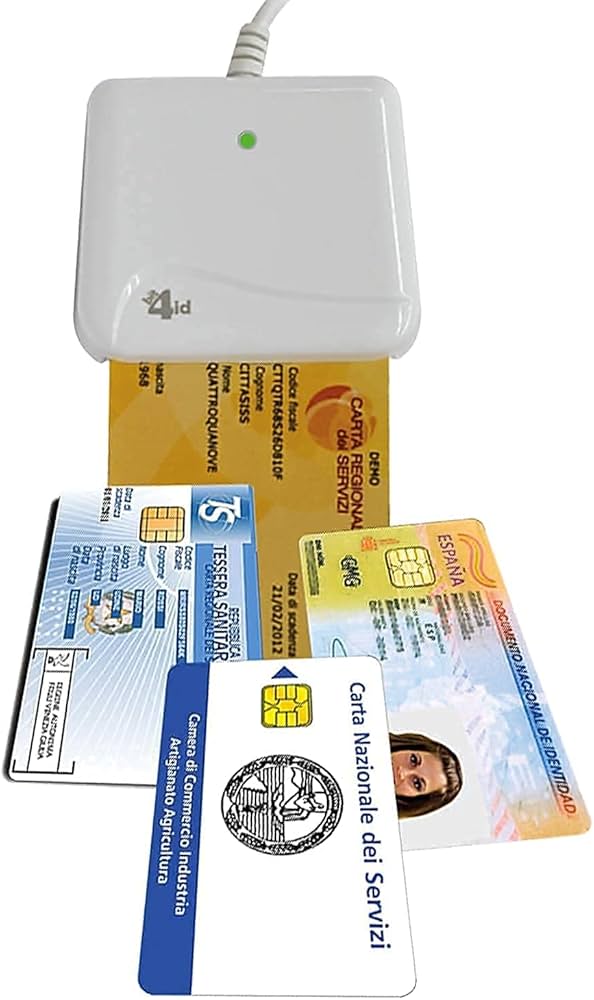
Installing Bit4id Reader: A Step-by-step Guide
Are you struggling to install your Bit4id reader? You’re not alone! In this article, we’ll walk you through the process of installing your Bit4id reader on Windows, macOS, and Linux operating systems.
Understanding The Bit4id Reader
Before we dive into the installation process, let’s quickly understand what the Bit4id reader is. The Bit4id reader is a smart card reader that allows you to access various services, such as online platforms and public administration services, using your smart card.
System Requirements
To install the Bit4id reader, you’ll need:
- A Windows, macOS, or Linux operating system
- A USB port on your computer
- The Bit4id reader device
Installing The Bit4id Reader on Windows
To install the Bit4id reader on Windows, follow these steps:
- Download The Driver: Go to the Bit4id support page and click on the “Driver and Software” tab. Then, select your operating system (Windows) and click on the “Reader” icon.
- Select Your Reader: Choose the type of reader you have (e.G., MiniLector EVO) from the list provided.
- Download The Driver File: Click on the download link to obtain the driver file.
- Extract The Driver File: Extract the zip file to a folder on your computer.
- Run The Installation File: Run the installation file (e.G., MiniLectorSetup.Exe) and follow the prompts to install the driver.
Installing The Bit4id Reader on Macos
To install the Bit4id reader on macOS, follow these steps:
- Check if Your Reader Requires a Driver: Go to the Bit4id support page and click on the “Driver and Software” tab. Then, select your operating system (macOS) and check if your reader requires a driver.
- Download The Driver (If Necessary): If your reader requires a driver, download it from the Bit4id website.
- Open The Driver File: Open the downloaded driver file (.Dmg).
- Install The Driver: Follow the prompts to install the driver.
Installing The Bit4id Reader on Linux
To install the Bit4id reader on Linux, follow these steps:
- Check if Your Distribution is Supported: Check if your Linux distribution (e.G., Ubuntu) is supported by the Bit4id driver.
- Download The Driver: Go to the Bit4id support page and click on the “Driver and Software” tab. Then, select your operating system (Linux) and choose your reader type.
- Download The Driver File: Click on the download link to obtain the driver file.
- Install The Driver: Follow the prompts to install the driver.
Conclusive Operations
After installing the Bit4id reader, you may need to perform additional operations to configure your device correctly. These operations depend on your specific use case and may include:
- Installing a middleware (additional software) to enable certain services
- Configuring your reader to work with specific online platforms
We’ll explore these operations in more detail below.
Installing Middleware
To install middleware, follow these steps:
- Check if Middleware is Required: Go to the Bit4id support page and check if middleware is required for your specific use case.
- Download The Middleware: Download the middleware from the Bit4id website.
- Install The Middleware: Follow the prompts to install the middleware.
Configuring Your Reader
To configure your reader, follow these steps:
- Check if Your Reader Requires Configuration: Check if your reader requires configuration for specific use cases (e.G., Online platforms).
- Configure Your Reader: Configure your reader according to the manufacturer’s instructions or online guides.
Troubleshooting Issues
If you encounter issues during installation or configuration, refer to the Bit4id support page or contact their customer support team for assistance.
Conclusion
Installing a Bit4id reader is relatively straightforward once you understand the process. By following these steps and consulting the Bit4id support page, you should be able to install your reader successfully on Windows, macOS, or Linux operating systems.
Frequently Asked Questions (FAQs)
Here are some additional FAQs related to installing the Bit4id reader:
- Q: What is The Bit4id Reader?
A: The Bit4id reader is a smart card reader that allows you to access various services using your smart card. - Q: Which Operating Systems Support The Bit4id Reader?
A: The Bit4id reader supports Windows, macOS, and Linux operating systems. - Q: What if my Distribution is Not Supported by The Bit4id Driver?
A: Contact Bit4id customer support for assistance or check their website for updates on supported distributions. - Q: How do I Configure my Reader For Specific Use Cases?
A: Refer to the manufacturer’s instructions or online guides for configuration steps.
Additional Resources
For further guidance, consult the following resources:
- Bit4id Support Page
- Manufacturer’s Instructions (e.G., User manuals)
- Online Guides and Tutorials
Remember to always follow proper safety precautions when handling electrical devices and smart cards.


