
The Ultimate Guide to Installing a Canon Printer
Are you tired of struggling with printing tasks? Look no further! In this comprehensive guide, we’ll walk you through the steps to install a Canon printer on your PC, Mac, or mobile device.
Why Install a Printer?
In today’s digital age, having a printer at home is not just a luxury, but a necessity. Whether it’s printing documents, photos, or artwork, a printer can be a game-changer for productivity and creativity. With a Canon printer, you’ll enjoy high-quality prints, reliable performance, and easy connectivity.
Preliminary Operations
Before we dive into the installation process, make sure to follow these essential steps:
- Unbox Your Printer: Carefully remove the printer from its packaging and place it on a flat surface.
- Connect The Power Cord: Plug in the power cord and turn on the printer.
- Insert The Ink Cartridges: Follow the manufacturer’s instructions to insert the ink cartridges.
Installing a Printer on PC
Now that you’ve completed the preliminary operations, let’s move on to installing your Canon printer on your Windows computer:
- Visit The Canon Website: Go to the official Canon website and select your printer model.
- Download The Driver: Click on the “Driver” tab and download the correct driver for your operating system (Windows 10/8/7).
- Run The Installer: Double-click on the downloaded file and follow the installation prompts.
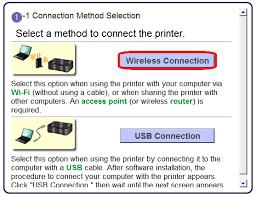
- Connect The Printer: Connect the printer to your computer using a USB cable or Wi-Fi.
Installing a Printer on Mac
If you’re using a Mac, follow these steps:
- Visit The Canon Website: Go to the official Canon website and select your printer model.
- Download The Driver: Click on the “Driver” tab and download the correct driver for your operating system (macOS High Sierra or later).
- Run The Installer: Double-click on the downloaded file and follow the installation prompts.
- Connect The Printer: Connect the printer to your computer using a USB cable or Wi-Fi.
Installing a Printer on Mobile Devices
If you want to print from your mobile device (Android or iOS), follow these steps:
- Download The Canon Print App: Download the Canon Print app from the Google Play Store (for Android) or App Store (for iOS).
- Open The App: Open the app and select your printer model.
- Connect to Wi-fi: Connect your mobile device to the same Wi-Fi network as your printer.
Troubleshooting Tips
If you encounter any issues during the installation process, refer to our troubleshooting guide:
- Printer Not Detected: Check that the printer is turned on and properly connected to your computer or mobile device.
- Driver Issues: Try reinstalling the driver or contacting Canon support for assistance.
Conclusion
Installing a Canon printer is a straightforward process that requires minimal technical expertise. By following these step-by-step instructions, you’ll be able to print high-quality documents and photos from the comfort of your own home. Happy printing!
Frequently Asked Questions (FAQs)
-
What Are The System Requirements For Installing a Canon Printer?
The system requirements vary depending on the operating system and printer model. -
Can I Install a Canon Printer on Multiple Devices?
Yes, you can install a Canon printer on multiple devices, but ensure that each device is connected to the same Wi-Fi network. -
What Are The Benefits of Using a Canon Printer?
The benefits include high-quality prints, reliable performance, and easy connectivity. -
Can I Print Wirelessly From my Mobile Device?
Yes, you can print wirelessly from your mobile device (Android or iOS) by downloading the Canon Print app. -
What if I Encounter Issues During Installation?
Refer to our troubleshooting guide for assistance. -
How do I Update The Printer Driver?
Visit the Canon website and follow the prompts to download the latest driver version. -
Can I Install a Canon Printer on a Virtual Machine?
Yes, you can install a Canon printer on a virtual machine, but ensure that the operating system is compatible. -
What Are The Security Features of a Canon Printer?
The security features include encryption and secure data transmission.


