
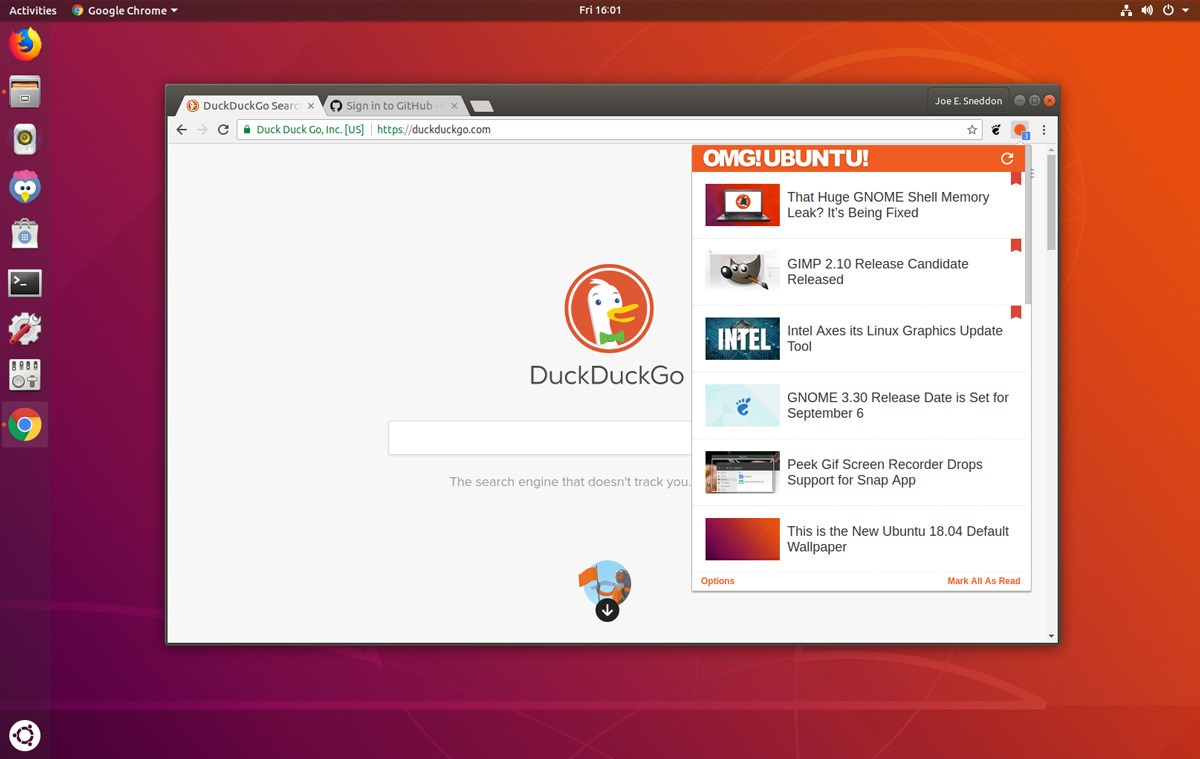
Installing Google Chrome on Ubuntu: A Step-by-step Guide
Are you tired of using the default browser that comes with your Ubuntu operating system? Do you want to experience the speed and efficiency of Google Chrome? Look no further! In this article, we will guide you through the process of installing Google Chrome on Ubuntu.
Why Choose Google Chrome?
Google Chrome is one of the most popular browsers in the world, known for its lightning-fast speeds and seamless integration with other Google services. With Google Chrome, you can access your Gmail account, Google Drive files, and YouTube videos with just a few clicks.
Understanding The Philosophy of Open Source
Before we dive into the installation process, let’s take a moment to understand the philosophy behind open source software. Ubuntu is an open source operating system that encourages users to customize and modify their experience. While this can be beneficial for advanced users, it may not be ideal for those who prefer a more streamlined experience.
The Alternatives: Chromium And Firefox
If you’re looking for alternative browsers that are compatible with Ubuntu, you may want to consider Chromium or Firefox. These browsers share many similarities with Google Chrome but offer some unique features of their own.
- Chromium: This is the open source version of Google Chrome, developed by the same team. It offers many of the same features as Google Chrome but lacks some of the proprietary enhancements.
- Firefox: As the default browser for Ubuntu, Firefox is a popular choice among users. It offers a range of extensions and add-ons that can enhance your browsing experience.
Installing Google Chrome on Ubuntu
Now that we’ve discussed the alternatives, let’s move on to the installation process. There are two ways to install Google Chrome on Ubuntu: Using the graphical interface or the terminal.
Installing Google Chrome on Ubuntu Using Gui
If you’re comfortable with the graphical interface, follow these steps:
- Open the Ubuntu Software Center and search for “Google Chrome.”
- Click on the result that appears in the search bar.
- Select the version of Google Chrome you want to install (stable or beta).
- Click the “Install” button to begin the installation process.
Installing Google Chrome on Ubuntu Using Terminal
If you prefer using the terminal, follow these steps:
- Open a terminal window and navigate to the directory where you want to download the Google Chrome installer.
- Use the
wgetcommand to download the Google Chrome installer:Wget https://Dl.Google.Com/linux/direct/google-chrome-stable_current_amd64.Deb - Once the download is complete, use the
dpkgcommand to install Google Chrome:Sudo dpkg -i google-chrome-stable_current_amd64.Deb
Troubleshooting Common Issues
- Error Installing Google Chrome: If you encounter any errors during the installation process, try restarting your Ubuntu operating system.
- Google Chrome Not Opening: If Google Chrome is not opening after installation, try checking the version of Google Chrome and ensure that it matches the one installed on your computer.
Conclusion
Installing Google Chrome on Ubuntu is a straightforward process that can be completed using either the graphical interface or the terminal. With its lightning-fast speeds and seamless integration with other Google services, Google Chrome is an excellent choice for those looking to enhance their browsing experience.
Frequently Asked Questions (FAQs)
- What Are The System Requirements For Installing Google Chrome on Ubuntu?
- The minimum system requirements for installing Google Chrome on Ubuntu include a 64-bit operating system and at least 4GB of RAM.
- Can I Install Multiple Versions of Google Chrome on my Ubuntu Computer?
- Yes, you can install multiple versions of Google Chrome on your Ubuntu computer, but each version will require separate installation and configuration.
- How do I Update Google Chrome to The Latest Version?
- To update Google Chrome to the latest version, follow these steps:
- Open a terminal window.
- Use the
sudo apt-get updatecommand to update your Ubuntu operating system. - Once the update is complete, restart your browser and check for updates by clicking on the three vertical dots in the top right corner of the Google Chrome window.
- To update Google Chrome to the latest version, follow these steps:
- Can I Use Google Chrome With Other Browsers Installed on my Ubuntu Computer?
- Yes, you can use Google Chrome alongside other browsers installed on your Ubuntu computer. Simply select the desired browser from the list of available applications and launch it as needed.
- How do I Remove Google Chrome From my Ubuntu Computer?
- To remove Google Chrome from your Ubuntu computer, follow these steps:
- Open a terminal window.
- Use the
sudo apt-get purgecommand to uninstall Google Chrome. - Once the uninstallation is complete, restart your browser and verify that Google Chrome has been removed.
- To remove Google Chrome from your Ubuntu computer, follow these steps:
References
- “Installing Google Chrome on Ubuntu” by Ubuntu Community
- “How to Install Google Chrome on Ubuntu” by TechRadar
- “Google Chrome: A Guide to Installing and Updating” by MakeUseOf


