
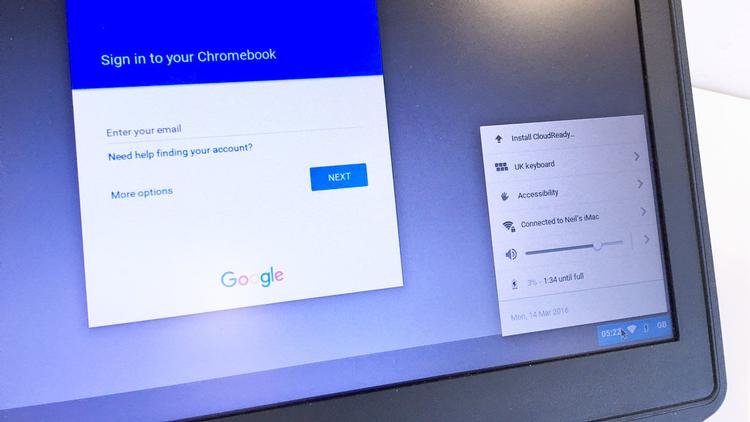
Installing Chromeos on Pc: A Step-by-step Guide
Are you curious about trying out ChromeOS on your old PC? Well, you’ve come to the right place! In this article, we’ll guide you through the process of installing ChromeOS on your computer using ChromeOS Flex, a fully functional version of the operating system that can be installed and run on various hardware.
Why Install Chromeos on Your Old Pc?
Before we dive into the installation process, let’s talk about why you might want to install ChromeOS on your old PC. One of the main reasons is that ChromeOS is an excellent choice for those who primarily use their computer for browsing the internet and working with web-based applications. It’s lightweight, fast, and easy to use.
What You Need to Get Started
To install ChromeOS on your PC, you’ll need:
- A USB drive with at least 8 GB of free space
- A PC with a minimum of 4 GB RAM and a 16 GB hard drive
- The internet connection
Preparing Your PC For Installation
Before we proceed, it’s essential to prepare your PC for the installation process. You’ll need to:
- Create a USB drive with ChromeOS Flex installed on it.
- Configure your PC to boot from the USB drive.
Step 1: Creating The Installation Drive
To create the installation drive, follow these steps:
- Connect your USB drive to your computer.
- Go to the Google Chrome browser and navigate to the Chromebook Recovery Utility page.
- Click on the “Add” button and confirm that you want to proceed.
- Select the language and keyboard layout you prefer.
- Click on the “Start” button and select ChromeOS Flex from the list of available options.
- Choose your USB drive as the target device and click on the “Create” button.
Step 2: Configuring Your PC For Booting
To configure your PC to boot from the USB drive, follow these steps:
- Restart your computer and press the key to enter the BIOS settings (usually F2, F12, or Del).
- Select the USB drive as the primary boot device.
- Save changes and exit the BIOS settings.
Step 3: Installing Chromeos
To install ChromeOS on your PC, follow these steps:
- Insert the installation drive into your computer.
- Restart your computer and press the key to enter the BIOS settings (usually F2, F12, or Del).
- Select the USB drive as the primary boot device.
- Wait for the installation process to complete.
Step 4: Setting Up Chromeos
Once the installation is complete, you’ll be taken to the ChromeOS setup screen. Follow these steps:
- Configure your language and keyboard layout.
- Connect to the internet using a Wi-Fi network.
- Choose whether you want to sign in with your Google account or use ChromeOS as a guest.
Conclusion
Installing ChromeOS on your old PC is a straightforward process that requires some basic technical knowledge. With this guide, you should be able to successfully install ChromeOS on your computer and enjoy the benefits of a lightweight, fast, and easy-to-use operating system.
Frequently Asked Questions (FAQs)
- What Are The System Requirements For Installing Chromeos?
You’ll need at least 4 GB RAM and a 16 GB hard drive to run ChromeOS.
2. Can I Install Chromeos on my Old PC Without Deleting All my Data?
Yes, but you’ll need to back up your important files before proceeding with the installation process.
3. How do I Configure my PC to Boot From The Usb Drive?
You’ll need to enter the BIOS settings (usually F2, F12, or Del) and select the USB drive as the primary boot device.
4. Can I Use Chromeos Without an Internet Connection?
No, you’ll need a stable internet connection to run ChromeOS smoothly.
5. How do I Access my Google Account in Chromeos?
You can sign in with your Google account during the setup process or later by clicking on the “Your account” icon in the top right corner of the screen.
6. Can I Use Chromeos as a Guest Without Signing In?
Yes, you can choose to use ChromeOS as a guest and avoid signing in with your Google account.
Hope this helps!


