
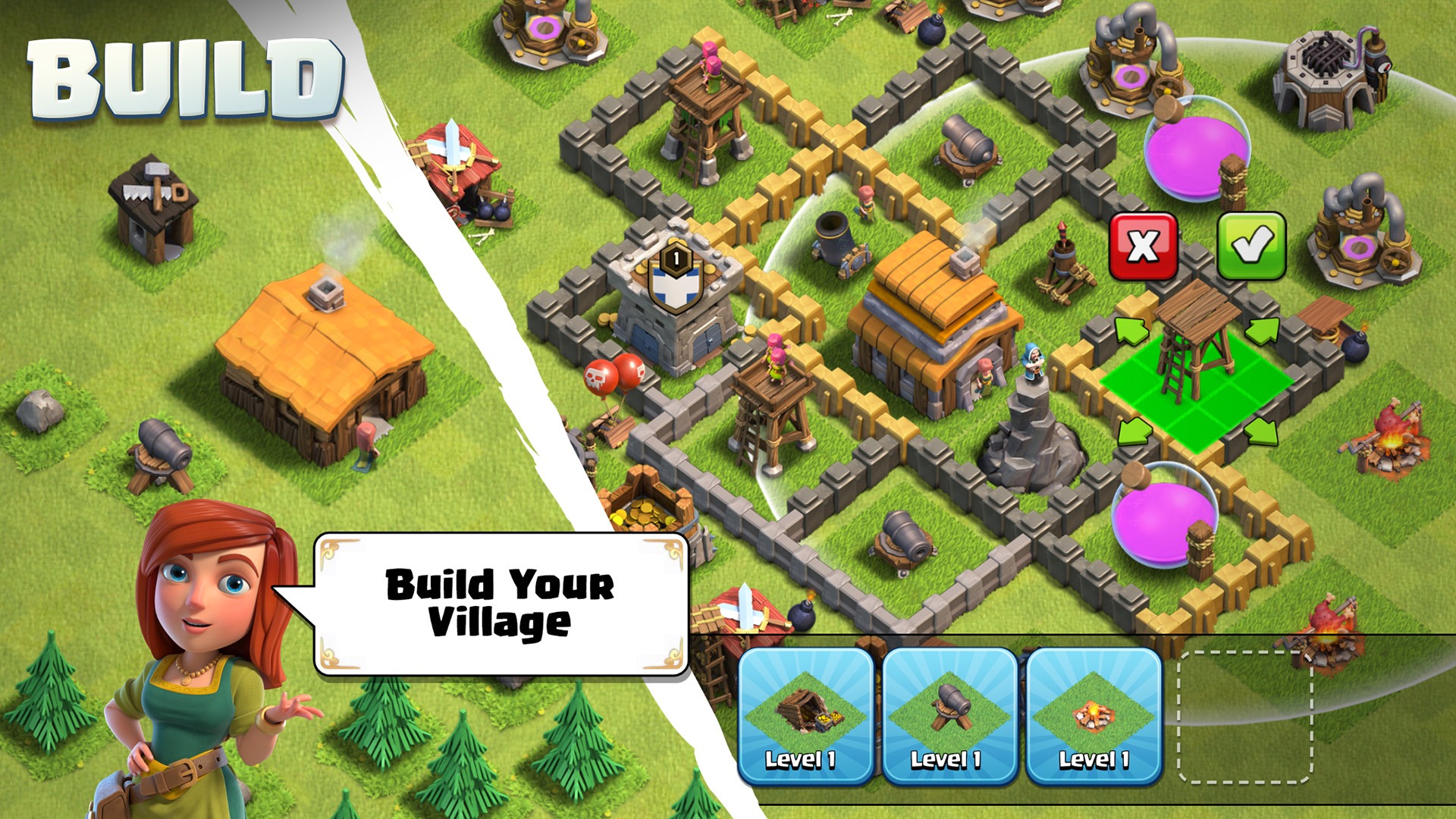
How to Install Clash of Clans on Pc: A Step-by-step Guide
Are you a fan of the popular mobile game Clash of Clans but want to experience it on your computer? Look no further! In this article, we’ll guide you through the process of installing Clash of Clans on your PC using various methods.
Why Install Clash of Clans on Pc?
While playing games on your phone can be convenient, having a larger screen and more comfortable gaming experience on your PC is hard to beat. With Clash of Clans on PC, you’ll enjoy improved graphics, smoother gameplay, and more control over your village.
Method 1: Installing Clash of Clans on Windows PC Without Bluestacks
While BlueStacks is a popular emulator for Android games on PC, there’s an official solution from Google Play Games that allows you to install Clash of Clans directly on your Windows PC. Here’s how:
- Visit The Google Play Games Website: Go to the official website and click on the “Download beta” button.
- Install The Google Play Games App: Run the installer, follow the prompts, and accept the terms and conditions.
- Log in With Your Google Account: If you’re not already signed in, log in with your Google account credentials.
- Configure a Gaming Profile (if Necessary): If this is your first time using Google Play Games, you’ll need to set up a gaming profile.
- Accept The Terms And Conditions: Read through the terms and click “Accept” to proceed.
- Click on The “Play” Button: Once installed, click on the “Play” button to start playing Clash of Clans.
Method 2: Installing Clash of Clans on Windows PC Using an Emulator
If you prefer to use an emulator, you can install BlueStacks or another Android emulator on your Windows PC. Here’s how:
- Download And Install Bluestacks: Visit the BlueStacks website and download the installer.
- Install Bluestacks: Run the installer and follow the prompts.
- Access The Google Play Store Within Bluestacks: Click on the BlueStacks icon, select “Google Play Store,” and sign in with your Google account.
- Search For Clash of Clans: Look up “Clash of Clans” in the search bar and click on the game icon.
- Click on The “Install” Button: Follow the prompts to install Clash of Clans within BlueStacks.
Method 3: Installing Clash of Clans on Mac
Unfortunately, there’s no official way to install Clash of Clans directly on a Mac using Google Play Games. However, you can use an emulator like BlueStacks or another Android emulator specifically designed for Mac.
- Download And Install Bluestacks: Visit the BlueStacks website and download the installer.
- Install Bluestacks: Run the installer and follow the prompts.
- Access The Google Play Store Within Bluestacks: Click on the BlueStacks icon, select “Google Play Store,” and sign in with your Google account.
- Search For Clash of Clans: Look up “Clash of Clans” in the search bar and click on the game icon.
- Click on The “Install” Button: Follow the prompts to install Clash of Clans within BlueStacks.
Conclusion
Installing Clash of Clans on your PC is a straightforward process, whether you use the official Google Play Games method or an emulator like BlueStacks. With these step-by-step guides, you’ll be ready to start playing in no time!
Frequently Asked Questions
- What if I Don’t Have a Google Account?: You can create a new Google account or use an existing one to sign in.
- Can I Play Clash of Clans With my Friends on Pc?: Yes, the game will sync your progress across all devices, including PC and mobile.
Hope this helps!


