
How to Install Drivers on Your Computer: A Step-by-step Guide
Installing drivers on your computer can seem like a daunting task, but it’s actually quite straightforward once you know the process. In this article, we’ll guide you through the steps of installing drivers for various peripherals, including graphics cards, audio cards, motherboards, printers, network cards, webcams, and more.
Why Install Drivers?
Before we dive into the installation process, let’s quickly discuss why drivers are important. Drivers are software programs that allow your computer to communicate with external devices, such as printers, scanners, and cameras. Without the correct drivers, these devices may not function properly or at all.
Preliminary Operations: Analyzing Your Computer’s Hardware
Before installing any drivers, it’s essential to understand the hardware components of your computer. You can use a program like Speccy to analyze your system and identify the peripherals connected to it. This will help you determine which drivers you need to install.
Installing Drivers For Peripherals
Now that we’ve covered the basics, let’s move on to installing drivers for specific peripherals:
Installing Drivers For Graphics Cards
If you have a graphics card installed in your computer, follow these steps to install the correct driver:
- Identify the type of graphics card you have (e.G., NVIDIA or AMD).
- Visit the manufacturer’s website and download the correct driver for your operating system.
- Follow the installation instructions on the screen to complete the process.
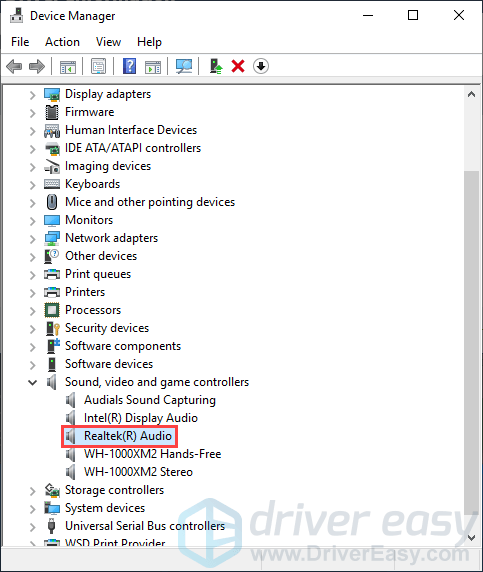
Installing Drivers For Audio Cards
If you’re using an audio card, follow these steps:
- Identify the type of audio card you have (e.G., Creative or Realtek).
- Visit the manufacturer’s website and download the correct driver for your operating system.
- Follow the installation instructions on the screen to complete the process.
Installing Drivers For Motherboards
In most cases, the drivers for motherboards are already installed by Windows. However, if you’re experiencing issues with your motherboard, follow these steps:
- Identify the type of motherboard you have (e.G., ASUS or Gigabyte).
- Visit the manufacturer’s website and download the correct driver for your operating system.
- Follow the installation instructions on the screen to complete the process.
Installing Drivers For Printers
If you’re using a printer, follow these steps:
- Identify the type of printer you have (e.G., Canon or HP).
- Visit the manufacturer’s website and download the correct driver for your operating system.
- Follow the installation instructions on the screen to complete the process.
Installing Drivers For Network Cards
If you’re experiencing issues with your network card, follow these steps:
- Identify the type of network card you have (e.G., Intel or Realtek).
- Visit the manufacturer’s website and download the correct driver for your operating system.
- Follow the installation instructions on the screen to complete the process.
Installing Drivers For Webcams
If you’re using a webcam, follow these steps:
- Identify the type of webcam you have (e.G., Logitech or Razer).
- Visit the manufacturer’s website and download the correct driver for your operating system.
- Follow the installation instructions on the screen to complete the process.
Installing Drivers For Smart Card Readers
If you’re using a smart card reader, follow these steps:
- Identify the type of smart card reader you have (e.G., Gemalto or OT2015).
- Visit the manufacturer’s website and download the correct driver for your operating system.
- Follow the installation instructions on the screen to complete the process.
Conclusion
Installing drivers on your computer is a relatively straightforward process once you know what to do. By following these steps, you should be able to install drivers for various peripherals, including graphics cards, audio cards, motherboards, printers, network cards, webcams, and smart card readers.
Frequently Asked Questions (FAQs)
- Q: Why do I Need to Install Drivers?
A: Drivers are software programs that allow your computer to communicate with external devices. - Q: How Can I Identify The Type of Graphics Card I Have?
A: You can use a program like Speccy or visit the manufacturer’s website for more information. - Q: Can I Install Drivers Manually or do I Need to Download Them From The Internet?
A: Both options are available, but downloading drivers from the internet is usually the easiest and most convenient option. - Q: What if I’m Experiencing Issues With my Motherboard?
A: You may need to visit the manufacturer’s website and download a driver specifically designed for your motherboard. - Q: How do I Install Drivers on a Mac?
A: The process is similar to installing drivers on Windows, but you’ll need to use different software and follow specific instructions. - Q: Can I Install Multiple Drivers at Once?
A: Yes, you can usually install multiple drivers simultaneously using the installation software provided by the manufacturer. - Q: What if I’m Not Sure Which Driver to Install?
A: You can visit the manufacturer’s website or contact their support team for assistance.
Additional Resources
For more information on installing drivers and resolving common issues, please refer to these resources:
- Microsoft’s official website
- The manufacturer’s website (e.G., NVIDIA, AMD, Creative)
- Online forums and communities dedicated to computer hardware and software
- Books and tutorials on computer hardware and software installation


