
Installing Epson Printer: A Step-by-step Guide
Are you looking to install an Epson printer, but unsure where to start? Look no further! In this article, we will guide you through the process of installing an Epson printer on various devices, including Windows PCs, Macs, and mobile devices.
Why Install an Epson Printer?
In today’s digital age, having a printer is almost indispensable. With documents and images becoming increasingly digital, a printer is a must-have for many families. Whether you’re printing out important documents or creating memories with family photos, a reliable printer is essential.
Preliminary Operations
Before we dive into the installation process, it’s essential to perform some preliminary operations. This includes:
- Extracting the printer from its package
- Connecting the power cable to an electrical outlet
- Pressing the power button to turn on the printer
Installing Epson Printer Without CD
If you don’t have a CD drive or prefer not to use one, fear not! You can install your Epson printer using other methods. Here’s how:
- Connect your printer to your device via USB cable
- Open the official Epson website and navigate to the download section for your specific printer model
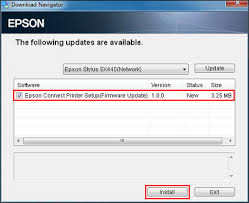
- Download the driver software and follow the on-screen instructions to install it
Installing Epson Printer on Windows PC
If you’re using a Windows PC, here’s how you can install your Epson printer:
- Connect your printer to your device via USB cable or Wi-Fi connection
- Open the official Epson website and navigate to the download section for your specific printer model
- Download the driver software and follow the on-screen instructions to install it
- Once installed, go to the Device Manager and locate your printer. Right-click on it and select “Update Driver”
- Follow the prompts to complete the installation process
Installing Epson Printer on Mac
If you’re using a Mac, here’s how you can install your Epson printer:
- Connect your printer to your device via USB cable or Wi-Fi connection
- Go to System Preferences > Printers & Scanners and click on the “+” button to add a new printer
- Select your Epson printer from the list of available printers and follow the on-screen instructions to complete the installation process
Installing Epson Printer on Mobile Devices
If you’re using a mobile device, here’s how you can install your Epson printer:
- Download the Epson Print Enabler app from the Google Play Store or Apple App Store
- Follow the on-screen instructions to connect your printer to your device via Wi-Fi or USB cable
- Once connected, go to the Settings app and select “Printers” or “Printing” to add your Epson printer
Troubleshooting Common Issues
If you encounter any issues during the installation process, don’t worry! We’ve got you covered. Here are some common problems and solutions:
- Printer Not Detected: Check that the printer is properly connected to your device via USB cable or Wi-Fi connection.
- Driver Not Installed: Go back to the official Epson website and redownload the driver software.
- Printer Settings Not Recognized: Try restarting your device and printer, then try installing the printer again.
Conclusion
Installing an Epson printer may seem daunting, but with these step-by-step guides, you’ll be printing like a pro in no time! Whether you’re using a Windows PC, Mac, or mobile device, we’ve got you covered. Remember to troubleshoot any common issues that may arise during the installation process.
Faqs
- Q: Can I Install an Epson Printer Without a Cd?
A: Yes, you can install an Epson printer using other methods such as USB cable or Wi-Fi connection. - Q: How do I Install an Epson Printer on Windows Pc?
A: Connect your printer to your device via USB cable or Wi-Fi connection, then download and install the driver software from the official Epson website. - Q: Can I Install an Epson Printer on a Mac?
A: Yes, you can install an Epson printer on a Mac by going to System Preferences > Printers & Scanners and adding your printer to the list of available printers. - Q: How do I Troubleshoot Common Issues During Installation?
A: Check that the printer is properly connected to your device via USB cable or Wi-Fi connection, then try restarting your device and printer before reinstalling the driver software. - Q: Can I Install an Epson Printer on a Mobile Device?
A: Yes, you can install an Epson printer on a mobile device by downloading the Epson Print Enabler app from the Google Play Store or Apple App Store.
Additional Resources
For more information on installing an Epson printer, please visit our official website at www.Epson.Com.


