
Installing Epson Printer Wifi: A Step-by-step Guide
Are you struggling to install your new Epson printer WiFi? Don’t worry, we’ve got you covered! In this article, we’ll guide you through the process of setting up your Epson printer WiFi on PC, Mac, Android, and iPhone.
Why Install Epson Printer Wifi?
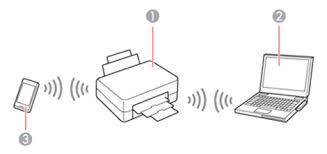
Installing Epson printer WiFi allows you to print wirelessly from your devices without the need for cables. This is especially useful if you have multiple devices in your home or office that you want to connect to your printer.
Pre-requisites Before Installing Epson Printer Wifi on PC
Before installing your Epson printer WiFi, make sure you have:
- A new Epson printer
- A computer with a stable internet connection (PC or Mac)
- The Epson printer driver downloaded and installed
Installing Epson Printer Wifi on Pc: Step-by-step Guide
To install your Epson printer WiFi on PC, follow these steps:
- Unbox Your Epson Printer: Remove the printer from its box and prepare it for installation.
- Connect to Wi-fi: Connect your printer to the same Wi-Fi network as your computer using the provided cable or by using the Wi-Fi button.
- Download And Install Epson Driver: Go to the official Epson website, download and install the latest driver for your printer model (e.G., BX305FW).
- Follow On-screen Instructions: Follow the on-screen instructions to complete the installation process.
Installing Epson Printer Wifi on Mac: Step-by-step Guide
To install your Epson printer WiFi on Mac, follow these steps:
- Connect Your Epson Printer to Wi-fi: Connect your Epson printer to the same Wi-Fi network as your Mac using the provided cable or by using the Wi-Fi button.
- Go to System Preferences: Click on the Apple logo in the top left corner of your screen and select “System Preferences”.
- Select Printers & Scanners: Click on “Printers & Scanners” and then click on the “+” icon.
- Add Your Epson Printer: Select your Epson printer from the list of available printers and click “Add”.
Installing Epson Printer Wifi on Android: Step-by-step Guide
To install your Epson printer WiFi on Android, follow these steps:
- Download Epson Print Enabler App: Download the Epson Print Enabler app from the Google Play Store.
- Open The App And Follow On-screen Instructions: Open the app and follow the on-screen instructions to complete the installation process.
Installing Epson Printer Wifi on Iphone: Step-by-step Guide
To install your Epson printer WiFi on iPhone, follow these steps:
- Download Epson Iprint App: Download the Epson iPrint app from the Apple App Store.
- Open The App And Follow On-screen Instructions: Open the app and follow the on-screen instructions to complete the installation process.
Troubleshooting: What If I Encounter Issues?
If you encounter issues during the installation process, don’t worry! You can always contact Epson’s support team for assistance. Visit their website, click on “Support”, and select your printer model to find troubleshooting guides and FAQs.
Conclusion
Installing your Epson printer WiFi is a straightforward process that requires minimal technical expertise. By following these step-by-step guides, you’ll be able to print wirelessly from your devices in no time. Remember to visit the official Epson website for any updates or issues related to your specific printer model.
Frequently Asked Questions (FAQs)
- Q: What is The Best Way to Install my Epson Printer Wifi?
A: The best way to install your Epson printer WiFi is by following our step-by-step guides, which are tailored for PC, Mac, Android, and iPhone devices. - Q: How do I Troubleshoot Issues With my Epson Printer Wifi Installation?
A: You can contact Epson’s support team for assistance. Visit their website, click on “Support”, and select your printer model to find troubleshooting guides and FAQs. - Q: What Are The Pre-requisites Before Installing my Epson Printer Wifi on Pc?
A: The pre-requisites include a new Epson printer, a computer with a stable internet connection (PC or Mac), and the Epson printer driver downloaded and installed. - Q: Can I Use my Epson Printer Wifi Without Installing The Driver?
A: No, you need to install the Epson driver for your specific printer model before using it wirelessly. - Q: How do I Update my Epson Printer Firmware?
A: You can visit the official Epson website and follow their instructions for updating your printer’s firmware. - Q: Can I Use my Epson Printer Wifi With Multiple Devices?
A: Yes, you can connect multiple devices to your Epson printer using wireless connectivity. - Q: How do I Reset my Epson Printer Settings?
A: You can refer to the user manual or contact Epson’s support team for instructions on resetting your printer settings. - Q: What is The Warranty Period For my Epson Printer?
A: The warranty period varies depending on the country and region you’re in, so it’s best to check with Epson’s customer service for more information.
References
- Epson Official Website
- Google Play Store (for Android devices)
- Apple App Store (for iPhone devices)


