
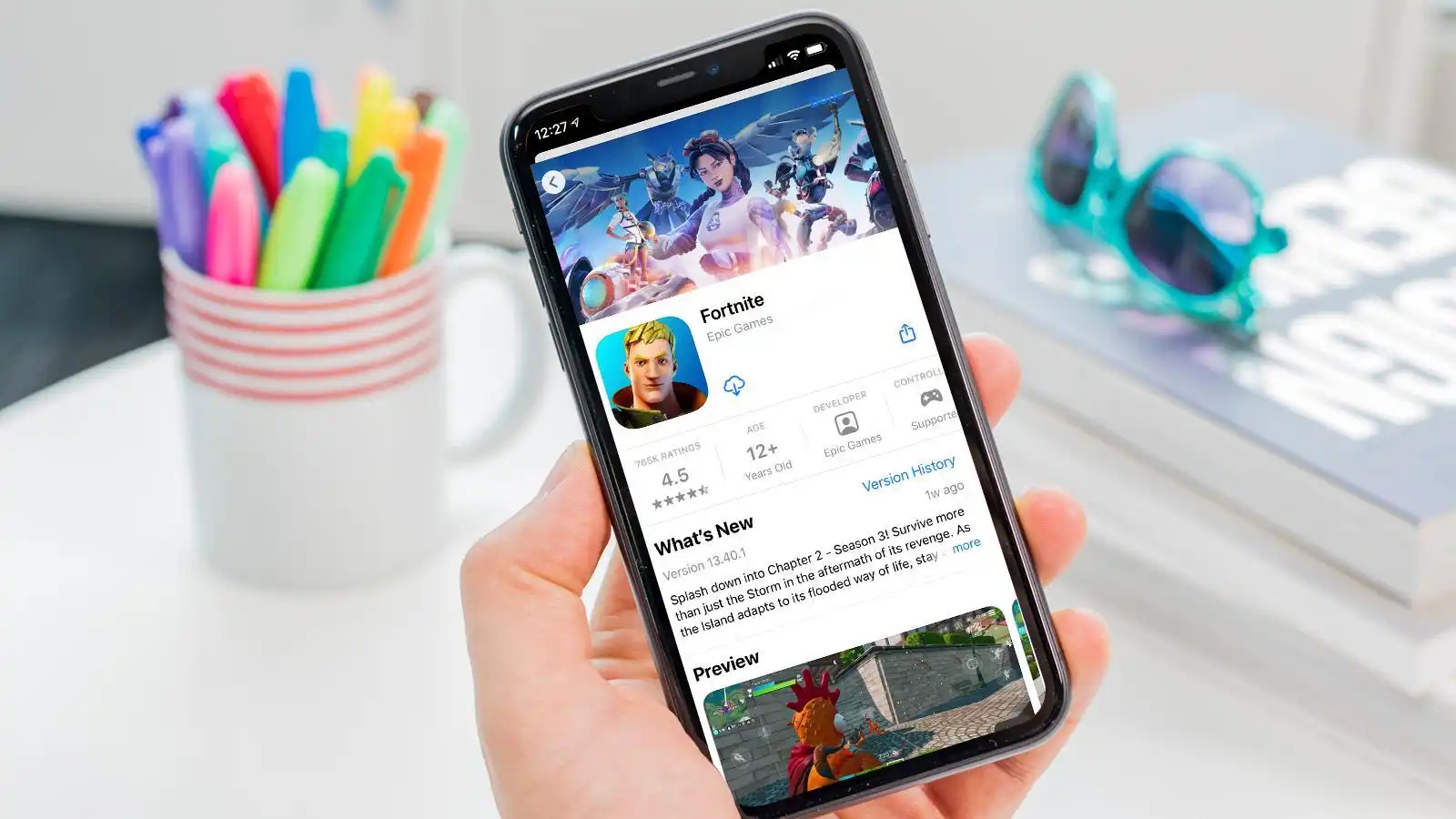
Installing Fortnite on Iphone: A Step-by-step Guide
Are you a fan of Fortnite, but struggling to install it on your iPhone? You’re not alone! Epic Games’ popular battle royale game has been a favorite among gamers worldwide, but its availability on Apple devices has been a bit complicated. In this article, we’ll guide you through the process of installing Fortnite on your iPhone, as well as provide some essential tips and tricks to enhance your gaming experience.
Understanding The Situation
Before diving into the installation process, it’s essential to understand the current situation regarding Fortnite’s availability on Apple devices. As of August 2020, Fortnite was removed from the App Store due to a dispute between Epic Games and Apple. However, in August 2024, Apple opened up the doors to third-party app stores, allowing users to sideload apps directly onto their iPhones.
What Does This Mean For You?
This change means that you can now install Fortnite on your iPhone using the Epic Games Store, a digital shop owned by Epic Games. However, there are some prerequisites and requirements you need to meet before installing the game.
Requirements to Play Fortnite on Iphone
To play Fortnite on your iPhone, you’ll need:
- An iPhone 11 or later model
- At least 4GB of RAM
- IOS 17.6 Or later
Additionally, it’s worth noting that Apple recommends against sideloading apps from outside the App Store due to potential security risks.
Step-by-step Guide: Installing Fortnite on Iphone
To install Fortnite on your iPhone, follow these steps:
- Visit The Epic Games Store: Open Safari and visit the Epic Games Store website (www.Epicgames.Com/store).
- Tap on The “Install” Button: On the top right corner of the screen, you’ll see a blue “Install” button. Tap on it to begin the installation process.
- Authorize The App: You’ll be prompted to authorize the app using Face ID, Touch ID, or your Apple ID password. Complete this step to proceed.
- Tap on The “Install” Button Again: Once authorized, you’ll see another “Install” button. Tap on it to confirm the installation process.
- Wait For The Installation Process to Complete: The game will start downloading and installing on your iPhone.
Using The Epic Games Store
After installing Fortnite, you can access the Epic Games Store by tapping on its icon on your home screen. From there, you can:
- Download other games like Fall Guys and Rocket League Sideswipe
- Access your account information and settings
Tips For Playing Fortnite on Iphone
Now that you’ve installed Fortnite on your iPhone, here are some tips to enhance your gaming experience:
- Familiarize yourself with the controls and gameplay mechanics
- Experiment with different controller options, including Bluetooth controllers like DualSense, DualShock 4, or Xbox Wireless Controller
- Check out online tutorials and guides for more in-depth information on playing Fortnite on iPhone
Conclusion
Installing Fortnite on your iPhone may have been a challenge in the past, but now it’s easier than ever. By following these steps and meeting the necessary requirements, you can enjoy this popular battle royale game directly on your Apple device.
Frequently Asked Questions (FAQs)
Q: Is Fortnite available for download from the App Store?
A: No, Fortnite is not currently available for download from the App Store due to a dispute between Epic Games and Apple.
Q: How do I install Fortnite on my iPhone?
A: You can install Fortnite using the Epic Games Store, a digital shop owned by Epic Games. Follow the steps outlined in this article for more information.
Q: What are the system requirements for playing Fortnite on iPhone?
A: To play Fortnite on your iPhone, you’ll need an iPhone 11 or later model with at least 4GB of RAM and iOS 17.6 Or later.
Q: Can I use a controller to play Fortnite on my iPhone?
A: Yes, Fortnite supports Bluetooth controllers like DualSense, DualShock 4, and Xbox Wireless Controller.
Q: How do I access the Epic Games Store on my iPhone?
A: Tap on the Epic Games Store icon on your home screen or download it from the store directly using Safari.
Q: What other games can I download from the Epic Games Store?
A: You can download other games like Fall Guys and Rocket League Sideswipe, as well as access your account information and settings.
Q: Are there any security risks associated with sideloading apps on my iPhone?
A: Apple recommends against sideloading apps due to potential security risks. However, Epic Games has ensured that its store meets the necessary security standards for a safe gaming experience.


