
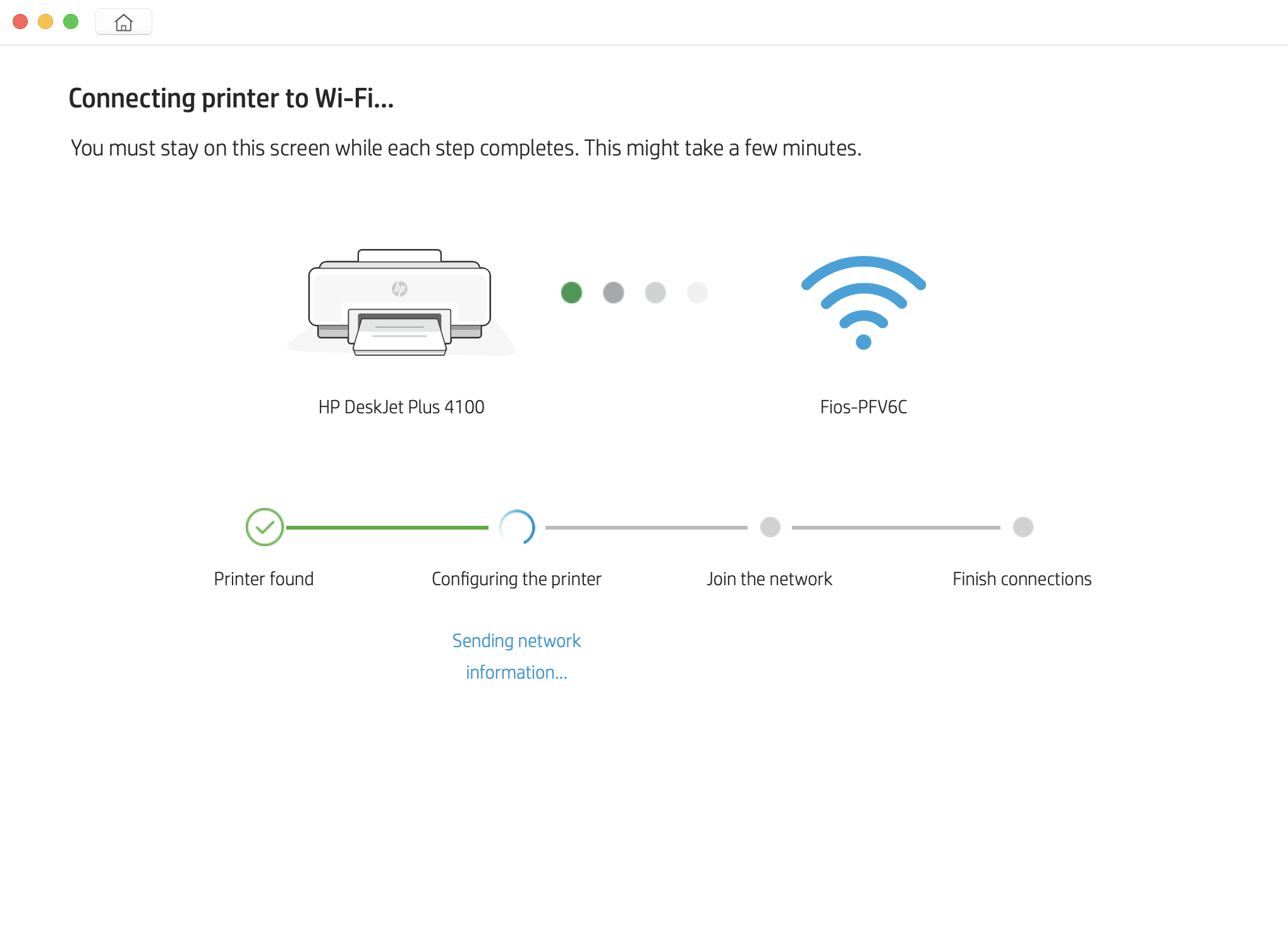
How to Install Printer HP on Windows, Mac, Smartphone, And Tablet
Are you looking for a comprehensive guide on how to install printer HP on various devices? Look no further! In this article, we will walk you through the step-by-step process of installing printer HP on Windows, Mac, smartphone, and tablet.
Why Do You Need a Printer Hp?
In today’s digital age, having a reliable printer is essential for printing documents, photos, and other important papers. With printer HP, you can enjoy high-quality prints and efficient performance. Whether you need to print important documents or create beautiful photos, printer HP is the perfect choice.
How to Install Printer HP on Windows
Installing printer HP on Windows is relatively easy. Here’s a step-by-step guide:
- Connect The Printer: First, connect the printer to your computer using a USB cable.
- Download And Install Driver: Download and install the driver for your printer from the official website of HP.
- Open Device Manager: Open Device Manager and find the printer in the list of devices.
- Right-click on The Printer: Right-click on the printer and select “Update driver” to update the driver software.
- Select “Search Automatically”: Select “Search automatically” for the best drivers.
How to Install Printer HP on Mac
Installing printer HP on Mac is also easy. Here’s a step-by-step guide:
- Connect The Printer: First, connect the printer to your Mac using a USB cable.
- Open System Preferences: Open System Preferences and click on “Printers & Scanners”.
- Click on “+”: Click on the “+” button to add a new printer.
- Select “Add”: Select “Add” and follow the instructions to install the driver software.
- Enter The Printer Name: Enter the name of your printer in the box provided.
How to Install Printer HP on Smartphone And Tablet
Installing printer HP on smartphone and tablet is also easy. Here’s a step-by-step guide:
- Download The HP Smart App: Download the HP Smart app from the Google Play Store or Apple App Store.
- Open The App: Open the app and follow the instructions to install the driver software.
- Connect to Wi-fi: Connect your smartphone or tablet to the same Wi-Fi network as your printer.
How to Install Printer HP Without Wifi
If you don’t have a wireless connection, you can still install printer HP using a USB cable. Here’s a step-by-step guide:
- Connect The Printer: First, connect the printer to your computer using a USB cable.
- Download And Install Driver: Download and install the driver software for your printer from the official website of HP.
- Open Device Manager: Open Device Manager and find the printer in the list of devices.
- Right-click on The Printer: Right-click on the printer and select “Update driver” to update the driver software.
- Select “Search Automatically”: Select “Search automatically” for the best drivers.
How to Install Printer HP Using Wi-fi Direct
Wi-Fi Direct is a technology that allows you to connect your printer directly to your device without the need for a router or network. Here’s a step-by-step guide:
- Actuate Wi-fi Direct on The Printer: First, actuate Wi-Fi Direct on your printer.
- Open System Preferences: Open System Preferences and click on “Printers & Scanners”.
- Click on “+”: Click on the “+” button to add a new printer.
- Select “Add”: Select “Add” and follow the instructions to install the driver software.
- Enter The Printer Name: Enter the name of your printer in the box provided.
Conclusion
Installing printer HP is easy and straightforward, whether you’re using Windows, Mac, smartphone, or tablet. With these step-by-step guides, you’ll be able to print high-quality documents and photos with ease. Remember to always follow the instructions carefully and make sure that your device and printer are connected to the same network.
Frequently Asked Questions
Q: How do I install printer HP on my Windows computer?
A: To install printer HP on your Windows computer, connect the printer to your computer using a USB cable, download and install the driver software from the official website of HP, and follow the instructions in the Device Manager.
Q: How do I install printer HP on my Mac?
A: To install printer HP on your Mac, connect the printer to your Mac using a USB cable, open System Preferences, click on “Printers & Scanners”, and select “Add” to add a new printer.
Q: How do I install printer HP on my smartphone or tablet?
A: To install printer HP on your smartphone or tablet, download the HP Smart app from the Google Play Store or Apple App Store, open the app and follow the instructions to install the driver software, and connect to Wi-Fi.
Q: Can I install printer HP without WiFi?
A: Yes, you can install printer HP using a USB cable. Connect the printer to your computer using a USB cable, download and install the driver software from the official website of HP, and follow the instructions in the Device Manager.
Q: How do I install printer HP using Wi-Fi Direct?
A: To install printer HP using Wi-Fi Direct, actuate Wi-Fi Direct on your printer, open System Preferences, click on “Printers & Scanners”, and select “Add” to add a new printer.


