
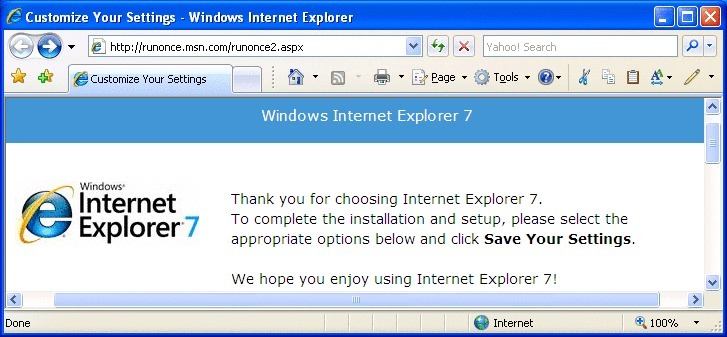
Installing Internet Explorer: A Step-by-step Guide
Are you still using Internet Explorer despite its age? While it may not be the most popular browser anymore, there are still some reasons why you might need to install it on your Windows 10 or Windows 8 computer. In this article, we’ll guide you through the process of installing Internet Explorer 11 on both Windows 10 and Windows 8.
Why Install Internet Explorer?
Before we dive into the installation process, let’s quickly discuss why you might still need to install Internet Explorer. If you’re using an old version of Windows or have specific software that requires IE, then this guide is for you. Additionally, some websites may not work properly with newer browsers like Microsoft Edge or Google Chrome.
Installing Internet Explorer 11 on Windows 10
If you’re running Windows 10, installing Internet Explorer 11 is relatively straightforward. Here’s how:
Step 1: Check if IE is Already Installed
Open the Start menu and click on the Accessories folder. Look for the Internet Explorer icon – if it’s already installed, you’ll see it in this folder.
Step 2: Install IE 11 Using Windows Settings
If IE is not already installed, go to the Windows Settings app by clicking on the Start button and then selecting the “Settings” option. In the Settings window, click on the “Update & Security” option. Then, click on the “Windows Update” tab and select the “Check for updates” button.
Step 3: Install IE 11 Using Microsoft’s Download Link
If you can’t find Internet Explorer in your Start menu or if it’s not installing automatically, you can download it from Microsoft’s website directly. Go to this link (https://Support.Microsoft.Com/en-us/help/4053760/internet-explorer-11-release-notes) and click on the “Download” button.
Step 4: Run The Installation File
Once you’ve downloaded the installation file, run it by clicking on the executable (.Exe) file. Follow the prompts to install IE 11 on your Windows 10 machine.
Installing Internet Explorer 11 on Windows 8
If you’re running Windows 8, installing Internet Explorer 11 is a bit different. Here’s how:
Step 1: Check if IE is Already Installed
Open the Start screen and type “update” in the search bar. Click on the “Settings of Windows Update” option.
Step 2: Install Updates For Internet Explorer
In the Settings window, click on the “Check availability updates” button to check for any available updates. If there are updates available for IE, follow the prompts to install them.
Installing Internet Explorer on Mac, Android, Ios, And Ipados
Unfortunately, you can’t install Internet Explorer directly on a Mac, Android, or iOS device. However, you can still use Microsoft Edge as your default browser on these platforms.
- On Windows 10: You can install Internet Explorer 11 using the same steps mentioned above.
- On Windows 8: Check if IE is already installed by looking for it in the Accessories folder. If not, follow the same steps to install updates for IE.
Installing Internet Explorer on Mac
Since you can’t directly install Internet Explorer on a Mac, we’ll focus on installing Microsoft Edge instead.
Step 1: Download And Install Microsoft Edge
Go to the Microsoft Edge download page (https://Www.Microsoft.Com/en-us/edge/download) and click on the “Download” button. Follow the prompts to install Microsoft Edge on your Mac.
Installing Internet Explorer on Android, Ios, or Ipados
As with Mac, you can’t directly install Internet Explorer on an Android, iOS, or iPadOS device. However, you can still use Microsoft Edge as your default browser on these platforms.
- On Android: Go to the Google Play Store and download Microsoft Edge.
- On Ios or Ipados: Open the App Store and download Microsoft Edge.
Conclusion
Installing Internet Explorer on Windows 10 or Windows 8 is a relatively straightforward process. While you can’t directly install IE on other platforms like Mac, Android, or iOS, you can still use Microsoft Edge as your default browser on these devices.


