
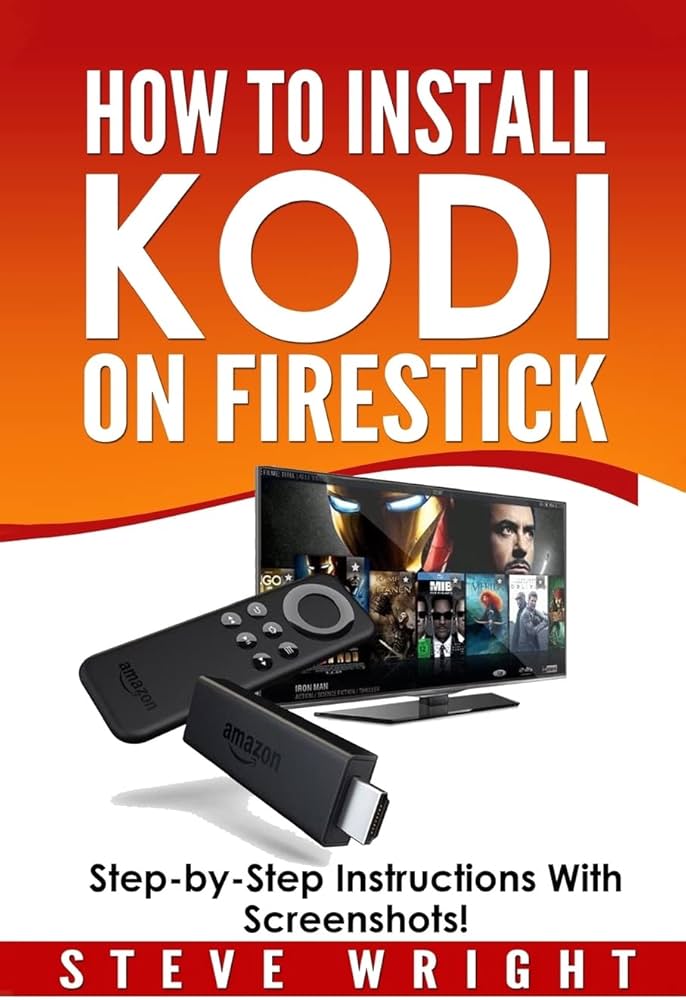
How to Install Kodi on Amazon Fire TV Stick: A Step-by-step Guide
Are you tired of limited entertainment options on your Amazon Fire TV Stick? Look no further! Installing Kodi, a popular media center software, can unlock a world of streaming possibilities. In this article, we’ll guide you through the process of installing Kodi on your Amazon Fire TV Stick.
What is Kodi And Why Do I Need It?
Kodi is a free and open-source media player that allows you to stream various types of content, including movies, TV shows, music, and more. With Kodi, you can access a vast library of content from around the world, making it an excellent choice for those who want to cut the cord and ditch traditional cable or satellite TV.
Pre-requisites
Before installing Kodi on your Amazon Fire TV Stick, make sure you have:
- An Amazon Fire TV Stick device
- A stable internet connection
- The Downloader app installed on your Fire TV Stick
Installing Downloader App
To install the Downloader app, follow these steps:
- Go to the Home screen of your Fire TV Stick and select the Apps & Games option.
- Scroll down and select the See All Apps option.
- Browse through the available apps and select the Downloader icon (represented by an arrow pointing upwards).
- Select the Download button to initiate the installation process.
Enabling Unknown Sources
Since Kodi is not available in the Amazon App Store, you need to enable unknown sources on your Fire TV Stick:
- Go to Settings > System > Preferences.
- Scroll down and select the Apps from Unknown Sources option.
- Toggle the switch next to Allow Apps from Unknown Sources to turn it ON.
Installing Kodi
Now that you have enabled unknown sources, follow these steps to install Kodi:
- Launch the Downloader app on your Fire TV Stick.
- Type in the URL https://Kodi.Tv/download and select Go.
- Scroll down and select the ARMV7A (32-bit) or ARMV8A (64-bit) option, depending on your device’s architecture.
- Select the Download button to initiate the download process.
Installing Kodi: Step-by-step Guide
Follow these steps to complete the installation:
- Wait for the download and installation to finish.
- Launch the Downloader app again and select the Install button next to the downloaded file.
- Follow the on-screen instructions to install Kodi.
- Once installed, launch Kodi by selecting its icon from the Apps & Games menu.
Using Kodi on Amazon Fire TV Stick
Now that you have successfully installed Kodi on your Amazon Fire TV Stick, let’s explore some of its features:
- Launch Kodi and select the Video option.
- Browse through the various content categories, such as Movies, TV Shows, Music, and more.
- Select a category to access a library of content.
- Use the navigation menu to browse through the available options.
Troubleshooting Common Issues
If you encounter any issues while installing or using Kodi on your Amazon Fire TV Stick, try these troubleshooting tips:
- Restart your device: Sometimes, a simple reboot can resolve connectivity issues.
- Check your internet connection: Ensure that your internet connection is stable and strong.
- Clear cache: If Kodi becomes unresponsive or crashes frequently, clear its cache to resolve the issue.
Conclusion
Installing Kodi on your Amazon Fire TV Stick is a straightforward process that requires some basic technical knowledge. By following this guide, you can unlock a world of entertainment possibilities and enjoy a vast library of content from around the globe.
Frequently Asked Questions (FAQs)
Q: Is Kodi safe to install?
A: Yes, Kodi is a legitimate media player with a large user base. However, be cautious when installing add-ons, as some may contain malicious code.
Q: Can I install Kodi on other devices besides Amazon Fire TV Stick?
A: Yes, Kodi can be installed on various devices, including PC, smartphone, tablet, Smart TV, and Raspberry Pi.
Q: How do I update Kodi to the latest version?
A: To update Kodi, launch the Downloader app, navigate to Settings > System > Update, and follow the on-screen instructions.
Q: Can I use Kodi with other streaming services?
A: Yes, Kodi can be used with various streaming services, such as Netflix, Hulu, and Amazon Prime Video.
Q: What are some popular add-ons for Kodi?
A: Some popular add-ons include Terrarium TV, Cider TV, and YouTube TV.
Q: How do I troubleshoot issues while using Kodi?
A: Try restarting your device, checking your internet connection, or clearing cache to resolve common issues.


