
Installing Linux on Windows 10: A Comprehensive Guide
Are you looking to install Linux on your Windows 10 machine without deleting your existing copy of the operating system? You’re in luck! With the right approach, you can easily coexist with both Linux and Windows on the same computer.
In this article, we’ll explore the various ways to install Linux on Windows 10, including using the Windows Subsystem for Linux (WSL), virtualization through a virtual machine manager, and dual-booting. We’ll also discuss the differences between these methods and provide step-by-step instructions for each approach.
Why Install Linux on Windows 10?
Before we dive into the installation process, let’s briefly touch on why you might want to install Linux on your Windows 10 machine. Here are a few reasons:
- Learn Programming Skills: Installing Linux can be a great way to learn new programming skills and explore different development environments.
- Expand Your Operating System Options: Having both Linux and Windows on the same machine gives you more flexibility and choice in terms of operating systems.
- Enhance Your Computing Experience: Linux offers a unique set of features and tools that can enhance your overall computing experience.
Method 1: Using The Windows Subsystem For Linux (WSL)
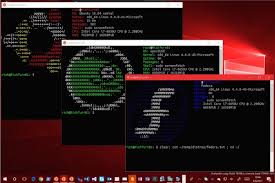
The WSL is an integrated component of Windows 10 that allows you to run a Linux environment directly on your machine. Here’s how to use it:
- Activate The Wsl: To activate the WSL, go to the Start menu and type “Windows Features” in the search bar. Click on the result, then scroll down and find the “Windows Subsystem for Linux” option. Check the box next to it and click OK.
- Install a Linux Distribution: Once the WSL is activated, you can install a Linux distribution from the Microsoft Store. Popular options include Ubuntu, Debian, Kali Linux, OpenSUSE, Fedora Remix for WSL, Pengwin, and Alpine WSL.
- Launch Your Linux Environment: After installing a distribution, you can launch it from the Start menu or by searching for it in the search bar.
Method 2: Virtualization Through a Virtual Machine Manager
If you prefer to run Linux on a virtual machine, you can use a third-party tool like VirtualBox. Here’s how:
- Download And Install Virtualbox: Go to the official VirtualBox website and download the software. Follow the installation instructions.
- Create a New Virtual Machine: Launch VirtualBox and click on the “New” button. Choose Linux as the operating system, then select your desired distribution and version.
- Configure Your Virtual Machine: Set up your virtual machine by allocating RAM, CPU resources, and storage space.
- Install Your Linux Distribution: Once your virtual machine is set up, you can install your chosen Linux distribution.
Method 3: Dual-booting With Windows 10
If you want to run both Linux and Windows on separate partitions of your hard drive, you’ll need to dual-boot them. Here’s how:
- Backup Your Data: Before making any changes to your hard drive, make sure to backup all your important files.
- Create a New Partition For Linux: Use the built-in disk management tool in Windows to create a new partition for Linux.
- Install Linux on Your New Partition: Once you’ve created your new partition, install Linux on it.
Conclusion
Installing Linux on Windows 10 can be a great way to expand your operating system options and enhance your computing experience. With the right approach, you can easily coexist with both Linux and Windows on the same machine. Whether you choose to use the WSL, virtualization through VirtualBox, or dual-booting, we hope this guide has provided you with the information you need to get started.
Frequently Asked Questions (FAQs)
- Q: What Are The Benefits of Installing Linux on Windows 10?
- A: Installing Linux on Windows 10 can provide a unique set of features and tools that can enhance your overall computing experience.
- Q: How do I Activate The Wsl in Windows 10?
- A: To activate the WSL, go to the Start menu and type “Windows Features” in the search bar. Click on the result, then scroll down and find the “Windows Subsystem for Linux” option.
- Q: Can I Run Both Linux And Windows on Separate Partitions of my Hard Drive?
- A: Yes, you can dual-boot both Linux and Windows by creating a new partition for Linux.
We hope this guide has provided you with the information you need to get started with installing Linux on your Windows 10 machine. If you have any further questions or concerns, please don’t hesitate to ask.


