
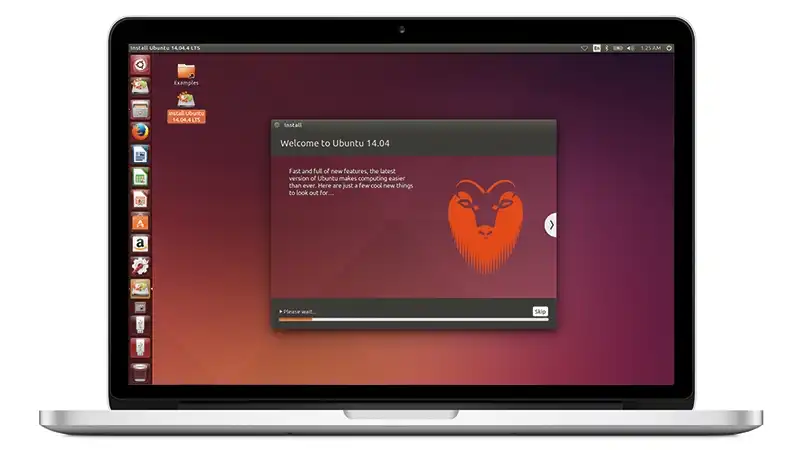
Installing Linux on Your Pc: A Step-by-step Guide
Are you looking to install Linux on your Windows PC? Look no further! In this guide, we will walk you through the process of installing Linux on your computer, covering various distributions such as Ubuntu and Linux Mint.
What is Linux?
Linux is an alternative operating system to Windows and macOS that runs on a philosophy of open source. Its code can be visualized, modified, and redistributed freely. There are various versions or “distributions” (distro) available, with many being free.
Why Install Linux?
Installing Linux provides several benefits:
- Increased Compatibility: Many Linux distributions offer elevated compatibility with hardware components.
- Famous Applications Included: Some distros come bundled with popular applications like LibreOffice and Firefox.
- Dual-booting Capabilities: You can install Linux alongside Windows, allowing you to choose between the two operating systems at boot time.
Installing Linux on Your PC
To install Linux on your Windows PC, you’ll need:
- A compatible distribution (such as Ubuntu or Linux Mint).
- A USB drive with enough space for the installation.
- A computer capable of running Linux.
Here’s a brief overview of the steps to follow:
- Step 1: Prepare Your Computer
Ensure your PC is equipped with the necessary hardware and software requirements for Linux installation. - Step 2: Download The Distribution
Obtain the desired distribution from the official website or through other trusted sources. - Step 3: Create a Bootable Usb Drive
Use software like Rufus to create a bootable USB drive containing the distribution you’ve chosen. - Step 4: Dual-boot Linux And Windows
Install Linux on your computer, selecting an option for dual-booting with Windows.
Installing Linux in Virtual Mode
If you’re new to Linux or prefer experimenting without risking data loss, virtual mode is a great option. This method allows you to install Linux within a virtual machine, which can be easily deleted or restored.
Requirements For Installing Linux on Your Pc: A Checklist
Before diving into the installation process:
- Backup Your Files: Ensure all important documents and personal files are safely backed up before proceeding with the installation.
- Familiarize Yourself With Linux: Understand the basics of Linux to make the most out of this new operating system.
Tips For Installing Linux on Your PC
To ensure a smooth experience:
- Choose The Right Distribution: Select a distribution that suits your needs and skill level.
- Update Your Software Regularly: Regularly update your Linux installation to stay up-to-date with the latest security patches and features.
- Explore The Community: Join online forums or communities for support and guidance.
Conclusion
Installing Linux on your Windows PC can be an exciting experience, offering a new perspective on computing. With this guide, you’re well-equipped to make informed decisions throughout the installation process.
Frequently Asked Questions (FAQs)
- Q: What Are The System Requirements For Installing Linux?
A: Ensure your computer meets the minimum hardware requirements specified by the chosen distribution. - Q: Can I Install Linux on my Mac?
A: Yes, you can install Linux on a Mac using virtualization software like VirtualBox. - Q: Are There Any Risks Associated With Installing Linux Alongside Windows?
A: Yes, installation errors may compromise your Windows system or data; be sure to back up essential files before proceeding.
Additional Resources
If you need further assistance:
- Visit The Official Website of Your Chosen Distribution: Consult the documentation provided by the distribution’s creators.
- Join Online Forums or Communities: Engage with other Linux users for support and guidance.


