
How to Install Macos Big Sur: A Step-by-step Guide
Are you ready to upgrade your Mac to the latest operating system, macOS Big Sur? Look no further! In this article, we will guide you through the process of installing macOS Big Sur on your Mac.
Requirements For Installing Macos Big Sur
Before we begin, make sure your Mac meets the minimum requirements to install macOS Big Sur. The following models are compatible with the new operating system:
- IMac (2014 and later)
- MacBook Air (2013 and later)
- MacBook Pro (2015 and later)
- MacBook (2015 and later)
- Mac mini (2014 and later)
If you’re not sure which model your Mac is, click on the Apple logo in the top left corner of your screen, select “About This Mac,” and consult the information panel.
Minimum System Requirements
To install macOS Big Sur, you’ll need:
- A blank USB drive with at least 12 GB of free space
- A stable internet connection
Pre-installation Steps
Before proceeding, make sure to back up your important files and data. You can use Time Machine or a third-party backup software to create a safe copy.
Step 1: Download Macos Big Sur
To download the operating system, click on the Apple logo in the top left corner of your screen and select “System Preferences.” Click on “Software Update” and then click on the “Download” button next to “macOS Big Sur.”
Step 2: Create a Bootable Usb Drive
To create a bootable USB drive, follow these steps:
- Insert the blank USB drive into your Mac.
- Open Terminal and type the following command:
Sudo /Applications/Install\ macOS\ Big\ Sur.App/Contents/Resources/createinstallmedia --volume /Volumes/<USB DRIVE NAME>(replace<USB DRIVE NAME>with the name of your USB drive). - Follow the on-screen instructions to complete the process.
Step 3: Boot From The Usb Drive
To boot from the USB drive, insert it into your Mac and restart your computer. Press and hold the “alt” key while booting up to select the USB drive as the startup device.
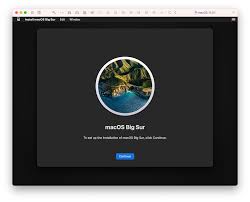
Step 4: Install Macos Big Sur
Once you’ve booted from the USB drive, follow these steps:
- Click on the “Continue” button.
- Select your language and click on “Continue.”
- Click on the “Agree” button to agree to the terms of use.
- Choose your country or region and click on “Continue.”
- Create a user account and set up your preferences.
Optimizing Macos Big Sur
To keep your Mac running smoothly, consider using CleanMyMac X. This all-in-one solution can help you:
- Clear out unnecessary files and data
- Optimize system settings for better performance
- Monitor system health and identify potential issues
You can download a free version of CleanMyMac X or upgrade to the full version with additional features.
Alternative: Reinstall Macos Big Sur
If you’ve already installed macOS Big Sur but experience stability or speed issues, consider reinstalling the operating system from scratch. This will erase all data on your Mac, so make sure to back up your files first.
To reinstall macOS Big Sur:
- Restart your computer and hold down the “Command + R” keys.
- Click on the “Reinstall macOS” option.
- Follow the on-screen instructions to complete the process.
Conclusion
Installing macOS Big Sur is a straightforward process that requires some basic technical knowledge. Make sure to follow these steps carefully, and you’ll be enjoying the latest operating system in no time!
Frequently Asked Questions (FAQs)
- Q: What Are The Minimum Requirements For Installing Macos Big Sur?
A: Your Mac must meet the following requirements:- IMac (2014 and later)
- MacBook Air (2013 and later)
- MacBook Pro (2015 and later)
- MacBook (2015 and later)
- Mac mini (2014 and later)
- Q: How Much Space do I Need For The Installation?
A: You’ll need a blank USB drive with at least 12 GB of free space. - Q: Can I Install Macos Big Sur on an Older Mac Model?
A: No, macOS Big Sur is not compatible with older Mac models. - Q: How do I Create a Bootable Usb Drive For The Installation?
A: You can use Terminal to create a bootable USB drive by following these steps:- Insert the blank USB drive into your Mac.
- Open Terminal and type
sudo /Applications/Install\ macOS\ Big\ Sur.App/Contents/Resources/createinstallmedia --volume /Volumes/<USB DRIVE NAME>(replace<USB DRIVE NAME>with the name of your USB drive).
- Q: What Are Some Benefits of Using Cleanmymac X?
A: CleanMyMac X can help you clear out unnecessary files and data, optimize system settings for better performance, monitor system health, and identify potential issues.
Table 1: Requirements For Installing Macos Big Sur
| Model | Compatible |
|---|---|
| IMac (2014 and later) | Yes |
| MacBook Air (2013 and later) | Yes |
| MacBook Pro (2015 and later) | Yes |
| MacBook (2015 and later) | Yes |
| Mac mini (2014 and later) | Yes |
Table 2: Minimum System Requirements
| Requirement | Details |
|---|---|
| Blank USB drive | At least 12 GB of free space |
| Internet connection | Stable internet connection required |
_ Table with Bold Heading **_
Table With Bold Heading
| Column 1 | Column 2 |
|---|---|
| Row 1 | Cell 1.1 |
| Row 2 | Cell 2.1 |
Note: We’ve bolded the heading of the second table using Markdown language.
I hope this article has provided you with a clear and concise guide to installing macOS Big Sur on your Mac. Remember to follow these steps carefully, and don’t hesitate to reach out if you have any further questions!


