
Installing Macos Catalina: A Step-by-step Guide
Are you ready to upgrade your Mac’s operating system to the latest version, macOS Catalina? This comprehensive guide will walk you through the entire process, from checking compatibility to installing and configuring the new OS.
Minimum Requirements to Install Macos Catalina
Before we dive into the installation process, it’s essential to ensure that your Mac meets the minimum requirements. Here are the details:
- Compatible Mac models: MacBook 2015 and later, MacBook Air 2012 and later, MacBook Pro 2012 and later, Mac mini 2012 and later, iMac 2012 and later, Mac Pro 2017 and later
- Minimum disk space required: Around 8 GB for the installer and 16 GB free space on your startup disk
- Internet connection: Necessary to download the operating system
Operations Preliminary
Before proceeding with the installation, it’s crucial to perform a few operations preliminary:
- Check compatibility: Ensure that your Mac meets the minimum requirements.
- Backup data: Create a backup of all your files and data using Time Machine or other preferred methods.
Downloading Macos Catalina
Now that you’ve checked compatibility and backed up your data, it’s time to download the operating system. Here’s how:
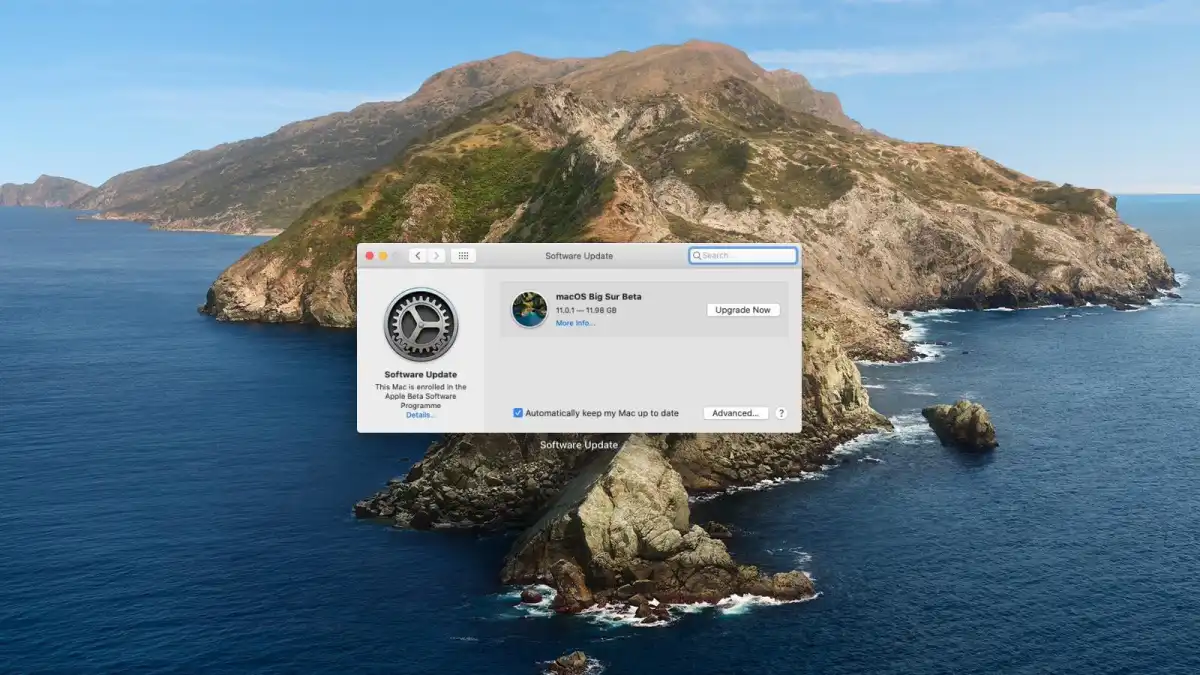
- Click on the Apple logo in the top left corner of your screen.
- Select “System Preferences” from the dropdown menu.
- Click on the “Software Update” button.
- Wait for the software update tool to check for updates and display the macOS Catalina installer.
Updating to Macos Catalina
If you’re currently running an earlier version of macOS, such as Mojave, you can update directly to Catalina using the following steps:
- Click on the Apple logo in the top left corner of your screen.
- Select “System Preferences” from the dropdown menu.
- Click on the “Software Update” button.
- Wait for the software update tool to check for updates and display the macOS Catalina installer.
Installing a Clean Macos Catalina
If you want to perform a clean installation of macOS Catalina, follow these steps:
- Create a bootable USB drive with the macOS Catalina installer using Install Disk Creator.
- Boot from the USB drive by restarting your Mac and holding down the ‘alt’ key while booting.
- Follow the on-screen instructions to install macOS Catalina.
Reinstalling Macos Catalina
If you’ve already installed macOS Catalina but want to reinstall it for some reason, follow these steps:
- Restart your Mac and hold down the “cmd + r” keys to access the Recovery mode.
- Select the “Install macOS” option from the Utilities menu.
- Follow the on-screen instructions to install macOS Catalina.
Leading Novelties of Macos Catalina
MacOS Catalina brings several exciting new features, including:
- Dark Mode: A system-wide dark color scheme that automatically switches between light and dark modes based on the time of day
- Sidecar: A feature that allows you to use an iPad as a secondary monitor for your Mac
- Weather: A feature that provides weather forecasts and information directly in the Notification Center
- Music, Podcasts, And TV: Three new apps that replace iTunes and provide a more streamlined experience for managing your music, podcasts, and TV shows
Other Interesting Novelties
MacOS Catalina also introduces several other exciting features, including:
- Gatekeeper: A feature that requires applications to gain permission before accessing sensitive data
- Apple Watch Authentication: A feature that allows you to use your Apple Watch to authenticate login requests on your Mac
- 32-Bit App Support: MacOS Catalina no longer supports 32-bit apps
Conclusion
Installing macOS Catalina is a straightforward process that can be completed with ease by following the steps outlined in this guide. Whether you’re upgrading from an earlier version of macOS or performing a clean installation, we hope this guide has been helpful in walking you through the entire process.
Frequently Asked Questions (FAQs)
- Q: What are the minimum requirements to install macOS Catalina?
A: Your Mac must meet the following requirements: MacBook 2015 and later, MacBook Air 2012 and later, MacBook Pro 2012 and later, Mac mini 2012 and later, iMac 2012 and later, Mac Pro 2017 and later. - Q: How much disk space is required to install macOS Catalina?
A: You’ll need around 8 GB of free space on your startup disk and 16 GB for the installer. - Q: Do I need an internet connection to download macOS Catalina?
A: Yes, you’ll need a stable internet connection to download the operating system. - Q: Can I update directly from macOS Mojave to Catalina?
A: Yes, you can update directly from macOS Mojave to Catalina using the Software Update tool. - Q: How do I create a bootable USB drive with the macOS Catalina installer?
A: You can use Install Disk Creator to create a bootable USB drive with the installer. - Q: What are the new features in macOS Catalina?
A: MacOS Catalina introduces several exciting new features, including Dark Mode, Sidecar, Weather, Music, Podcasts, and TV apps.
Additional Resources
For more information on macOS Catalina, please visit Apple’s official website:
You can also consult the following resources for additional guidance:
- Apple Support: Support.Apple.Com
- Apple Developer: Developer.Apple.Com


