
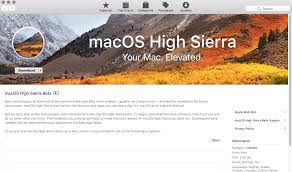
Installing Macos High Sierra: A Step-by-step Guide
Are you ready to upgrade your Mac to the latest operating system, macOS High Sierra? In this article, we’ll guide you through the process of installing macOS High Sierra on your compatible Mac.
What You Need to Know Before Installing Macos High Sierra
Before we dive into the installation process, there are a few things you need to know:
- Your Mac must be compatible with macOS High Sierra. Check our list below to see if your Mac is eligible for the update.
- You’ll need at least 2GB of memory and 14.3GB of storage space on your Mac’s hard drive.
- Make sure you have a stable internet connection, as the installation process requires downloading several files.
System Requirements For Macos High Sierra
Here are the minimum system requirements for installing macOS High Sierra:
| Model | Minimum Requirements |
|---|---|
| MacBook Air (2010 or later) | 2GB RAM, 14.3GB storage space |
| MacBook Pro (2010 or later) | 2GB RAM, 14.3GB storage space |
| MacBook (2009 or later) | 2GB RAM, 14.3GB storage space |
| Mac Mini (2010 or later) | 2GB RAM, 14.3GB storage space |
| IMac (2011 or later) | 2GB RAM, 14.3GB storage space |
Preliminary Operations Before Installing Macos High Sierra
Before initiating the installation process, there are a few preliminary operations you need to perform:
- Check the compatibility of your applications and their updates.
- Carry out a backup of your data using Time Machine or another backup method.
- Make sure you have sufficient free storage space on your Mac’s hard drive.
Step 1: Download Macos High Sierra
To begin the installation process, follow these steps:
- Open the Mac App Store.
- Click on “Update” next to the macOS High Sierra icon.
- Follow the prompts to initiate the download and installation process.
Step 2: Install Macos High Sierra
Once the download is complete, you’ll be prompted to install the operating system. Follow these steps:
- Select your Mac’s disc as the destination for the installation.
- Enter your administrator password to authenticate the installation.
- Click on “Install” to begin the installation process.
Step 3: Complete The Initial Configuration
After the installation is complete, you’ll be prompted to complete the initial configuration of macOS High Sierra. Follow these steps:
- Select your country and language preferences.
- Choose whether to transfer data from a previous backup or start with a clean slate.
- Set up iCloud and other services as desired.
What’s New in Macos High Sierra
MacOS High Sierra brings several exciting new features, including:
- A more efficient file system (APFS)
- Improved performance and security
- Enhanced graphics capabilities with Metal 2
- Support for 4K video streaming
Troubleshooting Common Issues
If you encounter any issues during the installation process, don’t worry! We’ve got some troubleshooting tips to help you resolve common problems.
- Installation Fails Due to Insufficient Storage Space: Make sure you have at least 14.3GB of free storage space on your Mac’s hard drive.
- Installation Fails Due to Compatibility Issues: Check our list above to ensure your Mac is compatible with macOS High Sierra.
- Installation Hangs or Freezes: Try restarting your Mac and attempting the installation again.
Installing Macos High Sierra: A Step-by-step Guide (Table)
| Step | Description |
|---|---|
| 1 | Download macOS High Sierra from the Mac App Store |
| 2 | Select your Mac’s disc as the destination for the installation |
| 3 | Enter your administrator password to authenticate the installation |
| 4 | Click on “Install” to begin the installation process |
| 5 | Complete the initial configuration of macOS High Sierra |
_Installing Macos High Sierra: A Step-by-step Guide (Table)
Installing Macos High Sierra on a Mac With No Internet Connection
If you don’t have an internet connection, you can still install macOS High Sierra using a USB drive. Follow these steps:
- Create a bootable USB drive with the installation files.
- Restart your Mac and select the USB drive as the destination for the installation.
Installing Macos High Sierra on a Mac Without Erasing Data
If you want to reinstall macOS High Sierra without erasing data, follow these steps:
- Restart your Mac in recovery mode (hold down the Command + R keys).
- Select the “Reinstall macOS” option.
- Follow the prompts to complete the installation.
Installing Macos High Sierra on a Mac With a Previous Backup
If you have a previous backup of your data, follow these steps:
- Restart your Mac in recovery mode (hold down the Command + R keys).
- Select the “Reinstall macOS” option.
- Choose to restore from a previous backup using Time Machine.
Faqs
Q: What are the system requirements for installing macOS High Sierra?
A: Your Mac must be compatible with macOS High Sierra, have at least 2GB of memory and 14.3GB of storage space on your Mac’s hard drive.
Q: Can I install macOS High Sierra without erasing data?
A: Yes, you can reinstall macOS High Sierra without erasing data by restarting your Mac in recovery mode and selecting the “Reinstall macOS” option.
Q: What are some common issues that may occur during installation?
A: Some common issues include insufficient storage space, compatibility issues, and installation hangs or freezes.
Conclusion
Installing macOS High Sierra on your compatible Mac is a straightforward process. By following these steps, you’ll be able to upgrade to the latest operating system and enjoy its many new features and improvements.


