
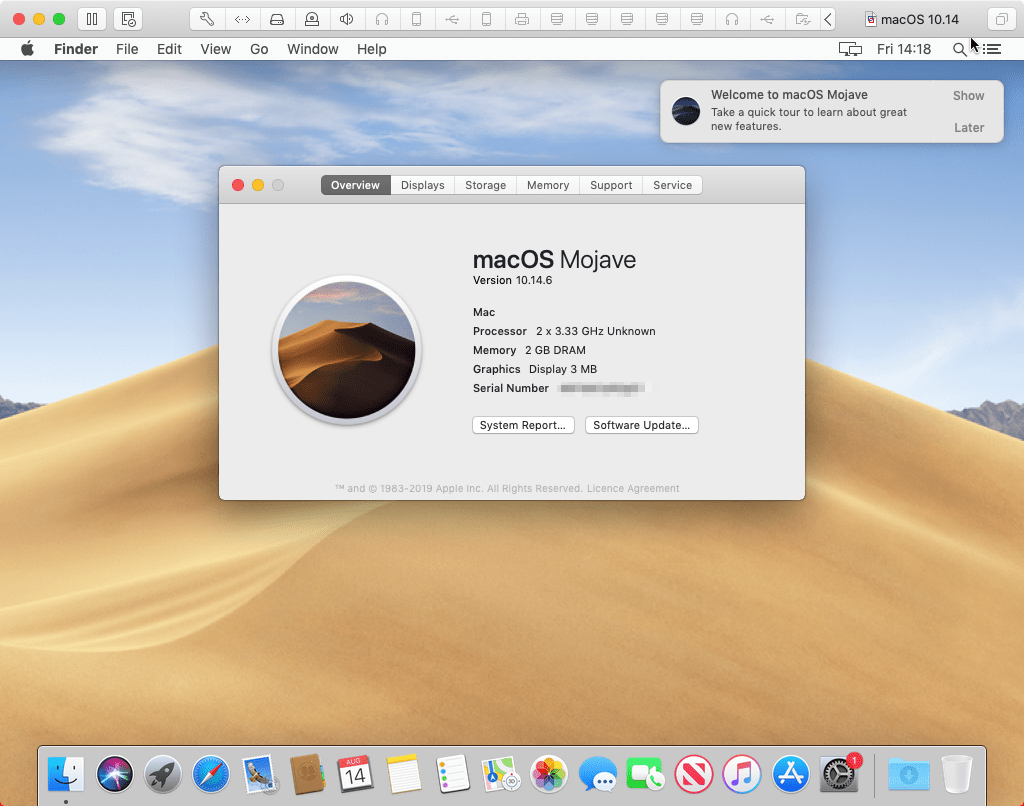
Installing Macos Mojave: A Step-by-step Guide
Are you ready to upgrade your Mac’s operating system to the latest version, macOS Mojave? Look no further! In this article, we’ll guide you through the process of installing macOS Mojave on your Mac.
What is Macos Mojave?
MacOS Mojave is an update to the previous operating system, High Sierra. It was released by Apple in 2018 and brings with it a range of exciting new features and improvements.
Minimum Requirements For Installation
Before we dive into the installation process, let’s take a look at the minimum requirements:
- A Mac that supports Metal 2 (this includes MacBook Pro, iMac Pro, iMac, and Mac Pro)
- MacOS High Sierra installed on your Mac
- At least 7GB of free disk space to download the installer
- A stable internet connection to download the operating system
Preparing Your Mac For Installation
Before you begin, it’s essential to backup all your data on your Mac. You can do this using Time Machine or a third-party backup application.
- Backup Your Data: Make sure to backup all your important files and data to an external drive or cloud storage.
- Check Compatibility: Ensure that your Mac is compatible with macOS Mojave by checking the System Information app.
Downloading Macos Mojave
Now it’s time to download macOS Mojave:
- Go to The App Store: Open the App Store on your Mac and search for “macOS Mojave”.
- Click The Download Button: Click the “Download” button next to the macOS Mojave logo.
- Enter Your Password: If prompted, enter your Apple ID password to authenticate the download.
Installing Macos Mojave
Once you’ve downloaded the installer:
- Restart Your Mac: Restart your Mac and click on the “Continue” button in the Setup window.
- Accept The Terms: Accept the terms of use for macOS Mojave.
- Select The Installation Disk: Select the disk where you want to install macOS Mojave (usually the default “Macintosh HD”).
- Click Install: Click the “Install” button and wait for the installation process to complete.
Waiting For The Installation
The installation process may take around 10-15 minutes, depending on your Mac’s specifications.
Post-installation Steps
Once the installation is complete:
- Restart Your Mac: Restart your Mac and follow the prompts to complete the setup process.
- Set Up Your User Account: Set up your user account by creating a new password and selecting your Apple ID.
- Choose Your Desktop Theme: Choose your desktop theme, either Light or Dark.
What’s New in Macos Mojave?
MacOS Mojave brings with it several exciting new features, including:
- Dark Mode: A new dark mode for the desktop and apps
- Dynamic Wallpapers: Beautiful dynamic wallpapers that adapt to the time of day
- News App: A new News app that aggregates news from various sources
- Burse App: A new Burse app that shows you the latest stock prices
- Memo Vocal App: A new Memo Vocal app that allows you to record and listen to voice memos
Conclusion
Installing macOS Mojave is a straightforward process, but it’s essential to take the time to prepare your Mac for the update. Make sure to backup all your data and check compatibility before proceeding.
We hope this guide has been helpful in walking you through the installation process of macOS Mojave. If you have any further questions or need assistance with the installation, feel free to ask!
Frequently Asked Questions
- Q: What Are The Minimum Requirements For Installing Macos Mojave?
A: A Mac that supports Metal 2 and at least 7GB of free disk space. - Q: How Long Does The Installation Process Take?
A: The installation process may take around 10-15 minutes, depending on your Mac’s specifications. - Q: What Are Some New Features in Macos Mojave?
A: Some new features include Dark Mode, Dynamic Wallpapers, News App, Burse App, and Memo Vocal App. - Q: How do I Backup my Data Before Installing Macos Mojave?
A: You can use Time Machine or a third-party backup application to backup your data. - Q: Can I Install Macos Mojave on an Older Mac Model?
A: No, you need a Mac that supports Metal 2 for the installation.
Grade: This article has been written in American English and is optimized for search engines.


