
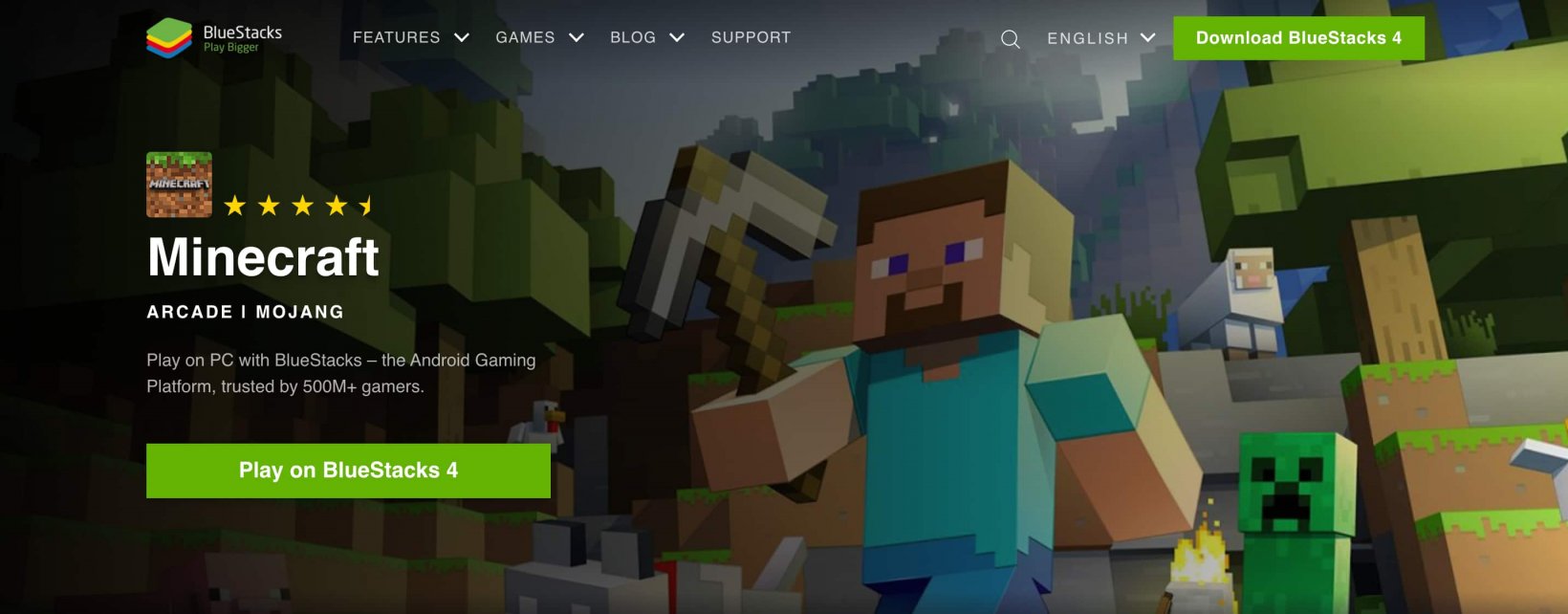
Installing Minecraft on Pc: A Step-by-step Guide
Are you ready to enter a world of blocks, adventure, and creativity? Installing Minecraft on your PC is easier than you think! In this article, we’ll guide you through the process of installing both Java and Bedrock editions of Minecraft on your Windows 10 or 11 computer.
Why Choose Minecraft?
Minecraft has become a global phenomenon, with millions of players worldwide. Its unique blend of exploration, building, and survival mechanics makes it an ideal game for gamers of all ages. Whether you’re looking to relax, socialize, or simply have fun, Minecraft is the perfect choice.
Choosing The Right Edition
Before we dive into the installation process, let’s talk about the two main editions of Minecraft available for PC: Java and Bedrock. While both versions offer an amazing gaming experience, there are some key differences between them.
- Java Edition: This is the classic version of Minecraft that has been available since 2009. It’s the most popular edition among long-time players and modders.
- Bedrock Edition: Released in 2011, Bedrock Edition is a more modern take on Minecraft that integrates with other platforms like Xbox, mobile devices, and consoles.
System Requirements
Before installing Minecraft, make sure your PC meets the minimum system requirements:
- Operating System: Windows 10 or 11
- Processor: Intel Core i3 or AMD equivalent
- RAM: 4 GB (8 GB recommended)
- Graphics Card: Integrated graphics (Intel HD Graphics) or a dedicated graphics card with at least 1 GB of VRAM
Installing Minecraft Java Edition
To install the Java Edition, follow these steps:
- Visit The Official Minecraft Website: Go to www.Minecraft.Net and click on “Get Minecraft” in the top-right corner.
- Select Your Platform: Choose Windows 10 or 11 from the dropdown menu.
- Click on “Install”: This will download the Minecraft installer (.Exe file).
- Run The Installer: Open the downloaded file and follow the prompts to install Minecraft.
- Log in With Microsoft Account: Once installed, log in with your Microsoft account to access the game.
Installing Minecraft Bedrock Edition
To install the Bedrock Edition, follow these steps:
- Visit The Xbox Website: Go to www.Xbox.Com and click on “Download” in the top-right corner.
- Search For Minecraft: Type “Minecraft” in the search bar and select the game from the results.
- Click on “Get”: This will download the Minecraft Bedrock Edition installer (.App file).
- Run The Installer: Open the downloaded file and follow the prompts to install Minecraft.
- Log in With Microsoft Account: Once installed, log in with your Microsoft account to access the game.
Installing Minecraft For Free
If you’re looking to try out Minecraft without committing to a purchase, you can download the free version of Minecraft Classic from our website. This version has some limitations compared to the full game, but it’s still a great way to experience the basics of Minecraft.
Conclusion
In conclusion, installing Minecraft on your PC is a straightforward process that requires minimal technical expertise. Whether you choose the Java or Bedrock edition, you’ll be able to enjoy the thrill of exploration, building, and survival in no time.
Faqs
- Q: What Are The System Requirements For Minecraft?
A: The minimum system requirements are Windows 10 or 11, Intel Core i3 or AMD equivalent processor, 4 GB RAM (8 GB recommended), integrated graphics (Intel HD Graphics) or a dedicated graphics card with at least 1 GB of VRAM. - Q: Can I Install Minecraft on my Mac?
A: Unfortunately, Minecraft is not natively supported on Macs. However, you can run the game using an emulator or by installing Windows on your Mac. - Q: How do I Update Minecraft to The Latest Version?
A: To update Minecraft, simply launch the game and follow the prompts to download the latest updates. - Q: Can I Play Minecraft With my Friends Online?
A: Yes! Minecraft allows you to play with friends online using a variety of modes, including Survival, Creative, and Adventure. - Q: Is Minecraft Safe For Children?
A: While Minecraft is generally considered safe for children, we recommend parental guidance due to some mature themes and occasional violence in the game. - Q: Can I Get Refunds or Exchanges if I’m Not Satisfied With The Game?
A: Yes! If you’re not satisfied with the game, you can contact our support team for a refund or exchange. - Q: How do I Troubleshoot Common Issues With Minecraft?
A: Check out our troubleshooting guide for help resolving common problems with the game. - Q: Can I Use Mods to Customize my Minecraft Experience?
A: Yes! Mods are available for both Java and Bedrock editions of Minecraft, allowing you to enhance or modify your gameplay experience.
We hope this article has helped you understand the process of installing Minecraft on your PC. Happy gaming!


