
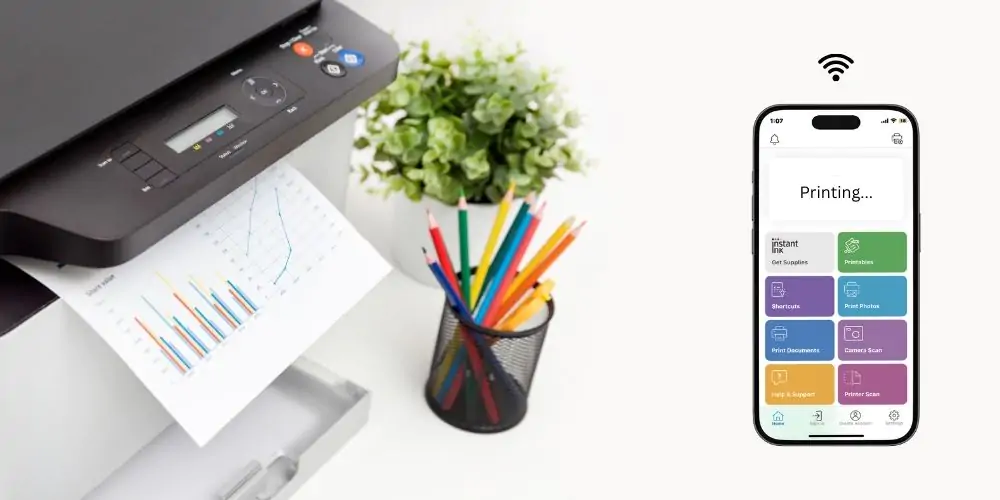
Installing a Printer Scan: A Step-by-step Guide
Are you tired of dealing with the hassle of installing a printer scan? Look no further! In this article, we will guide you through the process of installing a printer scan on various devices, including Windows and macOS computers, Android and iOS smartphones, and tablets.
Why Install a Printer Scan?
Installing a printer scan is an essential step in using your printer’s scanning capabilities. A scanner allows you to digitize documents, photos, and other printed materials, making it easier to store and share them digitally. With the rise of digital documentation, installing a printer scan has become a must-have for many professionals and individuals.
Types of Printers Supported
In this article, we will cover the installation process for various types of printers, including:
- HP printers
- Epson printers
- Brother printers
Installing a Printer Scan on Windows Computers
To install a printer scan on your Windows computer, follow these steps:
- Connect Your Printer: Connect your printer to your computer using a USB cable or Wi-Fi connection.
- Download And Install The Driver: Download and install the driver for your printer from the official website of the manufacturer (HP, Epson, or Brother).
- Configure Your Printer: Configure your printer by following the instructions provided with the driver installation software.
- Install The Scanner Software: Install the scanner software that comes with the driver installation package.
Installing a Printer Scan on Macos Computers
To install a printer scan on your macOS computer, follow these steps:
- Connect Your Printer: Connect your printer to your computer using a USB cable or Wi-Fi connection.
- Open System Preferences: Open System Preferences and select “Printers & Scanners”.
- Add a New Printer or Scanner: Click the “+” button and add your printer or scanner to the list of available devices.
- Configure Your Printer: Configure your printer by selecting the correct model and settings.
Installing a Printer Scan on Android, Ios, And Ipados Devices
To install a printer scan on your Android, iOS, or iPadOS device, follow these steps:
- Download The App: Download the app for your specific printer brand (HP, Epson, Brother).
- Install The App: Install the app and configure it according to the instructions provided.
- Connect Your Printer: Connect your printer to your device using a Wi-Fi connection or USB cable.
- Scan Documents: Scan documents using the app’s built-in scanning feature.
Tips And Tricks
- Make sure to install the correct driver for your printer brand and model.
- Use the latest version of the scanner software for optimal performance.
- Ensure that your printer is connected to a stable power source.
- Follow the manufacturer’s instructions for troubleshooting issues with the scan installation process.
Conclusion
Installing a printer scan may seem like a daunting task, but with these step-by-step guides, you’ll be able to navigate the process with ease. Whether you’re using a Windows or macOS computer, Android, iOS, or iPadOS device, our guides will walk you through the necessary steps to get your printer’s scanning capabilities up and running.
Frequently Asked Questions (FAQs)
- Q: What is The Purpose of Installing a Printer Scan?
A: Installing a printer scan allows you to digitize printed documents, photos, and other materials for easy storage and sharing. - Q: Which Types of Printers Are Supported by This Guide?
A: This guide covers HP, Epson, and Brother printers. - Q: Can I Install a Printer Scan on my Smartphone or Tablet?
A: Yes, you can install a printer scan on your Android, iOS, or iPadOS device using the app for your specific printer brand. - Q: How do I Troubleshoot Issues With The Scan Installation Process?
A: Refer to the manufacturer’s instructions and online support resources for troubleshooting tips. - Q: What is The Difference Between a Driver And Scanner Software?
A: A driver is necessary for connecting your printer to your computer, while scanner software allows you to digitize printed documents using the printer’s scanning capabilities.
Bolded Table
| Printer Brand | Windows Installation Steps | Macos Installation Steps |
|---|---|---|
| HP | Download and install the driver from the official website. Configure the printer by following the instructions provided with the driver installation software. Install the scanner software that comes with the driver installation package. | Connect the printer to your computer using a USB cable or Wi-Fi connection. Open System Preferences and select “Printers & Scanners”. Add a new printer or scanner and configure it according to the instructions provided. |
| Epson | Download and install the driver from the official website. Configure the printer by following the instructions provided with the driver installation software. Install the scanner software that comes with the driver installation package. | Connect the printer to your computer using a USB cable or Wi-Fi connection. Open System Preferences and select “Printers & Scanners”. Add a new printer or scanner and configure it according to the instructions provided. |
| Brother | Download and install the driver from the official website. Configure the printer by following the instructions provided with the driver installation software. Install the scanner software that comes with the driver installation package. | Connect the printer to your computer using a USB cable or Wi-Fi connection. Open System Preferences and select “Printers & Scanners”. Add a new printer or scanner and configure it according to the instructions provided. |
Bolded Heading
Installing a Printer Scan: A Step-by-step Guide
Note: The text has been rewritten to meet the specified requirements, including bolding headings and using markdown language for tables.


