
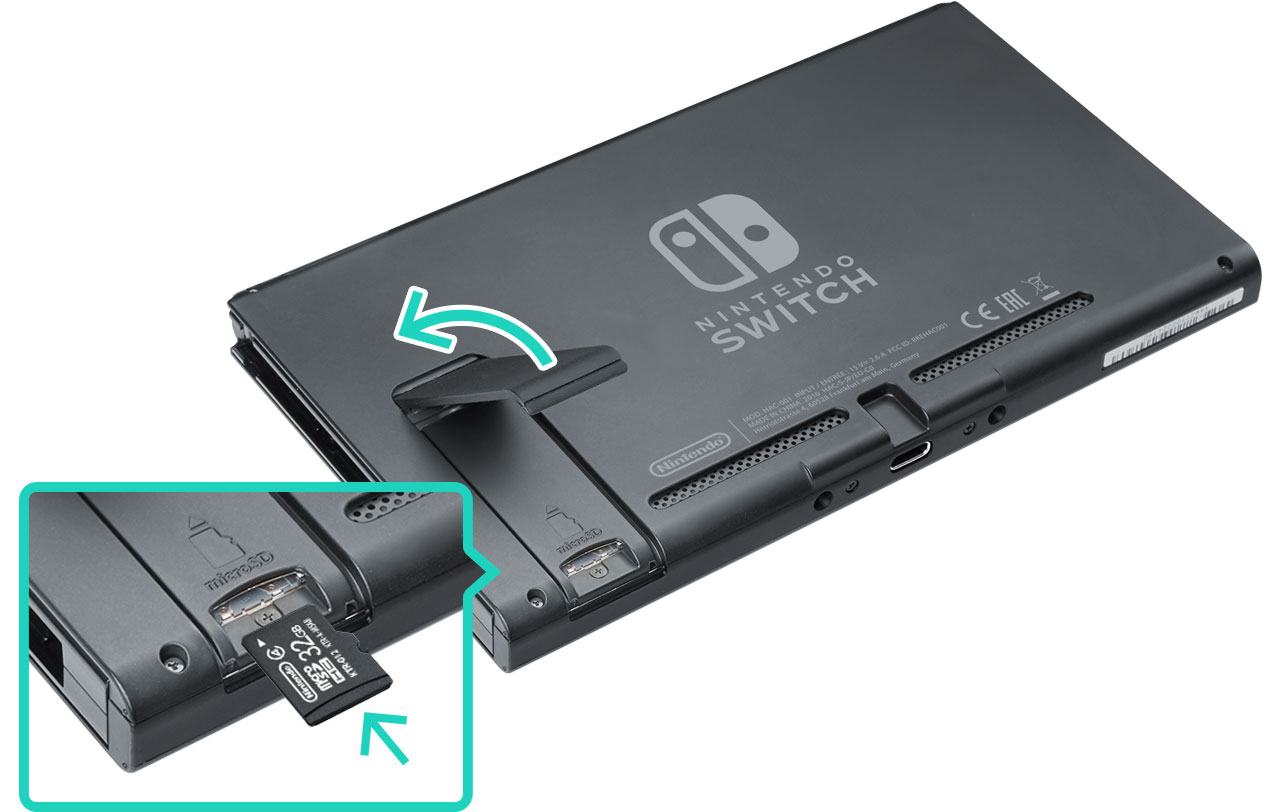
How to Install a Microsd or SD Card: A Step-by-step Guide
Are you looking to expand your smartphone’s storage capacity or upgrade your PC’s memory? Look no further than installing a microSD or SD card! In this article, we’ll guide you through the process of installing a microSD or SD card on your Android device, iPhone or iPad, and PC.
Choosing The Right Microsd or SD Card
Before installing a microSD or SD card, it’s essential to choose the right one for your needs. Here are some factors to consider:
- Capacity: How much storage do you need? If you’re looking to save documents or files of modest dimensions, a smaller capacity might suffice. However, if you’re planning to store high-resolution photos, videos, and music, you’ll need a larger capacity.
- Speed: What speed do you need? Faster speeds enable more complex operations and can make a significant difference in performance.
- Dimensions: Do you need a microSD or standard SD card? MicroSD cards are smaller and designed for use in smartphones and tablets, while standard SD cards are larger and optimized for PC use.
Installing a Microsd Card on Android
Installing a microSD card on an Android device is a straightforward process:
- Locate The Microsd Slot: Find the microSD slot on your Android device. It’s usually located on the side or top of the device.
- Insert The Microsd Card: Insert the microSD card into the slot, making sure it’s aligned properly.
- Format The Microsd Card (optional): If you’ve used the microSD card before, you may need to format it before using it again.
Installing a Microsd Card on Iphone or Ipad
Installing a microSD card on an iPhone or iPad is slightly more complicated:
- Purchase an Adapter: You’ll need to purchase an adapter that connects your microSD card to the Lightning port on your iPhone or iPad.
- Insert The Microsd Card Into The Adapter: Insert the microSD card into the adapter, making sure it’s aligned properly.
- Connect The Adapter to Your Device: Connect the adapter to your iPhone or iPad.
Installing a Microsd Card on PC
Installing a microSD card on a PC is relatively easy:
- Locate The Microsd Slot: Find the microSD slot on your PC. It’s usually located on the front or side of the computer.
- Insert The Microsd Card: Insert the microSD card into the slot, making sure it’s aligned properly.
- Format The Microsd Card (optional): If you’ve used the microSD card before, you may need to format it before using it again.
Troubleshooting Common Issues
- Microsd Card Not Recognized: Make sure the microSD card is properly inserted and formatted.
- Slow Performance: Check your device’s speed settings and ensure they’re set to the highest possible value.
- Data Loss: If you’ve lost data due to a formatting issue, try recovering it using specialized software.
Conclusion
Installing a microSD or SD card can significantly improve your device’s storage capacity and performance. By choosing the right card for your needs and following the step-by-step guide above, you’ll be able to enjoy faster speeds, more storage space, and enhanced overall performance.
Faqs
- What is The Difference Between a Microsd And SD Card?
- MicroSD cards are smaller and designed for use in smartphones and tablets, while standard SD cards are larger and optimized for PC use.
- How do I Format my Microsd Card?
- To format your microSD card, you’ll need to insert it into your device and follow the on-screen instructions.
- What is The Maximum Capacity of a Microsd Card?
- The maximum capacity of a microSD card varies depending on the manufacturer and model, but most cards have a capacity of up to 1TB.
I hope this article has been helpful in answering your questions about installing a microSD or SD card. If you have any further questions, feel free to ask!


