
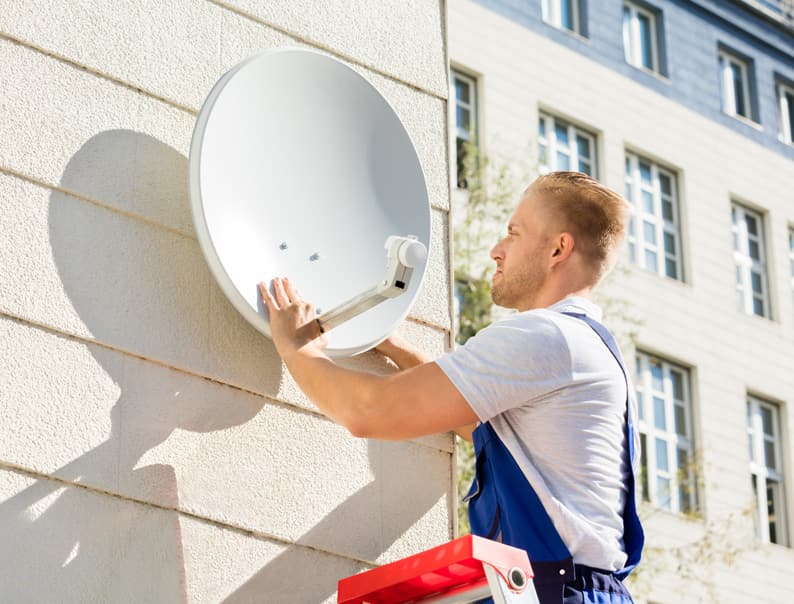
How to Install Sky on Your Tv, Pc, Smartphone, or Tablet: A Step-by-step Guide
Are you looking for a way to enjoy your favorite sports events, movies, and TV shows without the hassle of going to a cinema or waiting for them to be broadcast? Look no further than Sky! With Sky’s various services and devices, you can access a wide range of content from anywhere in the comfort of your own home. In this article, we will guide you through the process of installing Sky on your TV, PC, smartphone, or tablet.
Why Install Sky?
Before we dive into the installation process, let’s take a look at why you might want to install Sky in the first place. Sky offers a vast array of content, including live sports events, movies, and TV shows. With Sky, you can:
- Watch your favorite sports teams play live
- Enjoy the latest movies and TV shows, both new releases and classic titles
- Access a wide range of on-demand content, including documentaries, reality shows, and more
Installing Sky on Your TV
The first step in installing Sky is to subscribe to one of their services. There are several options available, including:
- Sky Q: This service offers 4K Ultra HD resolution and the ability to record up to four channels at once.
- Sky WiFi: This service provides access to high-speed internet and can be used in conjunction with Sky Q or other Sky services.
To install Sky on your TV, follow these steps:
- Choose Your Subscription: Select the Sky service that best suits your needs. You can choose from various packages, including Sky Q, Sky WiFi, or a combination of both.
- Check Availability: Make sure Sky is available in your area by checking their website or contacting customer support.
- Schedule an Installation: Once you have chosen your subscription and checked availability, schedule an installation with a Sky technician. This will typically take place within 24-48 hours.
- Install The Decoder: The Sky technician will install the decoder and connect it to your TV and internet connection.
- Activate Your Subscription: Once the decoder is installed, activate your subscription by entering your details on the Sky website or through the Sky app.
Installing Sky on Your PC
If you prefer to watch Sky content on your PC rather than your TV, there are several options available:
- Sky Go: This service allows you to access live sports events and on-demand content from anywhere.
- Now: This is a separate streaming service that offers a wide range of on-demand content, including movies, TV shows, and documentaries.
To install Sky on your PC, follow these steps:
- Download The App: Download the Sky Go or NOW app from the official website or through the Windows Store.
- Sign In With Your Details: Enter your Sky ID and password to sign in to the app.
- Choose Your Content: Browse through the available content and select what you want to watch.
Installing Sky on Your Smartphone or Tablet
If you prefer to watch Sky content on-the-go, there are several options available:
- Sky Go Mobile App: This app allows you to access live sports events and on-demand content from anywhere.
- Now Mobile App: This is a separate streaming service that offers a wide range of on-demand content, including movies, TV shows, and documentaries.
To install Sky on your smartphone or tablet, follow these steps:
- Download The App: Download the Sky Go or NOW app from the official website or through the App Store.
- Sign In With Your Details: Enter your Sky ID and password to sign in to the app.
- Choose Your Content: Browse through the available content and select what you want to watch.
Conclusion
Installing Sky on your TV, PC, smartphone, or tablet is a relatively straightforward process that can be completed within a few hours. With this guide, you should be able to access a wide range of content from anywhere, including live sports events, movies, and TV shows. Remember to choose the right subscription for your needs and ensure that Sky is available in your area.
Frequently Asked Questions
- What Are The Different Types of Sky Subscriptions?
Sky offers several subscription options, including Sky Q, Sky WiFi, and various packages that combine these services. - How do I Know if Sky is Available in my Area?
Check the Sky website or contact customer support to confirm availability in your area. - Can I Install Sky on Multiple Devices?
Yes, you can install Sky on multiple devices, including TVs, PCs, smartphones, and tablets. - What Content is Available on Sky Go And Now?
Sky Go and NOW offer a wide range of content, including live sports events, movies, TV shows, documentaries, and more. - Can I Download Content to Watch Offline?
Yes, some Sky services allow you to download content to watch offline, but this may depend on the specific service and device used.
Table 1: Sky Subscription Options
| Service | Description |
|---|---|
| Sky Q | 4K Ultra HD resolution and recording capabilities |
| Sky WiFi | High-speed internet access |
| Sky Go | Live sports events and on-demand content |
| NOW | On-demand content, including movies, TV shows, documentaries |
Table 2: Installing Sky on Your Device
| Service | Installation Steps |
|---|---|
| Sky Q | Schedule an installation with a Sky technician, install the decoder, activate your subscription |
| Sky WiFi | Check availability, schedule an installation, install the router and modem |
| Sky Go | Download the app, sign in with your details, choose your content |
| NOW | Download the app, sign in with your details, choose your content |
Table 3: Installing Sky on Your Smartphone or Tablet
| Service | Installation Steps |
|---|---|
| Sky Go Mobile App | Download the app, sign in with your details, choose your content |
| NOW Mobile App | Download the app, sign in with your details, choose your content |


