
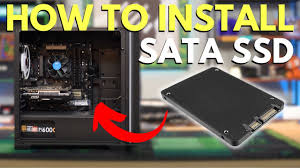
The Ultimate Guide to Installing an Ssd on Your PC or Mac
Are you tired of waiting for your computer to boot up? Do you want to enjoy faster performance and improved responsiveness? Look no further than installing a Solid-State Drive (SSD)!
In this comprehensive guide, we’ll walk you through the process of choosing the right SSD, cloning your old hard drive, and installing it on your PC or Mac. Whether you’re a tech-savvy individual or just starting out, this article will provide you with the step-by-step instructions you need to upgrade your computer’s storage.
Choosing The Right Ssd
Before we dive into the installation process, let’s talk about choosing the right SSD for your needs. There are two main types of SSDs: SATA and M.2 (Also known as NVMe). The difference between them lies in their speed and compatibility.
- Sata Ssds: These are the most common type of SSDs, offering good performance at an affordable price. They connect via a standard SATA cable and are compatible with most computers.
- M.2 (NVMe) Ssds: These are the fastest type of SSDs, offering even better performance than SATA SSDs. They use a more advanced interface called NVMe, which provides faster read and write speeds.
Cloning Your Old Hard Drive
Before installing your new SSD, you’ll need to clone your old hard drive. This process copies all your files, settings, and operating system from the old drive to the new one.
To clone your old hard drive:
- Connect an External Enclosure: You’ll need a USB-powered external enclosure to connect your old hard drive to your computer.
- Choose a Cloning Software: There are many free and paid options available for cloning your hard drive, such as EaseUS Todo Backup or Acronis True Image.
- Run The Cloning Process: Follow the instructions provided by your chosen software to clone your old hard drive.
Installing Your Ssd on PC
Now that you’ve cloned your old hard drive, it’s time to install your new SSD!
To install an SSD on a PC:
- Turn Off Your Computer: Make sure your computer is powered down before starting the installation process.
- Remove Any Cables: Disconnect any cables from the back of your computer and ground yourself by touching a metal object or wearing an anti-static wrist strap.
- Locate The Ssd Slot: Find the SATA slot on your motherboard where you’ll connect your new SSD.
- Install The Ssd: Carefully remove the old hard drive and replace it with your new SSD, ensuring it’s securely fastened in place.
Installing Your Ssd on Mac
If you’re a Mac user, don’t worry – installing an SSD is still relatively straightforward!
To install an SSD on a Mac:
- Shut Down Your Computer: Make sure your Mac is powered down before starting the installation process.
- Remove Any Cables: Disconnect any cables from the back of your Mac and ground yourself by touching a metal object or wearing an anti-static wrist strap.
- Locate The Ssd Slot: Find the SATA slot on your Mac’s logic board where you’ll connect your new SSD.
- Install The Ssd: Carefully remove the old hard drive and replace it with your new SSD, ensuring it’s securely fastened in place.
Post-installation Checklist
Once you’ve installed your new SSD, there are a few things to keep an eye out for:
- Your Computer May Take Longer to Boot up Initially: This is normal as your operating system adjusts to the faster storage.
- Check For Any Bios Updates: Ensure your motherboard’s firmware is updated to support the new SSD.
Conclusion
Installing an SSD on your PC or Mac can greatly improve performance, making it easier to multitask and enjoy a smoother computing experience. By following this comprehensive guide, you’ll be able to upgrade your computer’s storage with ease.
Frequently Asked Questions (FAQs)
- What is The Difference Between Sata And M.2 Ssds?
- SATA SSDs are more common but slower than M.2 (NVMe) SSDs.
- Do I Need to Clone my Old Hard Drive Before Installing a New Ssd?
- Yes, cloning your old hard drive ensures all your files, settings, and operating system are transferred to the new SSD.
- Can I Install an Ssd on a Macbook Air?
- Yes, but you may require an adapter for M.2 (NVMe) SSDs.
Additional Resources
For more information on installing SSDs or cloning hard drives, check out these resources:
- Amazon: Offers a wide selection of SSDs and external enclosures.
- Easeus Todo Backup: A reliable software option for cloning hard drives.
- Acronis True Image: Another popular choice for hard drive cloning.
Stay tuned for more tech-related articles, and don’t hesitate to reach out with any questions or concerns!


