
How to Install Gpu Drivers: A Step-by-step Guide
Are you struggling to install GPU drivers on your computer? Look no further! In this article, we will guide you through the process of installing GPU drivers from various manufacturers, including NVIDIA, AMD, and Intel.
Why Update Your Gpu Drivers?
Before we dive into the installation process, let’s quickly discuss why updating your GPU drivers is essential. GPU drivers are responsible for communicating between your computer’s operating system and your graphics processing unit (GPU). Outdated drivers can lead to:
- Poor performance in games and other graphics-intensive applications
- Crashes and freezes
- Difficulty with video playback and streaming
Updating your GPU drivers ensures that you have the latest features, improved performance, and enhanced security.
Installing Nvidia Gpu Drivers
If you’re using an NVIDIA GPU, follow these steps to install the latest drivers:
- Download Nvidia Geforce Experience: The first step is to download NVIDIA GeForce Experience from the official website. This program allows you to update your drivers and optimize your gaming experience.
- Launch Geforce Experience: Once downloaded, launch GeForce Experience and sign in with your account. If you don’t have an account, create one now.
- Search For Updates: Click on the “SEARCH FOR UPDATES” button to check if there are any new driver updates available.
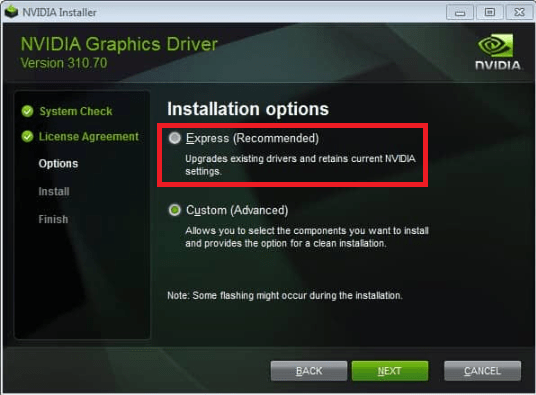
- Download And Install: If an update is available, click on the “DOWNLOAD” button to initiate the download process. Once downloaded, follow the prompts to install the updated drivers.
- Restart Your Computer: After installation, restart your computer to ensure that the new drivers take effect.
Installing Amd Gpu Drivers
If you’re using an AMD GPU, follow these steps to install the latest drivers:
- Visit The Amd Website: Go to the official AMD website and click on the “DOWNLOAD” button.
- Select Your Operating System: Choose your operating system (Windows or macOS) from the dropdown menu.
- Choose Your Driver: Select the driver that corresponds to your GPU model.
- Download And Install: Click on the “DOWNLOAD” button to initiate the download process. Once downloaded, follow the prompts to install the updated drivers.
- Restart Your Computer: After installation, restart your computer to ensure that the new drivers take effect.
Installing Intel Gpu Drivers
If you’re using an Intel GPU, follow these steps to install the latest drivers:
- Visit The Intel Website: Go to the official Intel website and click on the “DOWNLOAD” button.
- Select Your Operating System: Choose your operating system (Windows or macOS) from the dropdown menu.
- Choose Your Driver: Select the driver that corresponds to your GPU model.
- Download And Install: Click on the “DOWNLOAD” button to initiate the download process. Once downloaded, follow the prompts to install the updated drivers.
- Restart Your Computer: After installation, restart your computer to ensure that the new drivers take effect.
Alternative Methods
If you’re unable to update your GPU drivers using the methods above, don’t worry! There are alternative ways to install drivers manually:
- Download From Manufacturer’s Website: Visit the official website of your GPU manufacturer and download the driver package.
- Use a Driver Update Tool: Utilize a reputable driver update tool like Driver Booster or Driver Talent to scan for updates and install the latest drivers.
Troubleshooting Tips
If you encounter any issues during the installation process, here are some troubleshooting tips:
- Restart Your Computer: Sometimes, simply restarting your computer can resolve the issue.
- Check For Conflicts: Ensure that there are no conflicts with other software or hardware components.
- Contact Support: If you’re still experiencing problems, contact the manufacturer’s support team for assistance.
Conclusion
Updating your GPU drivers is a straightforward process that can significantly improve your gaming experience and overall system performance. By following these step-by-step guides for NVIDIA, AMD, and Intel GPUs, you’ll be able to install the latest drivers and enjoy seamless gaming and graphics performance.
Frequently Asked Questions (FAQs)
- Q: Why do I Need to Update my Gpu Drivers?
A: Updating your GPU drivers ensures that you have the latest features, improved performance, and enhanced security. - Q: How Often Should I Update my Gpu Drivers?
A: It’s recommended to update your GPU drivers every 3-6 months or when a new game or application is released that requires updated drivers. - Q: Can I Install Drivers From Other Manufacturers’ Websites?
A: No, it’s not recommended to install drivers from other manufacturers’ websites as they may not be compatible with your system. - Q: What if I Encounter Issues During Installation?
A: If you encounter issues during installation, try restarting your computer or contacting the manufacturer’s support team for assistance. - Q: Can I Use a Driver Update Tool to Install Drivers?
A: Yes, reputable driver update tools like Driver Booster or Driver Talent can be used to scan for updates and install the latest drivers.
We hope this guide has been helpful in resolving any issues you may have had with installing GPU drivers. Happy gaming!


